Showing posts with label find. Show all posts
Showing posts with label find. Show all posts
Sunday, January 22, 2017
How to Find Stolen or Lost Android Mobile Using Android Device Manager
How to Find Stolen or Lost Android Mobile Using Android Device Manager
I am Sure this is Awesome post for Android lovers and will enjoy.Yes! This is something big.Now you can find your lost,Misplaced and stolen Android device easily without any third party apps.In our previous post we explained how to Trace your lost android mobile with some apps but Here in this post you dont need any app to find your device where it is. This is can done by simply using Android device manager.

Android Manger is one which it will get installed directly on your device when you use Google play for the first time.So you dont need to download any third party apps.
Nobody knows that they will lost their device if they know that they will keep them safe for sure so maximum of people dont install any tracking app to trace their lost device.For this people android device manger can work like miracle.
Some Advantages:
- You can find your misplaced mobile or tab.
- You can erase data in your device from any where
- Helps you to trace your lost device.
- Lock your device from anywhere.
How to use Android device manger to find lost device:
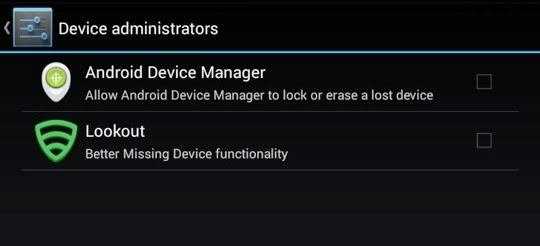
- First thing you need to do is using your device navigate to security in settings and then to device administrator.
- Now tap on it and activate if it is off.
Note: I suggest you to do this step right now because device administrator must be activate to take advantage of Android device manger.
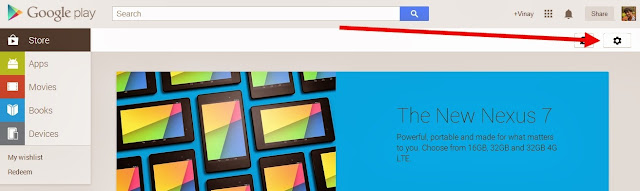
- Now go to Google Play Store.
- You can find Gear icon at right side top. Just like in below screen capture.
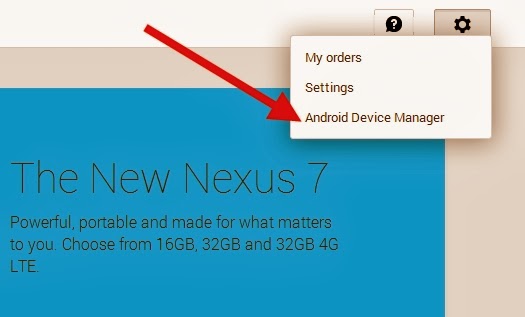
- Now Click on Gear icon then you can find three options My Order,Settings and then last Android device manager.Just click on Android device manager.
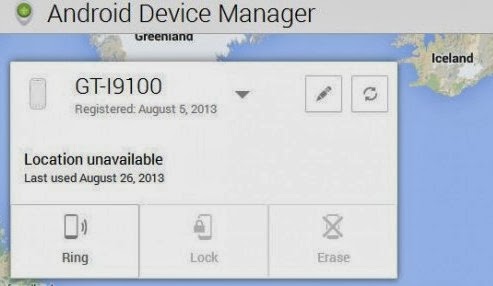
- As soon as you click on android device manager it will find the device with which it is associated.
- As soon as Android device manger find your device it will show you on Google maps. It will also indicate how far is your distance from you.
You can find 3 Options:
- Ring: If you click on Ring then your device mobile or tab will ring though it is in silent mode.This feature fails when device is switched off.
- Lock: If you click on Lock then it will lock your device and you can get new password to access your device.
- Erase: If you click on Erase then total memory in that device will be erased automatically.Make sure once you click erase then all the data will be deleted including android device manager so it wont work again.
Available link for download

How To Find Android Phone Even On Silent Mode
How To Find Android Phone Even On Silent Mode
There are many times when you just forget your Android phone somewhere and icing on the cake, your phone is kept on silent mode then you just can’t find it, no matter how hard you try, which is very annoying and frustrating.

Well, if you are also going through the same problem that I have mentioned above then now don’t worry because today I have created this tutorial in which I will teach you that how you can easily find Android phone even when it is on Silent mode. Well, there is an amazing app for fixing this annoying problem, which is known as Ring My Droid. It is one of the best app for your Android phone that you can use to find your Android phone even on Silent mode. The Ring My Droid app has a SMS triggered alarm function, so when you send a SMS to your Android phone then the alarm will ring on full volume so that you can easily find your Android phone, no matter how far it is. So, without wasting much of your valuable time, let’s get started with our tutorial.Learn-How To Find Android Phone
So, if you want to find your Android phone easily then follow the below given steps to get started.- First of all, open up your Android device and then go to Google Play Store.
- Now, in Google Play Store, type Ring My Droid in the search box and then tap on search icon button.
- Then, tap on the Ring My Droid app in the search results.
- Now, download and install the app on your Android phone.
- After the app is successfully installed on your phone then open it.
- Now, when you open the app then it will ask you to enter a Key Phrase. Well, the Key Phrase is just a secret phrase or word which is used to trigger the phone alarm unless you find it.
- After entering your desired Key Phrase then tap on Set button.
- Now, if you want to check that if it is working or not then just send a SMS from another phone with theKey Phrase that you have entered previously.
- Then, as your Android phone receives the SMS with the Key Phrase in it then it will trigger the alarm on full volume even when your phone is on Silent mode.
- That’s it! You are done!
Conclusion
So, this was all about how to find Android phone even when it is on Silent mode. I hope that now you will be able to find your Android phone easily and quickly. If you have any type of queries regarding this tutorial then do let us know, we will try our best to resolve them. And in the meantime, if you’d like this tutorial then don’t forget to share this with your friends and social circles too.
Available link for download
Saturday, October 29, 2016
Fix Windows cannot find IntegratedOffice exe error while installing Office 2013
Fix Windows cannot find IntegratedOffice exe error while installing Office 2013
Fix: Windows cannot find IntegratedOffice.exe error while installing Office 2013
 Most Windows computers have a copy of Microsoft Office installed on it. Today I was trying to install Office 2013 on one of my old computer running Windows 7. Everything was going smoothly until I came around the IntegratedOffice.exe error while installing this productivity suite on my Windows 7 machine. Following is the screenshot of the error which I was receiving continuously during the installation:
Read more »Available link for download
Monday, October 17, 2016
How to find that my processor is 32 bit or 64 bit in windows
How to find that my processor is 32 bit or 64 bit in windows
If you have already install 64-bit operating system then it is easy to say that your processor is 64-bit. To check that.....
For Windows 7/Vista users:
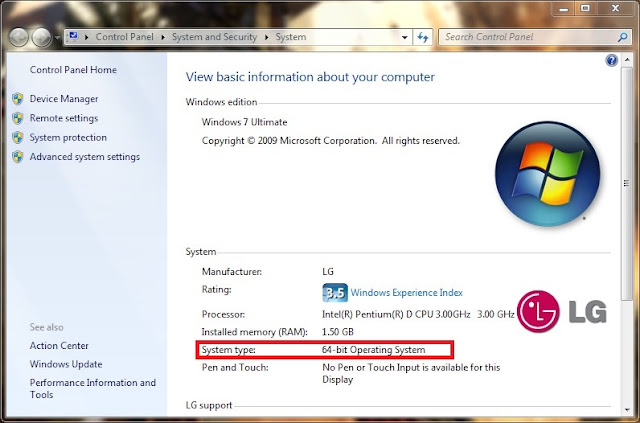
i) Right click on My computer > select Properties.
ii) Check to see that your System type is 64-bit operating system under System info.
For Windows XP users:
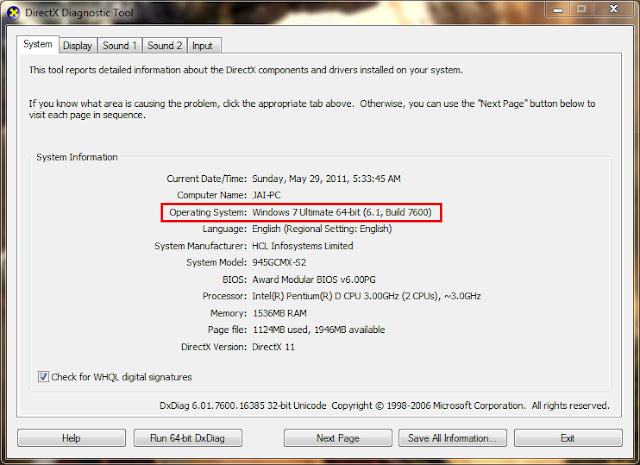
i) Click on Start button > Run > type dxdiag and hit enter.
ii) DirectX Diagnostic tool window will be opened.
iii) Check to see that your Operating system is 64-bit under the System Information.
If you have install 32-bit operating system there are different methods to find that your processor is 32-bit or 64-bit capable.
For Windows 7/Vista users:
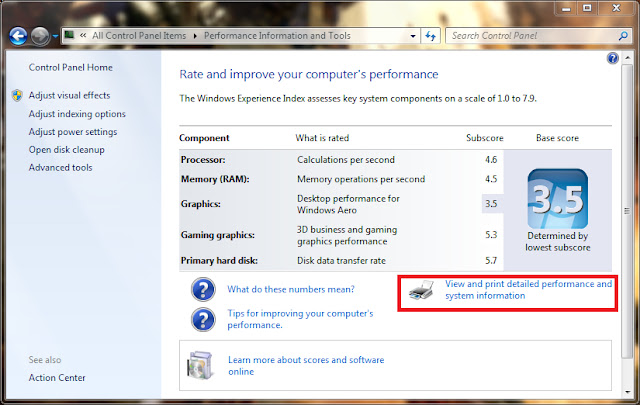
i) Right click on My Computer > select Properties > click on Windows Experience Index.
ii) Now click on View and Print detailed performance and system information.
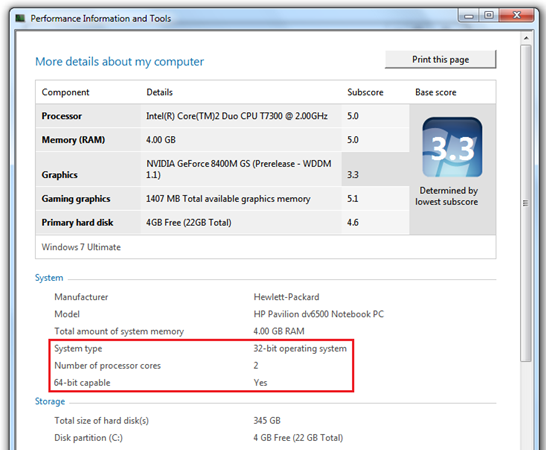
Here you will be able to see the current System type and if it is 64-bit capable Yes then your processor is 64-bit. If it is 64-bit capable No then your processor is 32-bit. If you are already running 64-bit operating system, the 64-bit capable info is not displayed.
For XP users:
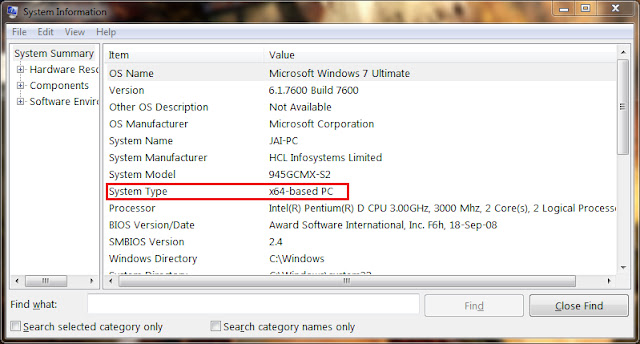
i) Go to Start > Run > type msinfo32.exe
ii) System Information window is opened.
iii) If you see x64-based PC under the System Type then your processor is 64-bit capable.
Using CPU-Z :
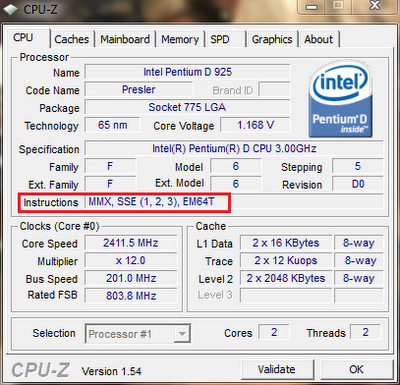
CPU-Z is a small utility which gives all information about your processor, Mainboard, Memory etc. You can download free from this link " http://www.cpuid.com/softwares/cpu-z.html " and install in your PC.
Under Instructions from CPU tab, if you see EM64T (if its Intel) or AMD64 (if its AMD) then your processor is 64-bit capable.
For Windows 7/Vista users:
i) Right click on My computer > select Properties.
ii) Check to see that your System type is 64-bit operating system under System info.
For Windows XP users:
i) Click on Start button > Run > type dxdiag and hit enter.
ii) DirectX Diagnostic tool window will be opened.
iii) Check to see that your Operating system is 64-bit under the System Information.
If you have install 32-bit operating system there are different methods to find that your processor is 32-bit or 64-bit capable.
For Windows 7/Vista users:
i) Right click on My Computer > select Properties > click on Windows Experience Index.
ii) Now click on View and Print detailed performance and system information.
Here you will be able to see the current System type and if it is 64-bit capable Yes then your processor is 64-bit. If it is 64-bit capable No then your processor is 32-bit. If you are already running 64-bit operating system, the 64-bit capable info is not displayed.
For XP users:
i) Go to Start > Run > type msinfo32.exe
ii) System Information window is opened.
iii) If you see x64-based PC under the System Type then your processor is 64-bit capable.
Using CPU-Z :
CPU-Z is a small utility which gives all information about your processor, Mainboard, Memory etc. You can download free from this link " http://www.cpuid.com/softwares/cpu-z.html " and install in your PC.
Under Instructions from CPU tab, if you see EM64T (if its Intel) or AMD64 (if its AMD) then your processor is 64-bit capable.
Available link for download
Subscribe to:
Posts (Atom)