Showing posts with label bluetooth. Show all posts
Showing posts with label bluetooth. Show all posts
Monday, March 27, 2017
Bluetooth keyboard mouse disconnects frequently in Windows 7 laptops
Bluetooth keyboard mouse disconnects frequently in Windows 7 laptops
SOLUTION:
1] Start > All Programs > Accessories > right click Command Prompt > select Run as Administrator.
2] Type the command as follows and hit Enter key
- powercfg -devicequery wake_programmable

Note: If your bluetooth device name is not listed using above command, then go to control panel > click keyboard/mouse properties > select Hardware tab > note your bluetooth keyboard/mouse device name.
3] Now type the command as follows and hit Enter key.
- powercfg -deviceenablewake <device name>
- powercfg -deviceenablewake "Microsoft Bluetooth Notebook Mouse5000"

4] Exit and restart your laptop to take effect.
5] Now you can check that your device is enabled to wake up at any sleep state by using the command below.
- powercfg -devicequery wake_from_any
Available link for download

Sunday, February 5, 2017
Bluetooth device was not discoverable or An error occured changes could not be saved and the bluetooth device may not be plugged in
Bluetooth device was not discoverable or An error occured changes could not be saved and the bluetooth device may not be plugged in
Solution:
1] Click Start > Run > type devmgmt.msc and hit enter.
2] Device Manager window will be opened and expand Bluetooth radios.
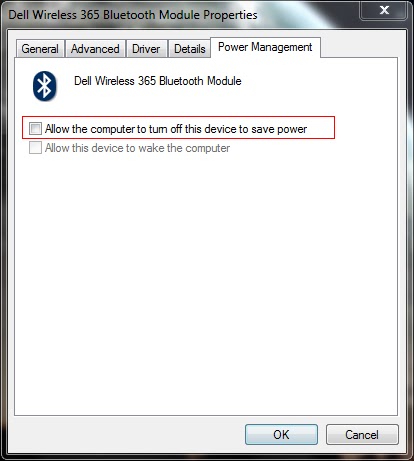
3] Right click on Wireless Bluetooth Module > Properties > Power Management tab.
4] By default windows turn off the bluetooth and wireless device.
5] Make sure that there is no tick mark in Allow computer to turn off this device to save power as shown in picture below.
6] Click OK to close the properties box.
1] Click Start > Run > type devmgmt.msc and hit enter.
2] Device Manager window will be opened and expand Bluetooth radios.
3] Right click on Wireless Bluetooth Module > Properties > Power Management tab.
4] By default windows turn off the bluetooth and wireless device.
5] Make sure that there is no tick mark in Allow computer to turn off this device to save power as shown in picture below.
6] Click OK to close the properties box.
7] Also expand the Network Adapters in the device manager window.
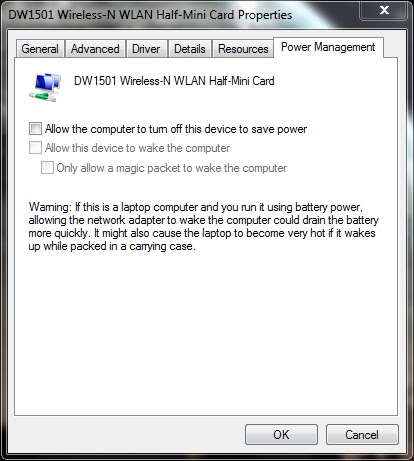
8] Right click on Wireless-N WLAN Half-Mini Card > Properties > Power Management tab
9] Make sure that there is no tick mark in Allow computer to turn off this device to save power.
10] If there is tick mark then the error will be pop-up saying your bluetooth device was not plugged in.
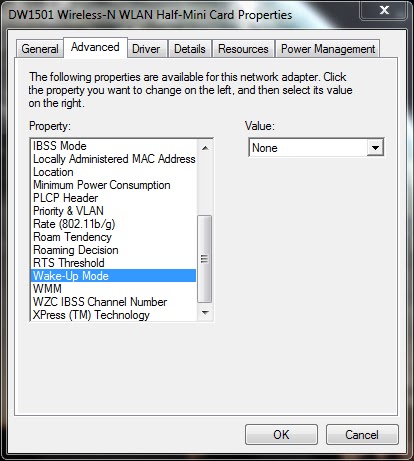
11] Now select Advanced tab > select Wake-up Mode > set Value as Disabled (or) None.
12] Click OK and close the Device Manager window.
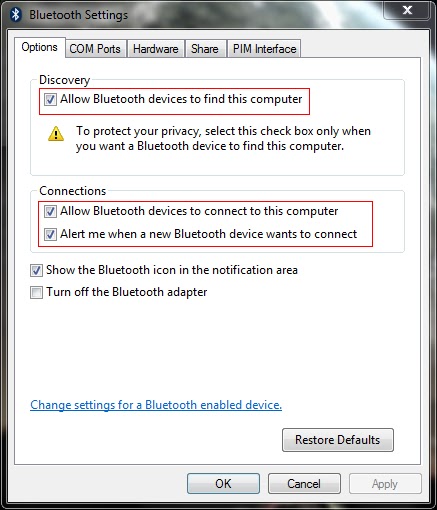
13] Now right click the Bluetooth radio button in the notification area of the taskbar and open settings.
14] Put the tick mark near the following options
- Allow bluetooth devices to find this computer
- Allow bluetooth devices to connect to this computer
- Alert me when a new bluetooth device wants to connect
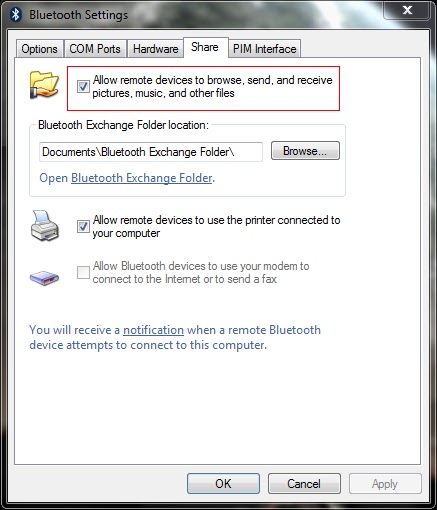
15] Now select the Share tab and put the tick mark near Allow remote devices to browse, send and receive pictures, music and other files.
16] Atlast click Apply and OK.
========================================================================
If the problem still exist then you have to check the bluetooth service.
1] Click Start > Run > type services.msc and hit enter.
2] Services window will be opened.
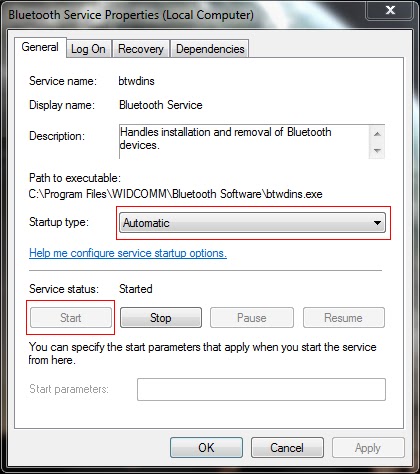
3] Locate the Bluetooth service and right click > properties.
4] Set the Startup type as Automatic and Start the service if it has Stopped.
5] Click Apply and OK.
6] Locate the Bluetooth Support service and right click > properties.
7] Set the Startup type as Automatic and Start the service if it has Stopped.
8] Click Apply and OK.
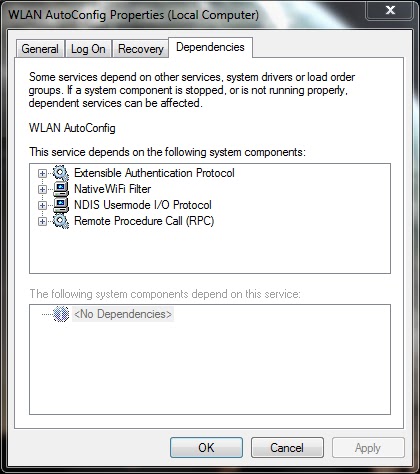
9] Similarly locate the WLAN AutoConfig service and repeat same procedure.
10] If you cant able to start the service, select the Dependencies tab and start all the services related to it by following the above steps.
Note: Also read my new post on "Bluetooth keyboard/mouse disconnects frequently in Windows 7 laptops"
Available link for download
Saturday, November 12, 2016
Bluetooth device driver was not successfully installed or No driver found for your bluetooth peripheral device
Bluetooth device driver was not successfully installed or No driver found for your bluetooth peripheral device
You may receive this error while you installing the driver for bluetooth in your laptop (or) connecting a bluetooth device to your laptop.

Solution:
NOTE : Also read my new post on Bluetooth device was not discoverable
Solution:
- While installing the bluetooth driver, please make sure that you must have a bluetooth enabled device like mobile phone, headset, mouse etc near your laptop as discoverable so that the laptop recognize the nearby bluetooth device and complete the installation of the bluetooth peripheral device driver in your laptop.
- While connecting a bluetooth device, please make sure that the bluetooth adapter is ON. If either your laptop discovers your mobile device (or) the mobile device discovers your laptop then the solution is easy. You can try sending some files from your laptop or mobile device which discovers first and vice versa so that the bluetooth peripheral device driver installs completly.
NOTE : Also read my new post on Bluetooth device was not discoverable
Available link for download
Subscribe to:
Posts (Atom)