Showing posts with label installed. Show all posts
Showing posts with label installed. Show all posts
Saturday, November 12, 2016
Bluetooth device driver was not successfully installed or No driver found for your bluetooth peripheral device
Bluetooth device driver was not successfully installed or No driver found for your bluetooth peripheral device
You may receive this error while you installing the driver for bluetooth in your laptop (or) connecting a bluetooth device to your laptop.

Solution:
NOTE : Also read my new post on Bluetooth device was not discoverable
Solution:
- While installing the bluetooth driver, please make sure that you must have a bluetooth enabled device like mobile phone, headset, mouse etc near your laptop as discoverable so that the laptop recognize the nearby bluetooth device and complete the installation of the bluetooth peripheral device driver in your laptop.
- While connecting a bluetooth device, please make sure that the bluetooth adapter is ON. If either your laptop discovers your mobile device (or) the mobile device discovers your laptop then the solution is easy. You can try sending some files from your laptop or mobile device which discovers first and vice versa so that the bluetooth peripheral device driver installs completly.
NOTE : Also read my new post on Bluetooth device was not discoverable
Available link for download

Monday, October 3, 2016
Fonts couldnt be installed for photoshop in Windows XP
Fonts couldnt be installed for photoshop in Windows XP
1. Download ATM light for windows.
2. Right click the setup file and extract the files to a folder.
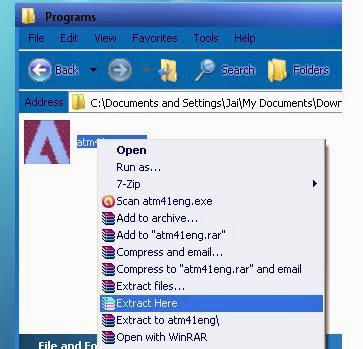
3. Run the setup.exe file from the extracted folder.
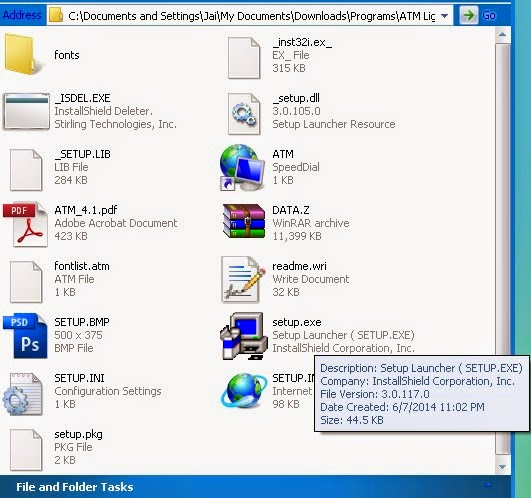
4. If you receive any errors, ignore it.

5. After installing, go to Start > All programs > Adobe > Adobe Type Manager and click the Adobe Type Manager program.

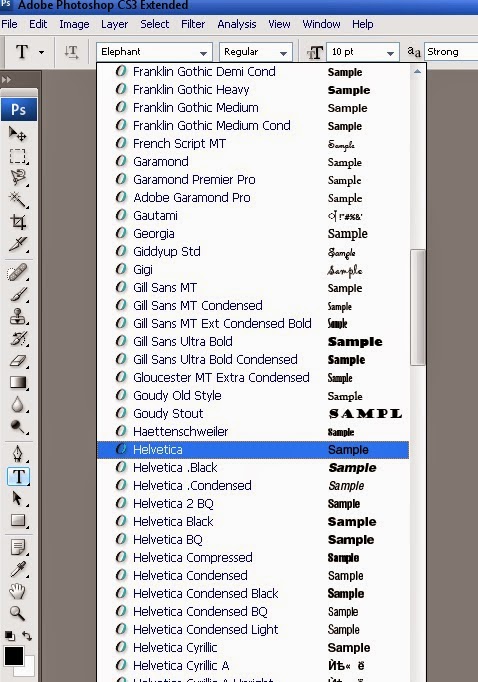
6. Now browse your folder from the drop-down list box where your fonts are located and select the appropriate fonts by using Shift+down arrow key (or) all fonts by ctrl+A key. For example, I add some Helvetica fonts.
7. Finally click the Add button to install in windows XP for Adobe Photoshop.
8. You can check it by restarting the Adobe Photoshop application.
2. Right click the setup file and extract the files to a folder.
3. Run the setup.exe file from the extracted folder.
4. If you receive any errors, ignore it.
5. After installing, go to Start > All programs > Adobe > Adobe Type Manager and click the Adobe Type Manager program.
6. Now browse your folder from the drop-down list box where your fonts are located and select the appropriate fonts by using Shift+down arrow key (or) all fonts by ctrl+A key. For example, I add some Helvetica fonts.
 | |
| Helvetica fonts for Photoshop |
7. Finally click the Add button to install in windows XP for Adobe Photoshop.
8. You can check it by restarting the Adobe Photoshop application.
Available link for download
Subscribe to:
Posts (Atom)