Showing posts with label mouse. Show all posts

Monday, March 27, 2017

Bluetooth keyboard mouse disconnects frequently in Windows 7 laptops


Bluetooth keyboard mouse disconnects frequently in Windows 7 laptops


SOLUTION:


1] Start > All Programs > Accessories > right click Command Prompt > select Run as Administrator.

2] Type the command as follows and hit Enter key
  • powercfg -devicequery wake_programmable
the above command will list devices that are user-configurable/disabled to wake up from sleep/stanby/hibernate.


Note: If your bluetooth device name is not listed using above command, then go to control panel > click keyboard/mouse properties > select Hardware tab > note your bluetooth keyboard/mouse device name.

3] Now type the command as follows and hit Enter key.
  • powercfg -deviceenablewake <device name>
For example if your device name is Microsoft Bluetooth Notebook Mouse5000, then type as follows,
  • powercfg -deviceenablewake "Microsoft Bluetooth Notebook Mouse5000"


4] Exit and restart your laptop to take effect.

5] Now you can check that your device is enabled to wake up at any sleep state by using the command below.
  • powercfg -devicequery wake_from_any
the above command will return all devices that support waking the system from any sleep state. Your bluetooth device keyboard/mouse must be listed here.

Available link for download


Read more »

Monday, January 30, 2017

Connect All your Computers with Single Mouse and Keyboard


Connect All your Computers with Single Mouse and Keyboard


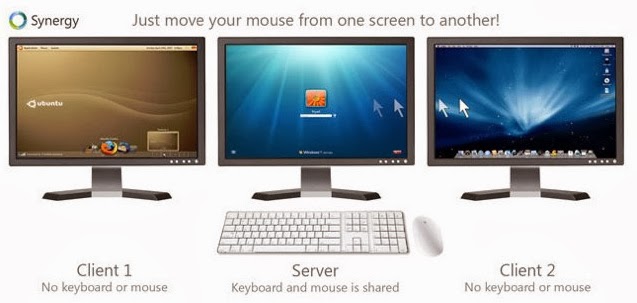
        Every computer has a keyboard, mouse, and monitor but now there is no need to have mouse and keyboard for every computer. If one computer has Keyboard then it can be used on other computers too without disconnecting the mouse and keyboard. So one mouse and keyboard are sufficient to manage all the things on multiple computers. This is made possible by Synergy.

single+keyboard+for+different+PCs

About Synergy:

Synergy is a small and powerful tool which lets you to use the mouse and keyboard on your different computers as a single mouse for all your computers.
Using synergy is so simple,It has simple user user interference which makes the users to understand the settings easily.
Synergy supports all the three major desktop operating systems Linux,Windows and MAC Os,(Under development for Mac OS X Mavericks). It is available for both 32 bit and 64 bit computers in respective formats.
connect+pc+with+single+mouse+and+keyboard

Here are great features of Synergy:

  • Supports encryption of information between your computers. (This way you can portect your files from bad guys in your network).
  • Simply move the mouse to the computer on which you want to work with your keyboard.
  • Copy the files to clipboard and share the files in other computers!.
  • Drag and Drop feature is avaible for Windows and MAC computers.
  • Only a local network connection is needed which establishes the connection between your computers.

Once look at below things:

  • Before you continue further make sure that the computers you want to use are on the same local network.
  • Make sure you turn on the network discovery and your computers are visible on local network.
  • And you need to know these terms that will be used here in this tutorial.
Server System: Here the server system is your main computer to which the mouse and keyboard are connected.
Client System: Here the client system is your secondary computer to which there is no mouse and keyboard connected. There can any number on client systems.

Installing-Configuring Synergy on your Computers

  • Now Download the Synergy software respective to your Operating systems.
  • For example if you are running Windows then you need to get the Windows version on Synergy from here [official link].
  • And if you are using Linux or MAC OS then you can get the Synergy verison which supports from here [Official link]
  • First Download this Synergy on to the server system ( which is connected with mouse and keyboard).

Configuring the server system:

  • After installation when you run Synergy on your computer you are allowed to choose the type of the computer(server or client).
  • As you have installed this software first on the system which is going to act as server. we are showing on configuring the server.
  • Click on the "configure server".
  • As you hit on "Configure Server" You will be presented with a new window titled server configuration.
2
  • Here in this screen shot Linux-Mint is my server computer and Windows 7 is my client computer (which doesnt have mouse and keyboard connection).
  • If you know what you are doing with the settings then you can play with the other advanced settings else leave them.
  • Now hit on save to complete your server configuration!.
  • And note down the server  IP address shown in the window.

Configuring the client computer:

  • Client computer is your another computer which doesnt have the mouse and the keyboard.
  • You need to install the synergy software on client system too.
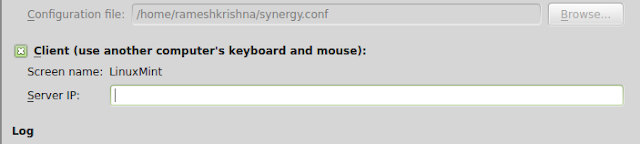
  • Configuring the client computer is same as configuring server machine.except choosing the client option instead of server option (in server configuration).
4
  • After selecting it enter the server ip address. Click on apply.
  • To starting sharing the computer.open your server computer and click on start then click on start on the client computer.
Thats it you are now done and you can share the single mouse and keyboard on multiple computers.
If you have liked this open source software..Please support them by donating.
If you feel this is hard to setup you can try the ShareMouse software which does the same work as Synergy.
Available link for download


Read more »

Monday, October 24, 2016

Use Keyboard as Mouse Trick


Use Keyboard as Mouse Trick


Use Keyboard as Mouse Trick

If your mouse is not working and you dont wish to wait till you get a new mouse, you would definitely like to know how you can use your keyboard as mouse. It is easy to use your mouse as keyboard in Windows using the On Screen Keyboard utility, but it is also possible to do the reverse.

Keyboard Mouse

All you need to do is:

Windows XP Users:-
  1. Go to Control Panel.
  2. Then click on Switch to Classic View.
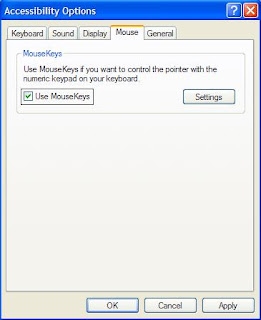
  3. Then Click on Accessibility Options.
  4. Then Click on the Mouse Tab.
  5. Select Use MouseKeys.
  6. Click on OK.
  7. Then activate NumberLock (by pressing the NumLk key).
  8. You should hear a beep sound.
  9. Now you can control the mouse pointer using the arrow keys on the numeric keypad.
use keyboard as mouse


More Tricks

  • Save you Facebook ID from Hackers
  • Very Basic Batch Tutorials
  • Increase facebook Followers Via List Exchange Trick
  • How to Lock a Folder in Windows 7/8/8.1
Windows 8Windows 7 and Vista Users:

  1. Open Ease of Access Center by clicking the Start button , clicking Control Panel, clicking Ease of Access, and then clicking Ease of Access Center. 
  2. Click Make the mouse easier to use.
  3. Under Control the mouse with the keyboard, select the Turn on Mouse Keys check box.

You can also increase the acceleration and speed of your mouse movements according to your needs.

You can alternately press the Alt+Shift+Num Lock combination to instantly activate Mouse keys.

Laptop Keyboard Mouse

For laptops, this will only work if your keyboard has a numeric keypad or alternate keys which you can enable by pressing the Number Lock or the Function key.

On my laptop, number 6 key of the numeric keypad moves the mouse pointer left, number 4 key moves the mouse pointer right, number 2 key moves it down, number 8 key moves the mouse pointer up, number 5 and + key serve as right click while the number 0 key works as left click.


Available link for download


Read more »