Showing posts with label keyboard. Show all posts

Monday, March 27, 2017

Bluetooth keyboard mouse disconnects frequently in Windows 7 laptops


Bluetooth keyboard mouse disconnects frequently in Windows 7 laptops


SOLUTION:


1] Start > All Programs > Accessories > right click Command Prompt > select Run as Administrator.

2] Type the command as follows and hit Enter key
  • powercfg -devicequery wake_programmable
the above command will list devices that are user-configurable/disabled to wake up from sleep/stanby/hibernate.


Note: If your bluetooth device name is not listed using above command, then go to control panel > click keyboard/mouse properties > select Hardware tab > note your bluetooth keyboard/mouse device name.

3] Now type the command as follows and hit Enter key.
  • powercfg -deviceenablewake <device name>
For example if your device name is Microsoft Bluetooth Notebook Mouse5000, then type as follows,
  • powercfg -deviceenablewake "Microsoft Bluetooth Notebook Mouse5000"


4] Exit and restart your laptop to take effect.

5] Now you can check that your device is enabled to wake up at any sleep state by using the command below.
  • powercfg -devicequery wake_from_any
the above command will return all devices that support waking the system from any sleep state. Your bluetooth device keyboard/mouse must be listed here.

Available link for download


Read more »

Friday, February 10, 2017

Complete List of Windows Keyboard Shortcuts


Complete List of Windows Keyboard Shortcuts


Complete List of Windows Keyboard Shortcuts


  • ALT+- (ALT+hyphen) Displays the Multiple Document Interface (MDI) child windows System menu
  • ALT+ENTER View properties for the selected item
  • ALT+SPACEBAR Display the System menu for the active window
  • ALT+F4 Close the active item, or quit the active program
  • ALT+ESC Cycle through items in the order they were opened
  • ALT+Underlined letter Display the corresponding menu
  • ALT+TAB Switch between open items
  • BACKSPACE View the folder one level up in My Computer or Windows Explorer
  • CTRL+X Cut
  • CTRL+A Select all
  • CTRL+B Bold
  • CTRL+I Italics
  • CTRL+C Copy
  • CTRL+Z Undo
  • CTRL+O Open an item
  • CTRL+U Underline
  • CTRL+V Paste
  • CTRL while dragging Copy selected item
  • CTRL+F4 Close the active document
  • CTRL+SHIFT while dragging Create shortcut to selected iteM
  • CTRL+LEFT ARROW Move the insertion point to the beginning of the previous word
  • CTRL+DOWN ARROW Move the insertion point to the beginning of the next paragraph
  • CTRL+RIGHT ARROW Move the insertion point to the beginning of the next word
  • CTRL+UP ARROW Move the insertion point to the beginning of the previous paragraph
  • SHIFT+DELETE Delete selected item permanently without placing the item in the Recycle Bin
  • ESC Cancel the current task
  • F1 Displays Help
  • F2 Rename selected item
  • F3 Search for a file or folder
  • F4 Display the Address bar list in My Computer or Windows Explorer
  • F5 Refresh the active window
  • F6 Cycle through screen elements in a window or on the desktop
  • F10 Activate the menu bar in the active program
  • SHIFT+F10 Display the shortcut menu for the selected item
  • CTRL+ESC Display the Start menu
  • SHIFT+CTRL+ESC Launches Task Manager
  • SHIFT when you insert a CD Prevent the CD from automatically playing
  • WIN Display or hide the Start menu
  • WIN+BREAK Display the System Properties dialog box
  • WIN+D Minimizes all Windows and shows the Desktop
  • WIN+E Open Windows Explorer
  • WIN+F Search for a file or folder
  • WIN+F+CTRL Search for computers
  • WIN+L Locks the desktop
  • WIN+M Minimize or restore all windows
  • WIN+R Open the Run dialog box
  • WIN+TAB Switch between open items

       Windows Explorer Shortcuts: 
  • ALT+SPACEBAR - Display the current window’s system menu
  • SHIFT+F10 - Display the items context menu
  • CTRL+ESC - Display the Start menu
  • ALT+TAB - Switch to the window you last used
  • ALT+F4 - Close the current window or quit
  • CTRL+A - Select all items
  • CTRL+X - Cut selected item(s)
  • CTRL+C - Copy selected item(s)
  • CTRL+V - Paste item(s)
  • CTRL+Z - Undo last action
  • CTRL+(+) - Automatically resize the columns in the right hand pane
  • TAB - Move forward through options
  • ALT+RIGHT ARROW - Move forward to a previous view
  • ALT+LEFT ARROW - Move backward to a previous view
  • SHIFT+DELETE - Delete an item immediately
  • BACKSPACE - View the folder one level up
  • ALT+ENTER - View an item’s properties
  • F10 - Activate the menu bar in programs
  • F6 - Switch between left and right panes
  • F5 - Refresh window contents
  • F3 - Display Find application
  • F2 - Rename selected item

More Tricks

  • Keyboard Dancing Led Light Trick
  • Learn To Make Dangerous Virus In A Minute
  • How to Lock a Folder in Windows 7/8/8.1
       Internet Explorer Shortcuts:
  • CTRL+A - Select all items on the current page
  • CTRL+D - Add the current page to your Favorites
  • CTRL+E - Open the Search bar
  • CTRL+F - Find on this page
  • CTRL+H - Open the History bar
  • CTRL+I - Open the Favorites bar
  • Available link for download


Read more »

Monday, January 30, 2017

Connect All your Computers with Single Mouse and Keyboard


Connect All your Computers with Single Mouse and Keyboard


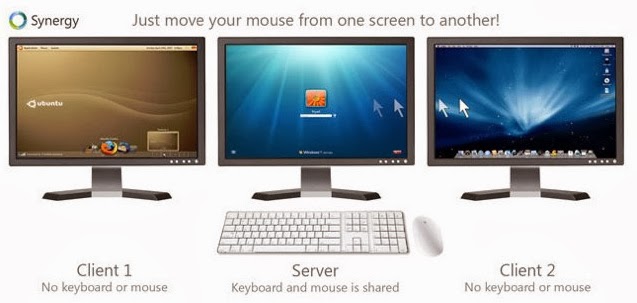
        Every computer has a keyboard, mouse, and monitor but now there is no need to have mouse and keyboard for every computer. If one computer has Keyboard then it can be used on other computers too without disconnecting the mouse and keyboard. So one mouse and keyboard are sufficient to manage all the things on multiple computers. This is made possible by Synergy.

single+keyboard+for+different+PCs

About Synergy:

Synergy is a small and powerful tool which lets you to use the mouse and keyboard on your different computers as a single mouse for all your computers.
Using synergy is so simple,It has simple user user interference which makes the users to understand the settings easily.
Synergy supports all the three major desktop operating systems Linux,Windows and MAC Os,(Under development for Mac OS X Mavericks). It is available for both 32 bit and 64 bit computers in respective formats.
connect+pc+with+single+mouse+and+keyboard

Here are great features of Synergy:

  • Supports encryption of information between your computers. (This way you can portect your files from bad guys in your network).
  • Simply move the mouse to the computer on which you want to work with your keyboard.
  • Copy the files to clipboard and share the files in other computers!.
  • Drag and Drop feature is avaible for Windows and MAC computers.
  • Only a local network connection is needed which establishes the connection between your computers.

Once look at below things:

  • Before you continue further make sure that the computers you want to use are on the same local network.
  • Make sure you turn on the network discovery and your computers are visible on local network.
  • And you need to know these terms that will be used here in this tutorial.
Server System: Here the server system is your main computer to which the mouse and keyboard are connected.
Client System: Here the client system is your secondary computer to which there is no mouse and keyboard connected. There can any number on client systems.

Installing-Configuring Synergy on your Computers

  • Now Download the Synergy software respective to your Operating systems.
  • For example if you are running Windows then you need to get the Windows version on Synergy from here [official link].
  • And if you are using Linux or MAC OS then you can get the Synergy verison which supports from here [Official link]
  • First Download this Synergy on to the server system ( which is connected with mouse and keyboard).

Configuring the server system:

  • After installation when you run Synergy on your computer you are allowed to choose the type of the computer(server or client).
  • As you have installed this software first on the system which is going to act as server. we are showing on configuring the server.
  • Click on the "configure server".
  • As you hit on "Configure Server" You will be presented with a new window titled server configuration.
2
  • Here in this screen shot Linux-Mint is my server computer and Windows 7 is my client computer (which doesnt have mouse and keyboard connection).
  • If you know what you are doing with the settings then you can play with the other advanced settings else leave them.
  • Now hit on save to complete your server configuration!.
  • And note down the server  IP address shown in the window.

Configuring the client computer:

  • Client computer is your another computer which doesnt have the mouse and the keyboard.
  • You need to install the synergy software on client system too.
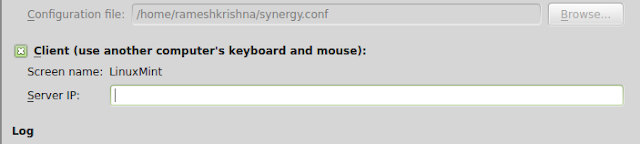
  • Configuring the client computer is same as configuring server machine.except choosing the client option instead of server option (in server configuration).
4
  • After selecting it enter the server ip address. Click on apply.
  • To starting sharing the computer.open your server computer and click on start then click on start on the client computer.
Thats it you are now done and you can share the single mouse and keyboard on multiple computers.
If you have liked this open source software..Please support them by donating.
If you feel this is hard to setup you can try the ShareMouse software which does the same work as Synergy.

Available link for download


Read more »

Wednesday, December 21, 2016

How to Type Symbols Using the Keyboard And ALT Key


How to Type Symbols Using the Keyboard And ALT Key


How to Type Symbols Using the Keyboard And ALT Key


  1. Type Symbols Using the ALT Key Step 1 Version 2.jpg

    1
    Learn how to key in an Alt-code.Hold down the Alt key and put in the numbers on the keypad to the right of the keyboard. When you finish entering the numbers and release the Alt key, the symbol will appear.
  1. Type Symbols Using the ALT Key Step 2 Version 2.jpg
    2
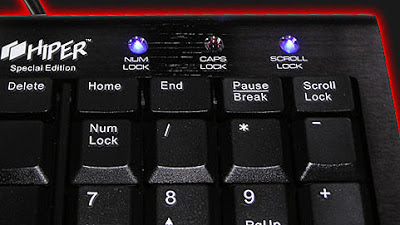
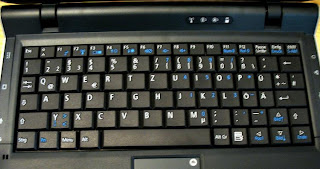
    Learn how to key in Alt codes on a laptop. Press the "Num Lock" key. (If its blue or grey, hold down the Fn key before pressing it.) The Number Lock activated the gray or blue keys on your keyboard; they should be arranged in a square. Hold down the ALT key, hit the & then the # and then use these numbers.
  1. Type Symbols Using the ALT Key Step 3 Version 2.jpg
    3
    Hold the Option key and press any other key to get custom characters

  1. Type Symbols Using the ALT Key Step 4 Version 2.jpg
    4
    To get a second set of custom characters, hold down both the Option keyand the Shift key
  2. Symbol Alt Codes (Press Alt Button and Enter Number from box listed below                       
Symbols With the ALT key plus numbers
  • © Copyrighted [0169]
  • ? coeur [3]
  • ® Reserved mark [0174]
  • ? Service mark [8480]
  • ? Celsius [8451]
  • ? Care of [8453]
  • ? Fahrenheit [8457]
  • ? Number symbol [8470]
  • ? Sound recording copyright [8471]
  • ? Prescription/pharmaceutical symbol [8478]
  • ? Ohm [8486]
  • ? Inverted ohm [8487]
  • ? Sunshine [9728]
  • ? Cloud [9729]
  • ? Umbrella [9730]
  • ? Snowman [9731]
  • ? Comet [9732]
  • ? Star (solid) [9733]
  • ? Star (outline) [9734]
  • ? Lightning [9735]
  • ? Thunderstorm [9736]
  • ? Sun [9737]
  • ? Ascending node [9738]
  • ? Descending node [9739]
  • ? Conjunction [9740]
  • ? Opposition [9741]
  • ? Phone (solid) [9742]
  • ? Phone (outline) 9743]
  • ? Checkbox [9744]
  • ? Ballot box [9745]
  • ? Ballot box with X [9746]
  • ? Saltire (St. Andrews Cross) [9747]
  • ? Left-pointing index finger (solid) [9754]
  • ? Right-pointing index finger (solid) [9755]
  • ? Left-pointing index finger (outline) [9756]
  • ? Upwards-pointing index finger (outline) [9757]
  • ? Right-pointing index finger (outline) [9758]
  • ? Downwards-pointing index finger (outline) [9759]
  • ? Skull & crossbones [9760]
  • ? Caution sign [9761]
  • ? Radioactive sign [9762]
  • ? Biohazard sign [9763]
  • ? Caduceus or "Kerykeion" [9764]
  • ? Ankh [9765]
  • ? Eastern Christian cross [9766]
  • ? Chi Rho cross [9767]
  • ? Patriarchal cross [9768]
  • ? Greek cross [9769]
  • ? Crescent moon & star [9770]
  • ? Farsi symbol [9771]
  • ? Adi Shakti [9772]
  • ? Hammer & sickle [9773]
  • ? Peace sign [9774]
  • ? Yin & yang [9775]
  • ? Trigram Heaven [9776]
  • ? Trigram Lake [9777]
  • ? Trigram Fire [9778]
  • ? Trigram Thunder [9779]
  • ? Trigram Wind [9780]
  • ? Trigram Water [9781]
  • ? Trigram Mountain [9782]
  • ? Trigram Earth [9783]
  • ? Dharma wheel [9784]
  • ? Frowning face [9785]
  • ? Smiley face [9786]
  • ? Black smiley face [9787]
  • ? Waxing crescent moon [9789]
  • ? Waning crescent moon [9790]
  • ? Mercury [9791]
  • ? Venus (female symbol) [9792]
  • ? Earth symbol [9793]
  • ? Mars (male symbol) [9794]
  • ? Jupiter [9795]
  • ? Saturn [9796]
  • ? Uranus [9797]
  • ? Neptune [9798]
  • ? Pluto [9799]
  • ? Aries [9800]
Symbols With the ALT key plus numbers
  • ? Taurus [9801]
  • ? Gemini [9802]
  • ? Cancer [9803]
  • ? Leo [9804]
  • ? Virgo [9805]
  • ? Libra [9806]
  • ? Scorpio [9807]
  • ? Sagittarius [9808]
  • ? Capricorn [9809]
  • ? Aquarius [9810]
  • ? Pisces [9811]
  • ? White king [9812]
  • ? White queen [9813]
  • ? White rook [9814]
  • ? White bishop [9815]
  • ? White knight [9816]
  • ? White pawn [9817]
  • ? Black king [9818]
  • ? Black queen [9819]
  • ? Black rook [9820]
  • ? Black bishop [9821]
  • ? Black knight [9822]
  • ? Black pawn [9823]
  • ? Black spade suit [9824]
  • ? Red heart suit [9825]
  • ? Red diamond suit [9826]
  • ? Black club suit (or shamrock) [9827]
  • ? Red spade suit [9828]
  • ? Black heart suit (or valentine) [9829]
  • ? Black diamond suit [9830]
  • ? Red club suit [9831]
  • ? Hot springs [9832]
  • ? Musical quarter note [9833]
  • ? Musical eighth note [9834]
  • ? Musical single bar note [9835]
  • ? Musical double bar note [9836]
  • ? Flat note [9837]
  • ? Natural note [9838]
  • ? Sharp note [9839]
  • ? Cut above [9985]
  • ? Cut here [9986]
  • ? Cut below [9987]
  • ? Scissors [9988]
  • ? Public pay phone [9990]
  • ? Film reel (tape spool) [9991]
  • ? Airport/airplane [9992]
  • ? Envelope/mail/email [9993]
  • ? Victory sign [9996]
  • ? Signature/sign here [9997]
  • ? Pencil diagonal down [9998]
  • ? Pencil [9999]
  • ? Pencil diagonal up [10000]
  • ? Checkmark [10003]
  • ? Heavy checkmark [10004]
  • ? Multiplication sign/X [100005]
  • ? Heavy multiplication sign/X [10006]
  • ? Ballot X [10007]
  • ? Heavy ballot X [10008]
  • ? Latin Roman cross [10013]
  • ? Latin cross 3D shadow [10014]
  • ? Latin cross outline [10015]
  • ? Maltese Cross [10016]
  • ? Star of David [10017]
  • ? Quotation mark single turned comma [10075]
  • ? Quotation mark single comma [10076]
  • ? Quotation mark double turned comma [10077]
  • ? Quotation mark double comma [10078]
  • ™ Trademark [0153]
  • ?= 777
  • ? Infinity [236]
  • ? [479]
  • ? Bar [478]
  • ? [457]
  • ? Play Forward [16]
  • ? Play Reverse [17]
  • ? Scroll Up [30]
  • ? Scroll Down [31]

Method 4 of 5: Foreign Language Alt Codes

Symbols With the ALT key plus numbers
  • Ç [128]
  • ü [129]
  • é [130]
  • â [131]
  • ä [132]
  • à [133]
  • å [134]
  • ç [135]
  • ê [136]
  • ë [137]
  • è [138]
  • ï [139]
  • î [140]
  • ì [141]
  • Ä [142]
  • Å [143]
  • É [144]
  • æ [145]
  • Æ [146]
  • þ [0254]
  • Þ [0222]
Symbols With the ALT key plus numbers