Showing posts with label without. Show all posts
Showing posts with label without. Show all posts
Saturday, March 18, 2017
Convert your Partition from FAT32 to NTFS with CMD without Formatting or losing data
Convert your Partition from FAT32 to NTFS with CMD without Formatting or losing data
Convert Your Partitions from FAT32 to NTFS Without Formatting or Losing your data through Command Prompt - No Need for any Software..
Dear Readers, today i will lead you to how to convert Partition of any drive attached to a Windows PC either its a Hard Disk Drive, Flash Drive or an External HDD from FAT32 to NTFS... Lets Start with the Basics...
What is a File System ?
A: A file system is the underlying structure a computer uses to organize data on a hard disk. If you are installing a new hard disk, you need to partition and format it using a file system before you can begin storing data or programs. In Windows, the three file system options you have to choose from are NTFS, FAT32, and the older and rarely-used FAT (also known as FAT16).
Advantages of NTFS over FAT32
Many a times you might have thought of converting your Partitions from FAT32 to NTFS because of the excessive features offered by the NTFS Partition and Suddenly a question arises that this might result in Loss of Data of your Partition.
What is a File System ?
A: A file system is the underlying structure a computer uses to organize data on a hard disk. If you are installing a new hard disk, you need to partition and format it using a file system before you can begin storing data or programs. In Windows, the three file system options you have to choose from are NTFS, FAT32, and the older and rarely-used FAT (also known as FAT16).
Advantages of NTFS over FAT32
- The capability to recover from some disk-related errors automatically, which FAT32 cannot.
- Improved support for larger hard disks.
- Better security because you can use permissions and encryption to restrict access to specific files to approved users.
- Maximum Volume Size is 2TB over 32GB of FAT32
- Maximum File Size for Storing is nearly Unlimited over 4GB of FAT32
- Allows Compression of Files and Folders where as FAT32 doesnt
- Has the ability to auto counter disk related problem that are not major, while FAT32 always performs Chkdsk command at startup when an error is encountered.
Many a times you might have thought of converting your Partitions from FAT32 to NTFS because of the excessive features offered by the NTFS Partition and Suddenly a question arises that this might result in Loss of Data of your Partition.
So, Heres how to get it done through Command Prompt..
Converting Your Partition File System From FAT32 to NTFS
Converting Your Partition File System From FAT32 to NTFS
- Open Command Prompt in Administrator Mode, To do this, click on start (Win XP/Vista/7) or Hit Windows button (Win 7/8) --> under the search bar, type in Command --> When you see a black icon labeled Command Prompt, Right click on it and select Run as Administrator.
- After the command prompt windows has appeared, enter the following command" convert C: /FS:NTFS " - without double quotes.(Replace letter C: with any drive you want to convert)
- You will be asked to confirm the Volume label of the Partition you want to convert.
- Thats it.. it will take some time depending on your system, running tasks and storage allocated to that partition.
- Take Sometime and perform " Chkdsk C: /F " command before converting your partition to any other filesystem. This ensures that you have a healthy partition and no errors occurs during conversion process.
Tags: convert partition without formatting, convert partition without losing data, fat32 to ntfs without software, convert ntf to fat32 with command prompt, command, cmd, dos
Available link for download

Friday, February 10, 2017
Transfer and Install Apps to from iPhone without iTunes
Transfer and Install Apps to from iPhone without iTunes
Prerequisites:
1. You must have itunes installed in PC/MAC.
2. You have Jailbroken iPhone with Cydia Installed. ( Refer here for more details on Jailbreaking and to Jailbreak head over to iClarified.)
3. You have installed “Installous” in iPhone (You can install it by adding http://cydia.hackulo.us/ repo in Cydia.) For more information visit here. For detailed guide on how to add repo in Cydia, Follow our Guide here.
Steps:
1. Download and install ifunbox for Mac/PC from here : http://www.i-funbox.com/
2. Connect iphone to ifunbox (Close itunes )

3. Go to Installous in ifunbox.
4. Drag and Drop apps which you want to install from PC to Installous in ifunbox.
5. Open Installous in IPhone.
6. Go to Downloads tab in it.
7. Tap on App and select Install.
8. Done.
In reverse manner, if you have downloaded any apps in Installous (Though I won’t encourage you to download pirated apps) then, you need to transfer those apps to iTunes otherwise when you’ll sync it with iTunes, it’ll get deleted. To do that, follow below steps.
1. Follow above steps 1 to 3
2. Select the app you have downloaded in installous in ifunbox.
3. Click on transfer to PC.
4. Move the transferred apps to Users[Username]MusiciTunesMobile Applications.
5. Disconnect the iPhone and run iTunes.
6. Drag and drop copied apps from Users[Username]MusiciTunesMobile Applications to itunes Application tab.
7. Connect the iPhone and Sync.
8. Enjoy..!!
Available link for download
Saturday, January 28, 2017
Setup Videocon Internet on PC with Mobile without PC Suite
Setup Videocon Internet on PC with Mobile without PC Suite
Setup Videocon Mobile Internet on PC without PC Suite through Manual Settings
Dear Readers, to do this, You need USB drivers of your mobile phone be installed on your PC, which you are gonna use for Internet access. In order to access Internet on Your PC, you need to follow these two steps:
Set up a Dial-Up Connection:
- Click on Start Button and go to Control Panel
- Open Network Connections.
- From the Left Windows Task Pane, Select "Create a New Connection"
- A Connection Wizard will open, Select Next and then Select Connect to Internet from the list provided.
- Choose to "Setup my Connection Manually" and hit Next.
- Choose " Connect using a dial-up modem" and hit Next.
- Enter ISP Name as " Videocon " without Quotes Next --> " *99# " as Phone Number and hit Next, Leave the Username and Password fields blank and hit Next. Finally click on "Finish".Now youre Dial-up Connection is Set..
Set Up Your Modem:
- Again Go to Control Panel ---> " Phone and Modem Options ".
- Enter " 01 " as your Area Code and Hit Next.
- Make sure you Modem is Listed under Modems Tab and is in Working Condition, if your modem isnt listed then make sure you have installed usb drivers for your phone and your phone is connected to your PC in either " PC Suite " Mode or " Connect to PC " Mode. Youll have your Modem listed as soon as your USB drivers have finished installing.
- Select your Modem and hit on Properties.
- Now Go to Advanced Tab and enter extra initialization commands exactly as +CGDCONT=001,"IP","vinternet.com"
- Apply the settings and click OK.
Youre now Setup manually with Videocon Mobile Internet on PC with Manual Settings.. Enjoy !!!
Available link for download
Wednesday, January 25, 2017
BACKUP WINDOWS WITHOUT THIRD PARTY SOFTWARE PART III
BACKUP WINDOWS WITHOUT THIRD PARTY SOFTWARE PART III
Now I will introduce you to backup and restore your windows 8 or 8.1. The way to restore windows 8 or 8.1 is same windows 7 that I posted "BACKUP WINDOWS WITHOUT THIRD-PARTY SOFTWARE PART II".
BACKUP:
Step 1: Access to Control Panel:

Step 2:

Step 3:

Step 4:

Step 5: You can select save your image backup on Local partition or an other partition on your LAN network.

Step 6:

Step 7:

Step 8: Wait until it done and result like below:

RECOVERY:
You do samely Step 1 to Step 4 but now you select Recovery instead of System image backup:

Step 2: Now you download System image recovery disc for windows 8 or 8.1 from here and do like with windows 7 to restore. You can read my post here.
Good luck!
Linkstoos!
Available link for download
Monday, January 23, 2017
Install Latest and Bigger Games including Data Files on Internal Storage without Partition Android Hack Application
Install Latest and Bigger Games including Data Files on Internal Storage without Partition Android Hack Application
FolderMount [ROOT REQUIRED]

Dear Users, You may have already seen or tried the Link2SD Android Application, that allows you to create links to external storage but with limitations such as Need to create a Secondary Partition that usually results in Partition getting dirty sooner and Unable to Move the Android OBB data files to external storage as a result of which you can save merely 100-200 MB of Internal Storage by Creating Links to SD Card with Link2SD but this isnt enough right...
Now, here im presenting you guys a new android application known as Folder Mount.. Available as Free App in Google Play Store.. This Application Moves data to Internal Storage and then Mounts Files and OBB data on Internal Storage as if the data has been stored in internal storage instead of external storage. Such as GTA Vice City, NOVA 3, Need for Speed: Most Wanted, Modern Combat 4, Virtual Tennis Challenge etc.
Installation:
- Download the .apk application and Install on your android device.
- Open the Application and Allow SuperUser Access.
- Click on Top Left menu and Select Apps Analyzer Option.
- Select the App you want to Mount to External Storage.
- Click to Create Pair for both Data and OBB Files.
- Select "Yes" to automatically allow the Application to Move Data to External Storage.
- You are DONE.. ENJOY !!!
Limitations:
The only limitation of this application is Free Version supports only 3 Pairs of Applications. For Linking More than that or all of your applications, Get the Pro Version to unlock all the functionality.
Get PRO Version for FREE.. !!
- Install the Application Freedom and allow Root Access.
- After this has been done, Select "START" option by Clicking Soft Menu button on your Device and then Selecting FolderMount..
- Now open FolderMounts Settings Menu and Click on "Purchase Pro Version" & Make sure you are connected to the Internet..
- Select to Pay From Google Play Store (Recommended).
- Now youll be presented with a Free Card something like XXXX-XXXX-XXXX-5689 or Something.
- Finally Click on Pay Now button and wait for confirmation message.
- Done.. Now Restart the Application to use Pro Version Mode.. ENJOY.. !!!

Folder Mount - Tusfiles OR Mediafire
Freedom - Tusfiles OR Mediafire
tags: install large applications on low specs phone, increase storage, hack android, script storage, mount external storage, increase free internal storage, how to install large game files and obb files in internal storage,
Available link for download
Thursday, January 19, 2017
Sandboxie Use Keygens and other cracks without infecting your system
Sandboxie Use Keygens and other cracks without infecting your system
Sandboxie - Allows you to execute dangerous but much needed files such as Keygens and/or Patches without Infecting your system..
Dear Friends, as you all know while downloading keygens/cracks/patches from internet are usually found to be Trojans/Viruses by our Antivirus software. But the problem arises when we desperately need that crack/keygen to run so sandboxie is the solution to all of your problems. Although i dont prefer using keygens/cracks since they involve software piracy.
How it works: Sandboxie runs your programs in an isolated space which prevents them from making permanent changes to other programs and data in your computer.
 |
| Sandboxie |
The red arrows indicate changes flowing from a running program into your computer. The box labeled Hard disk (no sandbox) shows changes by a program running normally. The box labeled Hard disk (with sandbox) shows changes by a program running under Sandboxie. The animation illustrates that Sandboxie is able to intercept the changes and isolate them within a sandbox, depicted as a yellow rectangle. It also illustrates that grouping the changes together makes it easy to delete all of them at once.
Benefits of the Isolated Sandbox
Secure Web Browsing: Running your Web browser under the protection of Sandboxie means that all malicious software downloaded by the browser is trapped in the sandbox and can be discarded trivially.
Enhanced Privacy: Browsing history, cookies, and cached temporary files collected while Web browsing stay in the sandbox and dont leak into Windows.
Secure E-mail: Viruses and other malicious software that might be hiding in your email cant break out of the sandbox and cant infect your real system.
Windows Stays Lean: Prevent wear-and-tear in Windows by installing software into an isolated sandbox.
Download Here
NOTE : SUPPORT THE AUTHOR OF THE SOFTWARE BY BUYING IT..
Available link for download
Wednesday, January 18, 2017
How to Backup app data on Android without Rooting
How to Backup app data on Android without Rooting
Backup your Android Devices Application Data along with Applications

You can safely backup your application data from your Android device itself. Helium (formerly known as Carbon) is your solution. How to use Helium (Carbon) to backup your app data...
- Download and Install Helium (Free or Premium) from Google Play Store.
- Install desktop version of Helium <--- Click here to download
- Enable USB Debugging on your device. (For android 4.2 and up users, go to Settings>About> Tap 7 to 8 times on Build Number until to you see a message " You are now a developer ")
- Install USB drivers of your device if you are running on Windows Platform. Please note that USB drivers that you install must support ADB. (You can also try installing drivers from Windows Update if you are unable to get manufacturers drivers)
- Connect your device to PC via USB Cable in PTP Mode (Portable Camera) making sure you have USB Debugging ON.
- After you have done with this, Open Helium app on your device and Helium desktop on your PC, this will activate Helium to work on your device unless you perform a restart
You can now backup your app data along with apps either to your SD Card or Your PC... ENJOY!!!
NOTE: This will not work with Motorola Devices due to bug from Motorolas Side...
 |
| Click here to Download |
Available link for download
Thursday, January 12, 2017
How to download Google Chrome Official Offline installer without any 3rd party website
How to download Google Chrome Official Offline installer without any 3rd party website
How to download Google Chrome Official Offline Installer without any 3rd party website?
Procedure is simple, follow step by step rule to download official offline installer google chrome.
Step1: Open Google Chrome browser & click on (right side top menu button) and select Help >> About Google Chrome.
Step2: If you see any error code & link Example: ( An error occurred while checking for updates: Update check failed to start (error code 3: 0x80040154).). Then click on the link to continue..

Step3: When error page opened, you will see two links, click one of them to continue.

Step4: Click on download button to continue.

Step5: Now click on the (Accept and install) button to continue.

Step6: Wait & start downloading Google Chrome offline installer with resume support.


Procedure is simple, follow step by step rule to download official offline installer google chrome.
Step1: Open Google Chrome browser & click on (right side top menu button) and select Help >> About Google Chrome.
Step2: If you see any error code & link Example: ( An error occurred while checking for updates: Update check failed to start (error code 3: 0x80040154).). Then click on the link to continue..
Step3: When error page opened, you will see two links, click one of them to continue.
Step4: Click on download button to continue.
Step5: Now click on the (Accept and install) button to continue.
Step6: Wait & start downloading Google Chrome offline installer with resume support.
If you like this post then share to others
Available link for download
Thursday, January 5, 2017
Dell 7537 Windows 10 Upgrade issue reboot loop and how to rebuild without Recovery disk create Dell recovery disk yourselves
Dell 7537 Windows 10 Upgrade issue reboot loop and how to rebuild without Recovery disk create Dell recovery disk yourselves
Reboot loop after upgrading to Windows 10 & Rebuild Dell machine from scratch without recovery disk.
Even though Im writing this blog little bit late but I think it might be useful to others. With Windows 10 release I started upgrading my Dell 7537 laptop to Windows 10 on first day itself, I did created Dell recovery disk as I was was confident that upgrade will go smooth, but it didnt happen :(.
After upgrading to Windows 10 my laptop was on continuous reboot loop and I tried various options from Boot such as changing to GPT, UEFI and it didnt help at all. Now Im stuck as there was no option to go back to Windows 8.1 and I dont have recovery disc, I tried searching media all over WEB but I couldnt find source anywhere. Then I contacted Dell UK Support and they informed me that Dell Recovery Disks costs around £29/- which I was not ready to pay. Moreover they can only provide disks but the model doesnt have CD/DVD Drive, hence recovery disks from DELL is not solution at all, when I asked support engineer how to recover with disks he dont have answer, what he mentioned was I need to use another computer to convert disks into bootable USB Disk. After getting escalated to his line manager he offered to provide disks for free but he mentioned it takes 5 business days to receive (I actually received after 10 days). Also I cant install OS without Product Key, at least in my model I dont have Product Key sticker its embedded in hardware.
As my machine was no use and didnt have recovery disks yet from Dell, I have started searching various other options by going through various blogs. I came across this wonderful & very helpful sites for Dell - http://dellwindowsreinstallationguide.com/ by Philip Yip.
What I understand is that we cannot directly build Windows 10 even if you have Product Key, the option is to upgrade Activated version of Windows 7 or 8 to Windows 10.
Note by performing below steps you will lose the data as we are formatting so I suggest you to take backup on another disk.
Requirements
- A working machine with internet connectivity
- USB Disk with at least 8GB
Since my machine is not bootable I followed the below steps
- Downloaded Windows 8.1 media creation tool
- Downloaded Windows 8.1 x64 ISO
- Using Rufus-2.2 created bootable version of 8.1
- Make sure Dell Laptop is configured with UEFI Partition & GPT disks (this is default settings for Dell laptop)
- Boot from USB Stick it will automatically build the machine with Windows 8.1
- After installation, Windows 8 is activated
- I didnt install NVIDIA GEFORCE drivers as many said the reboot loop might be because of nvidia display
- Download Windows 10 using media creation tool
- copied the ISO to bootable USB media using Rufus
- From windows 8 itself launched setup.exe and it upgraded windows 10 without any issue.
Creating Windows 10 Recovery Disk from Philip Yip -
YouTube - https://www.youtube.com/watch?v=4BUNvnIFT3g&feature=youtu.be
Step by step - http://dellwindowsreinstallationguide.com/a-clean-install-of-windows-10/creating-a-recovery-drive-and-using-it-in-windows-10/#Creating
Download link for Windows 10 media creation tool
http://windows.microsoft.com/en-in/windows-10/media-creation-tool-install
Download link for Windows 8.1 media creation tool
http://windows.microsoft.com/en-IN/windows-8/create-reset-refresh-media
Creating bootable USB disk for DELL with UEFI Partition
http://dellwindowsreinstallationguide.com/a-clean-install-of-windows/converting-your-dell-windows-reinstallation-dvd-into-a-reinstallation-usb/#BootableUSB
You can check your OS Product key embedded in hardware using RWEverything and following steps mentioned here
http://dellwindowsreinstallationguide.com/a-clean-install-of-windows/a-clean-install-of-windows-8-1/installation-of-windows-8-1-with-a-windows-8-0-retail-product-key-notes/#OEMKey
Philip Yip website was very useful & helpful as I could recover my machine without recovery disk from Dell.
Available link for download
Sunday, December 25, 2016
Change Window 7 Password Without Knowing Current Password
Change Window 7 Password Without Knowing Current Password
Change Window 7 Password Without Knowing Current Password
More Tricks
- Save you Facebook ID from Hackers
- Very Basic Batch Tutorials
- Increase Facebook Followers Via List Exchange Trick
- How to Lock a Folder in Windows 7/8/8.1
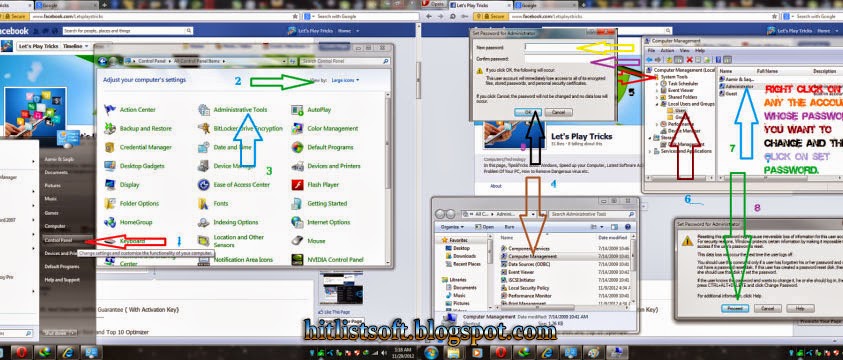
Go to Control Panel and click on the Administrative Tools
Step 2 :
Under this section double click on Computer Management.
Select System Tools from right window pane.
Step 3 :
Under this, just double clickon Local Users and Groups and then on Users
Step 4 :
Now you will see all the login accounts of your computer.
Step 5:
.Right click on any the account whose password you want to change and then click on Set Password.
Step 6 :
A warning message will popup on your screen just click on Proceed button.
Step 7 :
Now enter your New Password and click on OK button.
Enjoy...........
Available link for download
Saturday, December 24, 2016
How To Download Android Apps From Google Play Store To Your Computer Without Any Plugin Urdu Video Tutorial
How To Download Android Apps From Google Play Store To Your Computer Without Any Plugin Urdu Video Tutorial
How To Download Android Apps From Google Play Store To Your Computer Without Any Plugin Urdu Video Tutorial
For More Videos Keep In Touch With Me!
How To Donwload Apps From Google Play To Your... by Uma-Farooq
Available link for download
Thursday, December 22, 2016
How to Solder QFN MLF chips Using Hot Air without Solder Paste and Stencils
How to Solder QFN MLF chips Using Hot Air without Solder Paste and Stencils
Available link for download
Wednesday, November 30, 2016
Create password protected folder without any software
Create password protected folder without any software
Steps to create a password protected folder in windows without any requirement of any folder locking software!!! The code for this is:
cls
@echo off
title Folder Locker
IF EXIST "Control Panel.{21EC2020-3AEA-1069-A2DD-08002B30309D}" GOTO UNLOCK
IF NOT EXIST Locker GOTO MDLOCKER
echo Folder Created.
:CONFIRM
echo Are you sure you want to lock the folder? (Y/N)
set/p "cho="
IF %cho%==Y GOTO LOCK
IF %cho%==y GOTO LOCK
IF %cho%==N GOTO END
IF %cho%==n GOTO END
echo Invalid Choice.
GOTO CONFIRM
:LOCK
ren Locker "Control Panel.{21EC2020-3AEA-1069-A2DD-08002B30309D}"
attrib +h +s "Control Panel.{21EC2020-3AEA-1069-A2DD-08002B30309D}"
echo Folder Locked.
GOTO END
:UNLOCK
echo Enter password to unlock the Folder :
set/p "pass="
IF NOT %pass% == YourPassword GOTO FAIL
attrib -h -s "Control Panel.{21EC2020-3AEA-1069-A2DD-08002B30309D}"
ren "Control Panel.{21EC2020-3AEA-1069-A2DD-08002B30309D}" LOCK
echo Folder Unlocked Successfully.
GOTO END
:FAIL
echo Invalid Password!
GOTO END
:MDLOCKER
md Locker
echo Folder created.
GOTO END
:END
PAUSE
[change the word- YourPassword in the above code with your own password]
cls
@echo off
title Folder Locker
IF EXIST "Control Panel.{21EC2020-3AEA-1069-A2DD-08002B30309D}" GOTO UNLOCK
IF NOT EXIST Locker GOTO MDLOCKER
echo Folder Created.
:CONFIRM
echo Are you sure you want to lock the folder? (Y/N)
set/p "cho="
IF %cho%==Y GOTO LOCK
IF %cho%==y GOTO LOCK
IF %cho%==N GOTO END
IF %cho%==n GOTO END
echo Invalid Choice.
GOTO CONFIRM
:LOCK
ren Locker "Control Panel.{21EC2020-3AEA-1069-A2DD-08002B30309D}"
attrib +h +s "Control Panel.{21EC2020-3AEA-1069-A2DD-08002B30309D}"
echo Folder Locked.
GOTO END
:UNLOCK
echo Enter password to unlock the Folder :
set/p "pass="
IF NOT %pass% == YourPassword GOTO FAIL
attrib -h -s "Control Panel.{21EC2020-3AEA-1069-A2DD-08002B30309D}"
ren "Control Panel.{21EC2020-3AEA-1069-A2DD-08002B30309D}" LOCK
echo Folder Unlocked Successfully.
GOTO END
:FAIL
echo Invalid Password!
GOTO END
:MDLOCKER
md Locker
echo Folder created.
GOTO END
:END
PAUSE
And save it in .bat format (example:- hackingtricks.bat)
[change the word- YourPassword in the above code with your own password]
Available link for download
Tuesday, November 22, 2016
How To Create A Folder Without Any Name Blank Space In Windows 7 8 and XP
How To Create A Folder Without Any Name Blank Space In Windows 7 8 and XP
People are fond of playing pranks on their friends, doing something which can irritate their friends and make them feel surprised. Pranks can be in the form of jokes or tricks and these pranks can at times create big laughs but may also lead to huge fights.
A way of playing pranks on your friends is by creating nameless folders in your windows. It is a trick which can make the other person feel irritated and I am sure you would love this feeling. This task can be accomplished very easily one has to just follow the below mentioned steps and within no time the task is done. So, don’t kill the time and prank your friends.
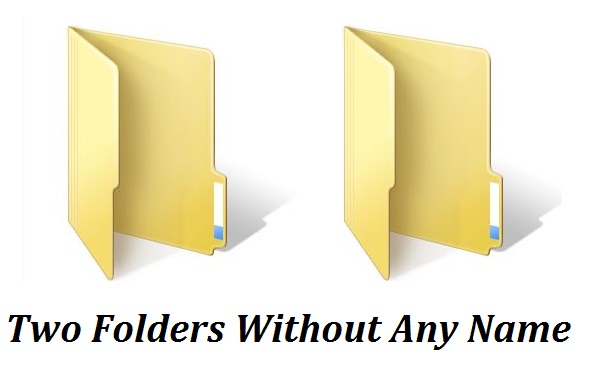 For this you will have to rename the file with 2 spaces. Just follow these steps below:
1. Select file, press F2.
2. Hold alt key and type 0160 from the numpad.
3. Release the alt key. Now without doing anything else, again hold Alt key and press 0160.
4. Press enter and you will have second nameless file in the same directory.
5. Repeat step 3 to create as many nameless files or folders in the same directory.
A way of playing pranks on your friends is by creating nameless folders in your windows. It is a trick which can make the other person feel irritated and I am sure you would love this feeling. This task can be accomplished very easily one has to just follow the below mentioned steps and within no time the task is done. So, don’t kill the time and prank your friends.
Step By Step Procedure To Create A folder With Blank Space
1. Select any file or folder whose name you want to remove or change its name as a blank space.
2. Right click on it and choose rename or simply press F2 from keyboard to rename that file or folder
3. Press and hold the Alt key. While holding the Alt key, type numbers 0160(0r 999999999 or 255) from the numpad.
2. Right click on it and choose rename or simply press F2 from keyboard to rename that file or folder
3. Press and hold the Alt key. While holding the Alt key, type numbers 0160(0r 999999999 or 255) from the numpad.
Note: Type the numbers 0160 from the numpad, that is, the numbers present on the right side of the keyboard. Don’t type the numbers which are present on top of the character keys.
4. Press Enter and the nameless file or folder will be created.Note: The file or folder that seems nameless is actually named with a single blank space.
How to create another folder without name on the same location
For this you will have to rename the file with 2 spaces. Just follow these steps below:1. Select file, press F2.
2. Hold alt key and type 0160 from the numpad.
3. Release the alt key. Now without doing anything else, again hold Alt key and press 0160.
4. Press enter and you will have second nameless file in the same directory.
5. Repeat step 3 to create as many nameless files or folders in the same directory.
Available link for download
Monday, November 7, 2016
Alternate Logon to Windows XP without Password
Alternate Logon to Windows XP without Password
Logon to Windows XP with Secondary Logon without the need to enter a Password
Dear Readers, if you ever tried to enter a Windows XP system usually found on Schools, Cafe, Offices, Work Place etc. and were unable to logon because you didnt know the password for a specific account available in that system, then this trick may solve your problem... All you need to do is follow these instructions:
- Press " ALT + CTRL + DEL " (Without Quotes) twice at the logon screen. (Make sure there is no account with name Administrator)
- A Secondary Logon will popup.
- In the User field, enter " Administrator " (Without Quotes) and Leave the password field blank/empty.
- Press Enter. It should let you in. ( If not, there is possibility that the User had set an administrative password during Windows XP Installation).
Q: Want to know why & how this trick works ??
A: The simple answer to this question is that during an unattended Windows XP Installation or Installing Windows XP from MiniXP or Certain Modded Windows XP ISO Image* files, the Installation process skips the User Account Setup and directly asks the user to Create user account with up to 5 accounts options as you may have already noticed. This setups the secondary User Account with Administrative Privileges, while the Primary Administrator is set without or a blank password which when used with this trick, doesnt require you to enter any password...
* Modded ISO Images are modified form of an Original ISO Image file, in such a manner to allow customization of Core OS that may or may not include features, programs, customization, personalization, extra drivers, apps, themes, registry hacks, explorer hacks etc etc.
Available link for download
Tuesday, October 25, 2016
Tutorial How To Know All Hardware Details Of Your P C Or Laptop Without Any Software With Pictures …
Tutorial How To Know All Hardware Details Of Your P C Or Laptop Without Any Software With Pictures …
Its Very Important To Know what your System have! , Like : Size of Graphic Card ,BIOS , E.T.C..
But The Question Is “HOW”?????
How To Check Your Full System Without Any Software…..!


But The Question Is “HOW”?????
How To Check Your Full System Without Any Software…..!
Follow The Steps …!
1) Click On Start Button
2) Search For “System”
3) You Will find “System Information” : Open It.
Done – Now Check Out Your System Information…!
Available link for download
Monday, October 17, 2016
How to Access Shared Folders in Windows 7 without Username and Password
How to Access Shared Folders in Windows 7 without Username and Password
My favorite method of accessing a shared folder in the network is by pressingWIN+R, and type double backslash followed by the computer name. An example is rajandmk which will open an explorer window showing all shared folders on rajandmk’s computer.
Windows XP by default allows anyone in the same local area network to access its shared folder without the need to provide user name and password. This is because the XP’s Simple File Sharing mode is enabled by default and you can disable it from Control Panel > Folder Options.
Windows XP by default allows anyone in the same local area network to access its shared folder without the need to provide user name and password. This is because the XP’s Simple File Sharing mode is enabled by default and you can disable it from Control Panel > Folder Options.
When it came to Windows 7, the default security has been strengthen and you cannot access anyone’s shared folder on the same network without providing the correct login information. This is a good change because anyone could access your unprotected shared folder in windows xp.
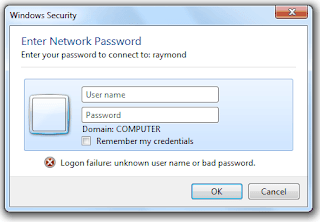
Now, to access shared folders without Username and Password follow the following steps:
Go to Control Panel and if it shows icon view, select Network and Sharing Center. If it is on a category view, Network and Internet, then Network and Sharing Center.Next, on the left pane, click on the “Change advanced sharing settings” link. Scroll down until you see Password protected sharing. By default the Turn on password protected sharing in Windows 7 is enabled. All you need to do is select the “Turn off password protected sharing” and click the Save Changes button.
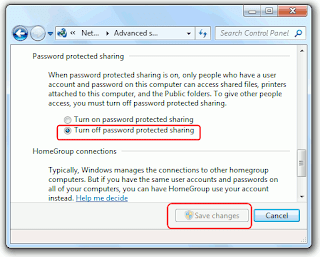
Now anyone on the same local area network would be able to access the shared folders on that computer which you’ve just turned off the password protected sharing without having a user account and password. The only troublesome part is when my laptop connects to an outside network or wifi, I will make sure that option is re-enabled, or just unshare the important folders.
Available link for download
Subscribe to:
Posts (Atom)