
Showing posts with label install. Show all posts

Wednesday, March 29, 2017

How to install WiringPi controlling GPIO pins


How to install WiringPi controlling GPIO pins


Available link for download


Read more »

Saturday, March 25, 2017

How to install qbittorrent in Kali Linux


How to install qbittorrent in Kali Linux


About qbittorrent: qbittorrent is a torrent client, an alternative to utorrent. Its a GUI based cross platform free software based on Qt toolkit.

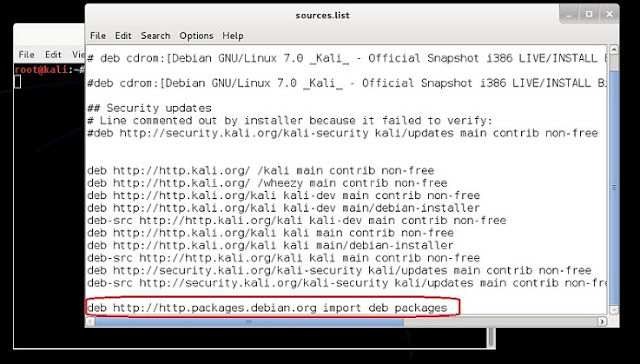
We know that Kali Linuxs base package is constructed in Debian, so we need to add http://http.packages.debian.org to sources.list file. To do this,

1. open any text editor and edit sources.list file, located in /etc/apt directory, with an entry deb http://http.packages.debian.org import deb packages.


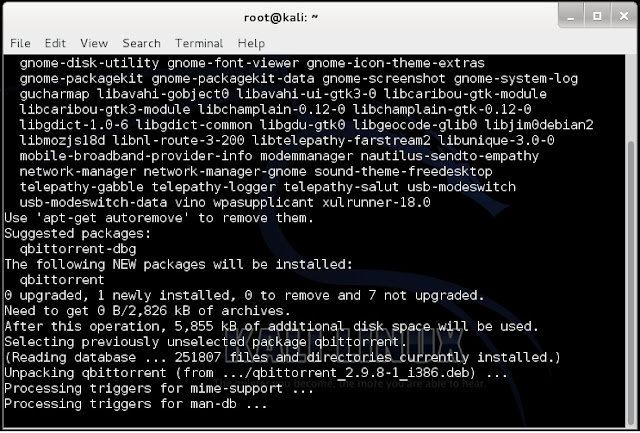
2. type apt-get install qbittorrent on the root terminal window and press enter

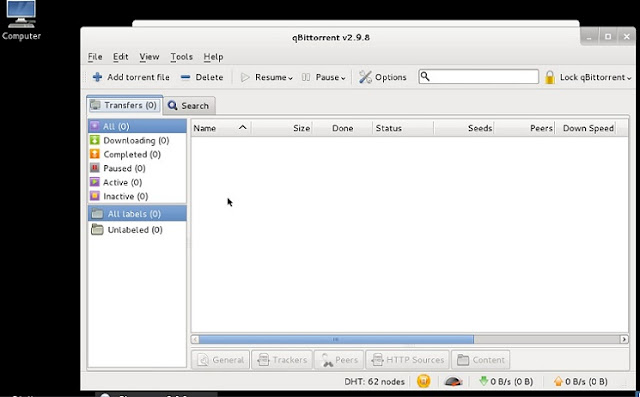
3. Once qbittorrent is installed, type qbittorrent on the root terminal window and press enter

and, you are set to go.


Available link for download


Read more »

Thursday, March 9, 2017

Change Default Install Storage to External SD Card on Android No Rooting Required


Change Default Install Storage to External SD Card on Android No Rooting Required


Change Default Storage for Android Device. Install apps directly on SD Card instead of Internal Storage without Rooting. 

Things you need to perform this ...
  1. Java Development Kit (Java SE DK) <-- Click to download
  2. Android Software Development Kit (Android SDK) <-- Click to download
  3. Android Device
  4. Connecting Cable

Lets get started...
  1. Install Java Development Kit. If already installed, skip to step 2.
  2. Install Android SDK. If already installed, skip to step 3.
  3. Navigate to folder, where you installed Android SDK i.e. adt-bundle-windows-x86-20130717
  4. Into the folder SDK>Platform tools>adb.exe
  5. Turn USB Debugging ON from developer options of Settings menu... (Note: Android 4.2.1 and Up users will have to enable developer options to be able to use Debugging Options, for this go to settings > about phone > Tap on build number 7 times to see message " you are now a developer".)
  6. Now open CMD (Command Prompt) and point to install location of development tools or right click while holding down shift button and selecting open command prompt here...
  7. Now type " adb devices " (without quotes) - This will list all the devices attached to the PC with serial no. (eg. 0123456789ABCDEF - device)
  8. Now type adb shell pm setinstalllocation 2 (default is 0, where 0 is auto, 1 is internal & 2 is SD card). Itll take a few seconds a minute at the most to show the status...
  9. Now every app youll install will directly go to SD card... 
    (Keep in mind that apps that are designed to be installed on internal memory cannot be installed on to external storage)

    Tags: increase internal storage, how to install apps directly on sd card, set sd card as default storage for installation of apps.

Available link for download


Read more »

Friday, February 10, 2017

Transfer and Install Apps to from iPhone without iTunes


Transfer and Install Apps to from iPhone without iTunes


Prerequisites:

      1.      You must have itunes installed in PC/MAC.

      2.      You have Jailbroken iPhone with Cydia Installed. ( Refer here for more details on Jailbreaking  and to Jailbreak head over to iClarified.)

      3.      You have installed “Installous” in iPhone (You can install it by adding http://cydia.hackulo.us/ repo in Cydia.) For more information visit here. For detailed guide on how to add repo in Cydia, Follow our Guide here.


Steps:

1.       Download and install ifunbox for Mac/PC from here : http://www.i-funbox.com/

2.       Connect iphone to ifunbox (Close itunes )


3.     Go to Installous in ifunbox.

4.     Drag and Drop apps which you want to install from PC to Installous  in ifunbox.

5.     Open Installous in IPhone.

6.     Go to Downloads tab in it.

7.     Tap on App and select Install.

8.     Done.


      In reverse manner, if you have downloaded any apps in Installous (Though I won’t encourage you to download pirated apps) then, you need to transfer those apps to iTunes otherwise when you’ll sync it with iTunes, it’ll get deleted. To do that, follow below steps.


1.    Follow above steps 1 to 3
2.    Select the app you have downloaded in installous in ifunbox.
3.    Click on transfer to PC.
4.    Move the transferred apps to Users[Username]MusiciTunesMobile Applications.   
5.    Disconnect the iPhone and run iTunes.    
6.    Drag and drop copied apps from Users[Username]MusiciTunesMobile Applications to itunes Application tab.    
7.    Connect the iPhone and Sync.    
8.    Enjoy..!!


Available link for download


Read more »

Thursday, February 9, 2017

How to Install Dot Net Framework 3 5 on Windows 8 All Editions


How to Install Dot Net Framework 3 5 on Windows 8 All Editions


Installing .Net Framework 3.5 on Windows 8

Dear Readers, You may have sometimes noticed while using windows 8 that some apps wont Run properly and some even doesnt open up... Its because of a reason that the application are designed in .Net Framework Environment these days that requires .Net Framework 2.0,3.0,3.5,4.0,4.5 etc. (Different application need different versions of .Net Framework and may not work with most out dated or most recent version of .Net Framework). Now you need to just install .Net Framework 3.5.. Just follow these 2 simple steps...

Method 1 (Offline Installation using cmd):
  1. Enter your Windows 8 Installation Disk into DVD Drive... or Mount the .iso file...
  2. Now run Command Prompt as an Administrator... Hit Start --> type in "CMD" or "Command" without quotes, when you see command prompt listed on top of apps list, Right Click on Command Prompt and Select option "Run as Administrator" from the bottom area near taskbar.
  3. Now type in " DISM /Online /Enable-Feature /FeatureName:NetFx3 /All /LimitAccess /Source:G:sourcessxs " without quotes.. (where G: will be your drive letter of DVD Drive or Mounted Image Virtual Drive.. Replace G: with your actual drive letter if its other than G:)
  4. The .Net Installation will begin and the Feature will be installed with in a few minutes...


Method 2 (Online Method using Windows Update): 
If for some reasons the Method 1 doesnt work for you, either your installation media doesnt have that installation file for .Net Framework or You have no Windows Installation disk at the moment, then you can try this second sure fire method thatll work for everyone.. Because in this method, the feature will be installed straight from Windows Update but it is much lengthy process especially if you are on a slow connection..

For this, Go to Control Panel --> Programs and Features --> Turn Windows Features on or off --> Select the option .NET Framework 3.5 (includes .NET 2.0 and 3.0) --> Hit OK. A Pop-up windows will appear asking that Windows needs to download additional files from Windows Update... Select Install this feature.. Wait until its done..

Thats all folks.. Youll have .Net Framework 3.5 Installed in your Windows 8...


Tags: how to install dotnet framework 3.5 on windows 8 ; install .net 3.5 on windows 8 ; adding dot net 3.5 to win 8 ; win 8 .net framework install add feature

Available link for download


Read more »

Monday, February 6, 2017

How to Install Windows 8 1 from a USB Flash Drive


How to Install Windows 8 1 from a USB Flash Drive


The Windows 8.1 update was made available on Thursday this week, and for most Windows 8 users, the easiest way to install it is via the Windows Store. But if you have more than one system to update, it’s easier to create physical media to install it. This helps because you don’t have to worry about downloading a 3.5 GB file each time you update a different machine.

Install Windows 8.1 from Flash Drive

First head over to this Microsoft page and click the Install Windows 8.1.
Windows 8.1 Download Page
That downloads a small installer file that you run on your PC. After it downloads, simply run WindowsSetupBox.exe. Keep in mind that you’ll need Windows 8 running on the computer you’re installing the update on.
sshot-1
The Winodws 8.1 Setup wizard will launch, and the first thing you need to do is type in your Product Key.
Enter Product Key
Now wait while Windows 8.1 is downloaded. You can continue to use your system while it’s downloading in the background.
Downloading
The next step will prompt you to decide if you want to install now, create media, or install later from your desktop. Select “Install by Creating Media” and hit Next.
install by creating media
Now select the Media to use, in this example I am going with USB flash drive. Make sure you have a flash drive of 4 GB or more.
flash or iSO
Select the USB flash drive you want to use and click Next.
Select USB
Next you’ll get a message to confirm that all files on the flash drive will be deleted. Click Yes.
files deleted warning
Now wait while the flash drive installer is created.
Creating USB
Success! The USB flash drive installer for Windows 8.1 has been created. Click Finish to close out of the wizard. You can use this to update other Windows 8 systems to 8.1, or install it on another partition if you plan to dual boot.
flash drive ready
Insert the USB flash drive you just created on a Windows 8 system and launch setup.exe.
Setup executable flash drive
When the setup wizard starts you’ll have the option to get important updates during the install – I recommend using that option so the installation goes smoother.
Get Updates
Next you’ll need to agree to the EULA or License Terms.
EULA
Then follow the onscreen instructions to complete the installation of Windows 8.1. If you want this to be a seamless update, tick the option to keep your settings, personal files, and apps.
Choose What to Keep

Conclusion

When going from Windows 8 to 8.1, you can keep all of your settings and apps. Remember, if you want to upgrade from the 8.1 Preview to the final version, you’ll lose all of your apps and desktop programs — for what reason, only Microsoft knows. When installing from the Preview though, all of your modern app tiles will display, with a download arrow. So, you just need to go though and click each tile of the modern app you want to get back.
If you don’t want to create a flash drive from this wizard, at the beginning select to download the ISO file. Then you can burn it to DVD or make a USB flash drive later byfollowing this article.
The update process got off to a rough start yesterday, so you might want to hold off updating a few days. Just like when Apple gets a new iOS update, downloading it to your device is a long arduous process because everyone is nailing the servers at once.
There’s several other upgrade paths you can take to Windows 8.1 from XP SP3, Vista, and Windows 7. I will be running tests for each of these scenarios, so make sure to check back here often.

Available link for download


Read more »

Friday, February 3, 2017

Install Kali Linux ARM on Raspberry Pi


Install Kali Linux ARM on Raspberry Pi


Before we begin, let me give you a brief introduction on Raspberry Pi. Well, a Raspberry Pi is a low budget, small credit-card sized ARM board, that acts as a computer. This board is developed by Raspberry Pi Foundation, UK with the intention of promoting the teaching of basic computer science in schools. The processor at the heart of the Raspberry Pi system is a Broadcom BCM2835 system-on-chip (SoC) multimedia processor. This means that the vast majority of the system’s components, including its central and graphics processing units along with the audio and communications hardware, are built onto that single component hidden beneath the 256 MB memory chip at the centre of the board. It’s not just this SoC design that makes the BCM2835 different to the processor found in your desktop or laptop, however. It also uses a different instruction set architecture (ISA), known as ARM. The ARM-based BCM2835 is the secret of how the Raspberry Pi is able to operate on just the 5V 1A power supply provided by the onboard micro-USB port. It’s also the reason why you won’t find any heat-sinks on the device: the chip’s low power draw directly translates into very little waste heat, even during complicated processing tasks.
Figure(1). Sketch of a Raspberry Pi Board

    Figure(2). Actual view of a Raspberry Pi Board

Figure(3). Raspberry Pi Board in a box

Figure(4). Raspberry Pi Board to work as a computer


Components needed to make Raspberry Pi to a Computer are:

• Raspberry Pi board
• Micro USB lead (for power)
• USB power adapter (also for power)
• HDMI lead: Type A to Type A (to connect to your monitor or TV)
• HDMI display
• SD card: 2 GB to 64 GB (for storage); 8 GB minimum recommended
• SD card reader
• USB keyboard and mouse

Now, lets get started installing Kali Linux for Raspberry Pi.

1. Download Kali Linux for Raspberry Pi image.
2. Use dd utility to image this file to your SD card. Assumed that the storage device is located at /dev/sdb. Please note that this process will wipe out your SD card. If you choose the wrong storage device, you may wipe out your computers hard disk.

root@kali:~ dd if=kali-pi.img of=/dev/sdb bs=512k

This process can take a while depending on your USB storage device speed and image size. Once the dd operation is complete, boot up your Rasberry Pi with the SD card plugged in. You will be able to log in to Kali (root / toor) and startx.

Available link for download


Read more »

Tuesday, January 31, 2017

Want to install Windows 10 on your own PC How to Install Windows 10 on Your PC


Want to install Windows 10 on your own PC How to Install Windows 10 on Your PC


If you haven’t installed Windows 10 on your PC before, you’ll have to perform an upgrade first before you can clean install. If this doesn’t make any sense, that’s because Microsoft never makes licensing easy, even when there’s a free version. Once you’ve performed the upgrade and activated your Windows 10 upgrade on a PC, Microsoft will associate your unique hardware ID with an activated Windows 10 license, and you can reinstall as you see fit. But not until you’ve upgraded Windows 7 or 8 to Windows 10 and then activated.

Just keep in mind that Windows 10 is only provided for free as an upgrade. You can’t clean install it, there are no keys at this point. Unless you use our clean install workaround.
  • Step 1: Download the Windows 10 ISO image from Microsoft’s web site. Alternatively you can download the web installer from the same page and just choose to upgrade your PC, which is the easiest option.
  • Step 2: If you are installing on a regular PC with Windows already on it, you’ll be prompted immediately to start the upgrade process. Alternatively, you can burn it to an optical disk orcreate a bootable USB flash drive. Otherwise, just attach the ISO image using the virtual machine software of your choice (assuming your virtual machine already has Windows 7 or 8 installed).
  • Step 3: Install it mostly by clicking the Next button, making sure to choose Upgrade when prompted. If you want to clean install, follow our clean install instructions instead.
  • Note: Now that Windows 10 is released, you’re going to need a valid Windows license key for 7, 8, or 8.1 in order to perform the upgrade.
For posterity, here are all of the installation steps if you’re booting from a flash drive, although you could just remember the word “Next” and get through it fine. Just remember to choose Upgrade when prompted unless you’ve previously upgraded and activated Windows 10 on this computer.

When you first boot the computer you’ll see a screen like this one:

Click Next and you’ll be taken to the Install now button screen. Which obviously you should click.
At this point you can choose whether you want to upgrade Windows or install a new custom install. Since we’re recommending that everybody install into a virtual machine or on a test PC, you should select Custom here.
Update: You should probably choose to Upgrade the first time, because the license key might not work otherwise.
At this point you’ll need to pick where to install Windows 10. You might need to delete or create a partition, but if you are using a virtual machine, you can just click Next.
And now it will install.
Once the PC reboots again, you’ll be able to select the settings like whether Windows Updates are enabled (they aren’t allowed to be disabled in the preview). We’d recommend just using the express settings if you are using a test machine — use Custom if you’re really going to use the computer.
And now you can sign into your Microsoft account. We’d recommend using a Microsoft account because otherwise you won’t be able to use half of the new features and you may as well use Linux or stick with Windows 7.
If you’ve setup your account properly you’ll probably be asked to verify it in the middle. We excluded those steps from this article, but they are pretty simple.
Now you’ll be asked how to setup the PC. Since we wanted to test everything as a new computer, we chose to set it up as a new PC instead, but you could copy all your settings from another computer if you wanted to.
Want to use OneDrive? It’s nicely integrated into Windows, so we just left it alone.

And now a colorful screen that tells us things are happening.

And finally, we are at the desktop! Note that the desktop on the full release of Windows 10 looks different, and this screenshot came from a pre-release version.
Now click that Start button. Click it. You know you want to.

Available link for download


Read more »

Tuesday, January 24, 2017

install window XP In 10Min


install window XP In 10Min


Install window XP In 10Min

>>Hey Guys Diz Time Extreme Hack That You Will Never Imagine But Its Truth and We have Done It. This Time I will explain How to Install Windows XP In Just 10 minutes.<< Read On Enjoyyyyyy!~


As We all know that During Formatting a Computer After the File Copying is Completed then windows Require 39 Minutes Time...But What Extreme In It.... Yes We can Bypass this faking Time .... How TO DO IT??? So read On..
I have Included Snaps Shots That will help you.

>> INSTALLING WIN XP IN 10 MINUTES! <<

STEP1 : After the Copy Part is Over ... System is Rebooted as we all know In general Foramatting Procedure...
Now After Reboot The Below Image Will Appear..


.STEP 2: Now As This Image APPEARS You Have to Press "Shift + F10 " . This Will Open The command Prompt... Now type taskmgr in it. This will open the Task manager .

STEP 3 : After The task Manager Opens Goto Processes ... And Find "Setup.exe" process and Right CLICK on It.... and set the Priority to Highest..

STEP 4: Now Just Watch the Set It will take around 9 minutes and 2 minutes for Tolerance(depends System to system)....

Thats the Overall Tutorial...Hope You all Have LIKED IT...
So When you Format your PC Next Time It will Really Save Your TIME i.e around 20 to 25 minutes....Enjoy Hacking.

Available link for download


Read more »

Monday, January 23, 2017

Install Latest and Bigger Games including Data Files on Internal Storage without Partition Android Hack Application


Install Latest and Bigger Games including Data Files on Internal Storage without Partition Android Hack Application


FolderMount [ROOT REQUIRED]

Dear Users, You may have already seen or tried the Link2SD Android Application, that allows you to create links to external storage but with limitations such as Need to create a Secondary Partition that usually results in Partition getting dirty sooner and Unable to Move the Android OBB data files to external storage as a result of which you can save merely 100-200 MB of Internal Storage by Creating Links to SD Card with Link2SD but this isnt enough right...
Now, here im presenting you guys a new android application known as Folder Mount.. Available as Free App in Google Play Store.. This Application Moves data to Internal Storage and then Mounts Files and OBB data on Internal Storage as if the data has been stored in internal storage instead of external storage. Such as GTA Vice City, NOVA 3, Need for Speed: Most Wanted, Modern Combat 4, Virtual Tennis Challenge etc.

Installation:
  1. Download the .apk application and Install on your android device.
  2. Open the Application and Allow SuperUser Access.
  3. Click on Top Left menu and Select Apps Analyzer Option.
  4. Select the App you want to Mount to External Storage.
  5. Click to Create Pair for both Data and OBB Files.
  6. Select "Yes" to automatically allow the Application to Move Data to External Storage.
  7. You are DONE.. ENJOY !!!
Limitations:

The only limitation of this application is Free Version supports only 3 Pairs of Applications. For Linking More than that or all of your applications, Get the Pro Version to unlock all the functionality.

Get PRO Version for FREE..  !!

  1. Install the Application Freedom and allow Root Access. 
  2. After this has been done, Select "START" option by Clicking Soft Menu button on your Device and then Selecting FolderMount.. 
  3. Now open FolderMounts Settings Menu and Click on "Purchase Pro Version" & Make sure you are connected to the Internet..
  4. Select to Pay From Google Play Store (Recommended).
  5. Now youll be presented with a Free Card something like XXXX-XXXX-XXXX-5689 or Something.
  6. Finally Click on Pay Now button and wait for confirmation message.
  7. Done.. Now Restart the Application to use Pro Version Mode.. ENJOY.. !!!

Folder Mount - Tusfiles       OR        Mediafire

Freedom        - Tusfiles       OR        Mediafire


tags: install large applications on low specs phone, increase storage, hack android, script storage, mount external storage, increase free internal storage, how to install large game files and obb files in internal storage,

Available link for download


Read more »

Monday, December 26, 2016

How To Install Windows Xp Using USB


How To Install Windows Xp Using USB


...If You Want To Install Windows Xp Through USB You have to follow some easy Steps...

1.Download Bittorrent By Click on Below Image of Bittorrent And Then Install It... 


2.Download PowerIso Full version From Below... 


3.Install Power ISO And Then Register It...
4.Download BOOT.IMG.
5.Then Open PowerIso and go to action>Boot>Add Boot Information.And open boot.img that you download from above.
6.After this Add Files Of Windows Xp to POWERISO.
7.Click on Save and save as .ISO.
8.After All Above Process...
9.Download Rufus By clicking here...
10.Enter Your USB of At Least 2 GB.
11.Set Refus From Fat32 to NTFS.
12.Select your ISO of Windows Xp and Click on Start..
13.Wait 20-35 mins.
14.After Finalizing reboot your computer.
15.boot from usb and then enjoy.

Available link for download


Read more »

Tuesday, December 6, 2016

Install Synaptic Package Manager in Kali Linux


Install Synaptic Package Manager in Kali Linux


About  Synaptic Package Manager
Synaptic Package Manager is GTK+- based GUI for apt (Advance Packaging Tool)- the package management used by Debian and its derivatives. Synaptic Package Manager- a very handy tool, used to install, remove and update software packages and add repositories. Though, based on deb packages but can be used on the system bsed on RPM packages.

Features
  • Install, remove, upgrade and downgrade single and multiple packages System-wide upgrade
  • Package search utility
  • Manage package repositories
  • Find packages by name, description and several other attributes
  • Select packages by status, section, name or a custom filter
  • Sort packages by name, status, size or version
  • Browse available online documentation related to a package
  • Download the latest changelog of a package
  • Lock packages to the current version
  • Force the installation of a specific package version
  • Undo/Redo of selections
  • Built-in terminal emulator for the package manager
  • Allows creation of download scripts
I have tested it on Kali Linux 1.1.0a machine with 32-bit architecture. To begin installing Synaptic Package Manager on your system, 

1. Please add below two repositories

deb http://http.kali.org/kali kali main non-free contrib 
deb http://security.kali.org/kali-security kali/updates main contrib non-free

to sources.list file (path: Computer -> File System -> etc -> apt -> sources.list). Save the file and exit. To know more on Kali Linux repositories please check my post, Kali Linux Repositories.

Note: Before saving sources.list file, make sure that it shouldnt have duplicate entries of  repository/ ies or else you may get 404 error or unmet dependency error.

2. Now open terminal and type apt-get update && apt-get upgrade to update kali linux.
 

3. Once done, execute apt-get install synaptic and then apt-get install software-center.


Available link for download


Read more »

Tuesday, November 29, 2016

Trick To Install Windows XP In Very Less Time


Trick To Install Windows XP In Very Less Time


Trick To Install Windows XP In Very Less Time

Window XP, the most popular Operating System in the world.

Even Window 7 and Window 8 has been launched by Microsoft but the users of Window XP arenot reduced. Most of the Desktop users only use WindowXP. Window XP is simple to use and that’s whymost of the users use it.

When we install Window XP it requires around 40 minutes to set itself up.
Theinstallation time can be reduced to near 15 minutes. This will be particularly helpful for thosewho frequently setup Windows XP. So here is the trick,

More Tricks

  • Hack Saved Password In Firefox ?
  • Turn Your Webcam into a Spy Cam for Free
  • Add All Friends to Facebook Group script
  • Is You Antivirus Working Perfect ?
  • Step 1 . Boot from Window XP disk.
  • Step 2 . After the setup has copied all the files which arerequired for installationof Window XP, it will prompt youto indicate a location to install the OS.
  • Step 3 . After having selected the drive, the setup would now format it and reboot.
  • Step 4 . On reboot, the installationsta rts and the screen will tell you that you require around 40 minutes to complete the setup.
  • Step 5 . Nowpress Shift+ F10 to bring in a Command Prompt Window. Type “taskmgr” (without quotes) which will open up the Task Manager.
  • Step 6 . In the Task Manager, click on the Processes tab. Search for a process named Setup.exe.
  • Step 7 . Right click the processand set its priority to ‘High’.
That’s it, now the installation will be faster & complete within 15 minute approximately.


Available link for download


Read more »

Sunday, November 27, 2016

How to install Google Chrome in Kali Linux


How to install Google Chrome in Kali Linux


OS: Kali Linux 1.0.4

Note: Before you proceed make sure to keep your kali linux up-to date. Please run apt-get update and then apt-get upgrade from the terminal.

1. Open IceWeasel Browser and goto www.google.com and click on Install Google Chrome on the above right panel of the box. You can also goto www.google.com/chrome to download Google Chrome.


2. Click on Download Chrome


3. Select the option to download package. As Kali is built on Debian package so you can select 32 bit .deb or 64 bit .deb(depending upon the type of platform Kali Linux install). I have 32 bit Kali Linux installed in my laptop, so I chose 32 bit .deb (For Debian/Ubuntu).


4. Choose the location to save google chrome package.


5. Open Terminal window (make sure you have a privilege of a root user) and goto the directory of the downloaded file "google-chrome-stable_current_i386.deb".


6. Run dpkg -i google-chrome-stable_current_i386.deb from the root terminal window.


7. Once setup, you need to add it to Menu. Go to ;
Applications -> Accessories -> Main Menu


8. Click on the Internet icon on the left hand panel, and click the ‘New Item’ button on the right.


9. On the next pop-up window, add the information as
 Name: Google Chrome
 Command: google-chrome

and click OK


10. When you are trying to run Chrome from the menu, you will get an error message pops up advising unable to run as root. So, to run as root you must specify an alternate --user-data-dir for storage of profile information.


11. To do that, navigate the file

Computer -> File System -> opt -> google -> chrome

Open the file google-chrome in a text editor and goto the last line;

add --user-data-dir, next to exec -a “$0? “$HERE/chrome”  “$@”
Save the file and exit from text editor


12. Now open Applications -> Internet -> Google Chrome and you are good to go.

Available link for download


Read more »