Showing posts with label your. Show all posts

Thursday, March 30, 2017

7 Easy Ways to Restore Your Computer’s Health


7 Easy Ways to Restore Your Computer’s Health


7 Easy Ways to Restore Your Computer’s Health

Is your PC under par? Does it take longer to log on and load websites then it used to? Are your programs crashing more often then Evil Knieval used to?

If the answers yes to all of these questions, then it’s time to give your computer a new lease of life. But we’re not talking drastic measures like buying a new one, as there are a few fixes you can do yourself (or with the help of an expert) that will restore your computer to its former glory. Here’s how you can perk up your PC.

1. Install tune-up software

The quickest and easiest way to restore your PC to health is to install a free registry cleaner that’ll tune things up. In fact, some programs won’t just return your computer to its regular speed; they’ll even turbo-charge it for you so you’ll have a boost of power when you need it the most.

As well as running at normal speed, your system will crash less and have more disk space available. You’ll probably even notice improvements in battery life too.

2. Back up your computer

Before you carry out any maintenance or make any changes to how your computer works, back it up first. Backing up is when you create a copy of your current system onto an external device or disk, such as an external hard drive or a writable DVD or CD.

As well as backing up before making any changes to your system, it’s wise to regularly make a copy of your files. After all, some of the information on your computer, like family photos, may be impossible to replace if it was deleted. After you’ve backed up, you can then remove any large files that you don’t use regularly (like mp3 files or high-res images), this should help free some disk space and speed up your system.

3. Uninstall programs you no longer use

Another easy way to free up some space on your hard disk is to uninstall programs that are out of date or that you never use. This could include pre-installed software or trial versions of programs you no longer use. If you browse online with Chrome or Firefox you might also consider removing Internet Explorer too.

To check for programs you don’t need, firstly click on the Start button and choose Programs and Features. Google any program names that you don’t recognise. After all, you don’t want to delete anything that’s vital for running the system. Removing the icon from your desktop does not delete the program. You’ll need to uninstall it via the Programs and Features menu you navigated to above.

4. Clean up your hard disk

Deleting large files you’ve backed up and programs you don’t use will provide you with extra space on your hard disk, but you can probably clear even more junk than that. Cached and temporary files, for example, will also be using up valuable chunks of memory.

Fortunately there is a program already installed on your PC that can clear these for you. Disk Cleanup will search your drive for unwanted data and then either remove it, or simply identify it so you can decide whether or not to get rid of it. If you use your computer a lot, it’s a good idea to run Disk Cleanup regularly. Set it as a weekly scheduled task and prevent your computer from slowing down drastically again in the future.

5. Update your software

Older versions of software or operating systems will make your computer run slower as additional security fixes (often called patches) and add-ons reduce computing speed. Updating to newer versions should help to improve the speed of your PC, as well as the security of your set-up too.

If you’re running Office 2003 or Windows XP, then you should definitely consider upgrading to a newer version. From 8th April 2014, these programs will no longer be supported by Microsoft, leaving users more open to risks from hackers than before.

6. Scan you computer for viruses

Viruses and malware (malicious software) may well be to blame if your computer’s running slowly or performing strangely. As well as preventing your computer from working as normal, they could be gathering your information or even planning to steal your identity.

Running anti-virus software will not only identify and get rid of any viruses you’ve managed to pick up; it’ll also help to keep your computer clean in the future. So both your computer and the information on it will be safe from harm.

7. Defrag and check for disk errors

If you’ve done all of the above and your computer’s still not performing as it should, then it may be necessary to defrag the hard drive and then check it for disk errors. Both of these tasks are slightly more complicated however, and you’re only advised to carry them out if you’re a competent PC trouble-shooter. If you’re not, then this is the time to call in the experts.

Image Credit: Boians Cho Joo Young

Available link for download


Read more »

Friday, March 24, 2017

4 Methods Of Increasing Your Blog’s Domain Authority


4 Methods Of Increasing Your Blog’s Domain Authority


Increasing Your Blog’s Domain Authority
The day-to-day activity and lifestyle of people across the world have undergone major changes due to the several breakthroughs in technology that have taken place over time. Now, people have grown used to relying heavily on high-tech gadgets. These days, it is almost unthinkable to survive without using tools like internet, laptop, computers, tablets and mobiles phones. Computers and internet have especially become an indispensible part of people’s lives with answers to almost all questions that arise in the minds of people available there. Companies and business firms have also realized the need to take advantage of the internet and thus, e-commerce and online marketing have become an integral part of the marketing strategies of businesses. Website content writing is another essential part of online marketing which helps attract visitors.

It is extremely important to make sure that the company website is attractive for which the content that is written for it must be magnetic. It has to be short, crisp and precise. These days, blogging has become a major aspect of content writing for the generation of public interest in the various services and products offered by a company. There are lots of people who are into blogging. Many of them create blogs as a hobby while it is also used as a major tool for the promotion of businesses. Most companies have resorted to blogging and also acquire assistance from outsourcing companies so that the blogs are to the point and achieve the desired results.

Blogging is like an art and for the proper utilization of blogs to expand the business, there are certain rules to be followed so that traffic is built, domain authority of the blog is increased and customers are attracted. I have given here 4 useful and basic ways to increase your blog visibility which have been pretty useful for me. I am sure these will work for you as well.

  1. Target and make a database of groups of audience who will be able to share your website with others. Remember internet is a boon for sharing information with just some clicks. Thus, if you can target a group who can be persuaded to share your website and blog to other users, there’s nothing like it. However, make sure that the website content writing of the blog is compelling and interesting enough for them to talk about it and share it. Then, the audience will share your blog and blog posts with different websites like social media sites, forums and even other blogs. For best results, target those people who are quite active on Twitter, Facebook and other such social media sites. This is also applicable for those people who have their own personal blogs.
  2. Writing the blog itself is an extremely smart idea. The blog should be informative and interesting. I used to write press releases to discuss my products and highlight their advantages and usefulness. In fact, you can write articles on the benefits associated with specific products and even provide weekly or daily titbits, tips and other information. The blog should also be SEO-friendly and you can do this by utilising Search Engine Optimization. It is a hugely popular business strategy that drives huge traffic to websites. Full advantage of SEO services should be taken to develop a strong connection between blogging and online business.
  3. Social media networking sites are extremely popular these days. Almost every other person, whether young or old, is hooked to this internet phenomenon. Take advantage of this and try to tap this huge crowd. Open a business account in these sites and attract these people to link them back to the main website or blog. Post meaningful comments on other forums and posts of people. Promote your blogs in the sites as advertisements; while promoting, you must make sure the account has useful information.
  4. Remember, more the merrier; so your website should be submitted to multiple website directories and search engines like Google, Yahoo, CanLink, Rankin Directory and Buzzle. The target should be industry-specific ones as their primary subject matter will coincide with the subject matter of your website.

In website content writing, it is of primary importance to use titles that are keyword-rich as this will help maximise the rank of your listing. So happy blogging!

Image Credit: dan.


Author Bio:

Sarmista Aun is expertise in web content writing. She contributes excellent content on digital marketing.

Available link for download


Read more »

Saturday, March 18, 2017

Convert your Partition from FAT32 to NTFS with CMD without Formatting or losing data


Convert your Partition from FAT32 to NTFS with CMD without Formatting or losing data


Convert Your Partitions from FAT32 to NTFS Without Formatting or Losing your data through Command Prompt - No Need for any Software..

Dear Readers, today i will lead you to how to convert Partition of any drive attached to a Windows PC either its a Hard Disk Drive, Flash Drive or an External HDD from FAT32 to NTFS... Lets Start with the Basics...

What is a File System ?
A: A file system is the underlying structure a computer uses to organize data on a hard disk. If you are installing a new hard disk, you need to partition and format it using a file system before you can begin storing data or programs. In Windows, the three file system options you have to choose from are NTFS, FAT32, and the older and rarely-used FAT (also known as FAT16).

Advantages of NTFS over FAT32
  • The capability to recover from some disk-related errors automatically, which FAT32 cannot.
  • Improved support for larger hard disks.
  • Better security because you can use permissions and encryption to restrict access to specific files to approved users.
  • Maximum Volume Size is 2TB over 32GB of FAT32
  • Maximum File Size for Storing is nearly Unlimited over 4GB of FAT32
  • Allows Compression of Files and Folders where as FAT32 doesnt
  • Has the ability to auto counter disk related problem that are not major, while FAT32 always performs Chkdsk command at startup when an error is encountered.

Many a times you might have thought of converting your Partitions from FAT32 to NTFS because of the excessive features offered by the NTFS Partition and Suddenly a question arises that this might result in Loss of Data of your Partition.
So, Heres how to get it done through Command Prompt..

Converting Your Partition File System From FAT32 to NTFS 
  • Open Command Prompt in Administrator Mode, To do this, click on start (Win XP/Vista/7) or Hit Windows button (Win 7/8) --> under the search bar, type in Command --> When you see a black icon labeled Command Prompt, Right click on it and select Run as Administrator.
  • After the command prompt windows has appeared, enter the following command" convert C: /FS:NTFS " - without double quotes.(Replace letter C: with any drive you want to convert)
  • You will be asked to confirm the Volume label of the Partition you want to convert.
  • Thats it.. it will take some time depending on your system, running tasks and storage allocated to that partition.
  • Take Sometime and perform " Chkdsk  C: /F " command before converting your partition to any other filesystem. This ensures that you have a healthy partition and no errors occurs during conversion process.


Tags: convert partition without formatting, convert partition without losing data, fat32 to ntfs without software, convert ntf to fat32 with command prompt, command, cmd, dos


Available link for download


Read more »

Saturday, March 11, 2017

Top 10 Ways to track your stolen mobile phone


Top 10 Ways to track your stolen mobile phone


Now a days many mobiles are being stolen, It is increasing rapidly day by day. How to get your mobile back? Is there any chance to track the mobiles which are being stolen by some others? Yes of course For that there are several methods


 to Track the stolen mobile. In this Article I am going to include 10 different methods to track the stolen mobile.

1. IMEI Number:


IMEI number is very important to track the mobile. It is a 15 digit number, to know the IMEI of your mobile just dial *#06# . We have to save this number for future purpose, It plays a major role to track the mobile. In order to file a complaint in police station, IMEI number is necessary

2. Avast Mobile Security :

It is a security Application for smart phones. This Application helps us in two ways, One is it acts a Anti-Virus and the other it has the Mobile Tracking technology. This App is inbuilt with Anti-Theft component which sends us messages when the mobile is being stolen.
Download Link : Avast Mobile Security

3. Mobile Chase-Location Tracker :


It is a good application to track the mobile. Whenever the thief changes the sim in that mobile. It stores the data and sends back that data to us.
Download Link: Mobile Chase- GPS Tracker

4. Thief Tracker :


This Application has the best feature. When someone tries to unlock the phone, it captures the image of that person by using front camera of the mobile and mails that pics to us.

5. Smart Look :


This application has the ability to capture the images of the thief  and mails that pics to us. It is inbuilt with continuous GPS Tracking system that helps us to track the correct location of the thief.

6. Anti-Theft Alarm "

It is a simple application and easy to use. If we enable the alarm option in that application, if someone tries to unlock the phone it automatically starts sounding until you enter the correct pin.
Download Link: Anti Theft Alarm

7. Kaspersky Mobile Security :
It is a good application for smart phones. This application has the features Anti-Theft, Anti-Virus and provides good security which helps in tracking the mobile.
Download Link: Kaspersky Mobile Security

8. Look out Security and Anti Virus :
This application plays an important role to track the location of the mobile, by using google map it tracks the address up to date and sends that data to us.
Download Link: Look Out Security and Antivirus

9. Trend Micro Mobile security and Anti virus:
This is the most widely used application and stands at top place. It is premium application, it comes with 30-day free trial. It has the best features of Anti-Virus and Anti-Theft technologies.
Download Link: Trend Micro Mobile Security and Anti-Virus

10. Plan B, Lookout Mobile :
This application has two plans to track the mobile. Plan A and Plan B. If Plan A fails then it executes Plan B by using Cell Towers and GPS it tracks the data of that location and mail backs that data to us.
Download Link: Plan B Lookout Mobile


Available link for download


Read more »

Benefits Of Rooting Your Android Device


Benefits Of Rooting Your Android Device


Rooting Your Android Device
Google’s Android is open, customizable and a highly versatile operating system compared to other mobile OSes. And rooting it allows users complete control on their devices. However, you may wonder as to what rooting your Android device involves and what are the benefits in doing so. First, it is essential to understand what rooting is all about.

For the uninitiated, rooting gives users root permission and access to their devices. Rooting also gives the users the ability to tweak the settings on their phones, flash custom ROMs on the phone for adding additional features, as well as modify the software on the device. However, rooting is not everyone’s cup of tea, but it can be done successfully provided the users follow the rooting instructions for their device carefully.

A thing to note is that with different kinds of Android phones available, the same rooting technique may not work for all. So before rooting, users need to ascertain whether or not a particular rooting method will actually work for their devices. Users should also know that doing so will void the manufacturer’s warranty on your device and there is a small chance that improper rooting can also damage the phone permanently. Nonetheless, there are still plenty of benefits to rooting your phone and it is a risk definitely worth taking.

Flash a custom ROM:

This is one of the best benefits of rooting an Android device. In simple terms, a custom ROM is a modified version of Android that users can install if they are not happy with the Android version that their device comes with. Adding a custom ROM adds more unique and convenient features to the phone that are not usually seen on their devices. Samsung devices are usually the most rooted of all, as users want to use stock Android ROMs that are much more agile than Samsung’s TouchWiz skin.

Flash a custom kernel:

A kernel allows apps on the phone to communicate directly with the hardware of the phone. A custom kernel helps improve the performance of the phone, enhance battery life, speed up battery charging, and also add advanced features such as Wi-Fi tethering on certain phones that do not come with this option.

Tweak under the hood settings: Users can tweak every little feature of their phone including customizing the keyboard layout, enhancing multitasking functionality, increasing the scrolling speed as well as adding interesting themes to the phone. Basically, rooting allows users to reach into the darkest corners of their phones and make the most of the changes that are possible.

Remove bloatware:

This is one of the best reasons for rooting. Often the phones are preloaded with software and apps that one does not use. These programs not only occupy the onboard memory, but can also drain the battery. Before uninstalling any apps, users should confirm that those apps are not vital to efficient functioning of their phones.

Backup:

Having a backup of crucial data and settings is highly recommended. Should a user want to migrate to a new Android handset or wishes to restore the deleted data to the current handset for any reason, then a backup must be readily available. This is also helpful even if the user is not rooting his/her device.

Apart from these benefits, rooting also helps to block annoying ads that appear in apps, boost the speed and battery life of the phone, automate everything as well as unlock certain hidden features in the device and install certain apps that are otherwise considered as incompatible.


Author Bio:
Rohit Reddy is the editor of GadgetResearch. He is a gadget and technology enthusiast and loves blogging about them. In his free time he likes to follow the latest tech news and share it with his friends.

Available link for download


Read more »

How to block a website from all your web browser


How to block a website from all your web browser


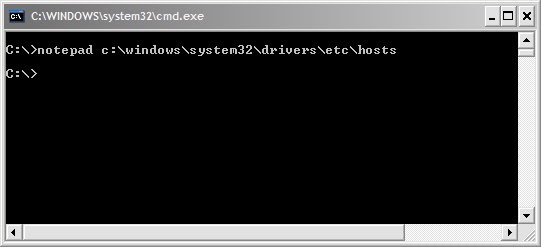
  • Open command prompt by typing "cmd" without quotes in Run dialogue box (OR) Click start > All programs >Accessories > command prompt.
  • Now type exactly the command below (or) copy-paste the command without quotes and hit Enter: 
                 " notepad c:windowssystem32driversetchosts "


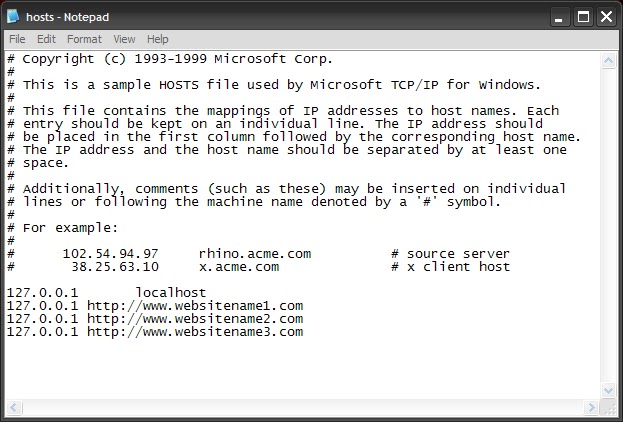
  • A text file will be opened in notepad with name hosts.
  •  Locate the line " 127.0.0.1 Localhost " in the text file.
  • To block a website for example http://www.websitename.com, type the following text below the above line without quotes:
                 " 127.0.0.1 http://www.websitename.com "


  • You can add as many sites as u can, however u will need to prefix it with "127.0.0.1".
  • Now save the file and close the command prompt.
  • Now the above website will be blocked in all browsers in your computer.
  • If u wish to unblock any sites just delete these newly typed lines and save the file. 
Caution : Do not edit or delete any other lines in the hosts file other than the above specified.


Available link for download


Read more »

Saturday, February 25, 2017

What To Do If Your Hotmail Account Gets Hacked


What To Do If Your Hotmail Account Gets Hacked


Have you been receiving a lot of junk mail lately ? Have your email contacts reported receiving an email from you that you have absolutely no recollection of sending ? Or have they reported getting an instant message from you which you have never sent ? If the answer to any of these questions is a yes, then it is very likely that somebody has hacked your Hotmail account or stolen your Hotmail password. This is a very serious situation, and it is possible that this hacker may make use of your Hotmail account for illegal and even criminal purposes.

Steps To Be Taken By You Once You Find Out Your Hotmail Account Is Hacked :

Now that you have a strong idea that your Hotmail account has been hacked, you shall need to take immediate steps to retrieve the situation. We present a list of immediate actionable steps to be taken by you. However, before we go into the details, in case of any confusion in following the instructions given by us, we advise you to please use the Hotmail customer service contact number and get the help of the Microsoft service team to help deal with the problem.

Step 1 : Free Your PC From Malware Or Virus

Download and install a reputed anti-virus and anti-malware system such as the Microsoft Security Essentials (for a Windows 7 operating system) and Microsoft Defender ( for a Windows 8 operating system). Make certain of running a full scan of your system. And only after that, change your Hotmail account password.

Step 2 : Reset Your Hotmail Account Password

Once you have fully completed the scanning of your system, log in to your Hotmail account and reset your password. While selecting a new password, you shall need to make completely sure that you use something that is totally different from the old one. Please do not use any of the commonly used passwords that may be found in many accounts, such as "passwd" or "admin". Use something much more complicated. Make use of capital letters, symbols, lower case letters and numbers. But do make sure that this new password may be easily remembered by you. Run your password through Microsofts password checker to make sure it has never been used before by anyone. And once set, make sure of changing your password at regular intervals.

Step 3 : Change Your Account Settings

Make sure of resetting your Hotmail account settings. Click on the "more mail settings" field in the "Options" tab and follow the instructions given on how to reset the various options available in your Hotmail account.

Step 4 : Get Back The Deleted Mail

One of the most important signs that your Hotmail account has been hacked is the sheer number of deleted mail. Once the Microsoft mail server has an inkling that your account is being hacked, it saves all the deleted mail in a special "Deleted" folder. Click on this folder, and opt for for "restore deleted mail" option. Now you are good to go!

Summary:

Hacking of the Hotmail account of private individuals is a serious problem that has become very common of late. The first step in dealing with it is to check for the signs that tell you whether your Hotmail account has been hacked or not. Then the instructions given in this article should be followed step by step to help in retrieving the situation.
Image Credit: Stuart Miles


Author Bio:

Smith is a professional programmer from NewYork , who has often been the victim of a Hotmail hack, and has found using the Hotmail customer service contact number a mighty useful way to deal with this mini-crisis. Besides helping out people who are under attack from dangerous hackers, He dabbles in photography and hates global warming.

Available link for download


Read more »

Thursday, February 16, 2017

How to Safeguard Your USB Drive 10 Easy Steps!


How to Safeguard Your USB Drive 10 Easy Steps!


How to Safeguard Your USB Drive - 10 Easy Steps!
USB drives are a fantastic way to share information from computer-to-computer. While many people use email to send documents, USB drives can take just about anything that your computer has and move it to another system with minimal effort. Plus, USB drives can be used to share information without actually putting it in someone’s possession. Doing so can keep sensitive data from falling into the wrong hands. If you have a USB drive, though, there are still extra measures you should take to secure its contents. Continue reading for 10 easy steps that you can take to safeguard your USB drive.

Proper Password Management Protects Your USB Drive

First, let’s make sure that if anyone gets a hold of your USB drive, they won’t be able to use it.


  • Insert your USB drive into your computer.
  • Find the USB drive in your computer’s “Devices with Removable Storage” section or similar area.
  • Right click on it and choose, “Turn on Bitlocker.”
  • Once you choose this, Wizard will open up, and you’ll see the option to “use a password to unlock the drive.”
  • Type in the password that you would like to use for your USB drive and click next.
  • You’ll be asked how you’d like to “back up Recovery Keys.” Simply choose from the menu.
  • Next, you’ll be asked to confirm whether or not your USB drive is already being used or if it’s brand new.

Encrypt Your USB Drive

Now you’ll want to encrypt the information that is found on your USB drive. This is a further measure that will make sure that your drive is protected from prying eyes, no matter how badly they want your information. After the above 7 steps, Wizard will ask you how much of your drive you’d like to encrypt.

  • You’ll be given the option to encrypt the entire drive, which is best for those that are already in use, or just the used disc space, which is preferable for a new drive. The former option will take longer.
  • After you make your choice, the encryption process will start.
  • When the encryption process is complete, you can remove your USB drive, confident that its contents are now safe.
Going forward, whenever anyone wants to use the USB drive, they’ll be prompted to enter your password first. You can follow the same steps to change the password, as well, if you should so choose.

Keep in mind it’s also important to store your USB drive in a safe place at all times. Even if someone doesn’t have your password, possessing your USB drive can still be damaging, as you no longer have access to the data, either. If the USB drive contains information related to your company, check with human resources or your management. There are often official guidelines specific to securing USB drives that carry company data.

While USB drives are extremely convenient, they can easily expose you to information leaks if not controlled properly. Maintain your USB drive in a secure place at all times, and use the above 10 steps to encrypt the information and protect it with a password.

Source:
http://geekofreak.com/2013/03/encrypt-and-password-protect-your-usb.html


Available link for download


Read more »

Friday, February 10, 2017

APP INVENTER Create your Own Android App with less then your Coffee time


APP INVENTER Create your Own Android App with less then your Coffee time


                     MIT App Inventor is a blocks-based programming tool that allows everyone, even novices, to start programming and build fully functional apps for Android devices. Newcomers to App Inventor can have their first app up and running in an hour or less, and can program more complex apps in significantly less time than with more traditional, text-based languages. Googles Mark Friedman and MIT Professor Hal Abelson co-led the development of App Inventor while Hal was on sabbatical at Google. Other early Google engineer contributors were Sharon Perl, Liz Looney, and Ellen Spertus. App Inventor runs as a Web service administered by staff at MIT’s Center for Mobile Learning - a collaboration of MIT’s Computer Science and Artificial Intelligence Laboratory (CSAIL) and the MIT Media Lab. MIT App Inventor supports a worldwide community of nearly 3 million users representing 195 countries worldwide. The tool’s more than 100 thousand active weekly users have built more than 7 million android apps. An open-source tool that seeks to make both programming and app creation accessible to a wide range of audiences, MIT App Inventor has grabbed the attention of:
  • Formal and informal educators who have used MIT App Inventor to introduce programming to their Computer Science students, science club members, after-school programs attendees, and summer campers. Many educators have also started to use MIT App Inventor to develop apps in support of their own instructional objectives.
  • Government and civic employees and volunteers who have harnessed the power of MIT App Inventor to develop custom, often hyper-local apps in response to natural disasters and community-based needs Designers and product managers who have seen the potential that MIT App Inventor has to support the iterative design process via rapid prototyping, testing and iteration.
  • Researchers who use MIT App Inventor to create custom app in support to meet their data collection and analysis requirements in support of their research in a wide variety of fields from medical to social.
  • Hobbyists and Entrepreneurs who have an idea they want to quickly turn into an app without the cost or learning curve that more traditional app creation entails.


Available link for download


Read more »

Tuesday, January 31, 2017

Want to install Windows 10 on your own PC How to Install Windows 10 on Your PC


Want to install Windows 10 on your own PC How to Install Windows 10 on Your PC


If you haven’t installed Windows 10 on your PC before, you’ll have to perform an upgrade first before you can clean install. If this doesn’t make any sense, that’s because Microsoft never makes licensing easy, even when there’s a free version. Once you’ve performed the upgrade and activated your Windows 10 upgrade on a PC, Microsoft will associate your unique hardware ID with an activated Windows 10 license, and you can reinstall as you see fit. But not until you’ve upgraded Windows 7 or 8 to Windows 10 and then activated.

Just keep in mind that Windows 10 is only provided for free as an upgrade. You can’t clean install it, there are no keys at this point. Unless you use our clean install workaround.
  • Step 1: Download the Windows 10 ISO image from Microsoft’s web site. Alternatively you can download the web installer from the same page and just choose to upgrade your PC, which is the easiest option.
  • Step 2: If you are installing on a regular PC with Windows already on it, you’ll be prompted immediately to start the upgrade process. Alternatively, you can burn it to an optical disk orcreate a bootable USB flash drive. Otherwise, just attach the ISO image using the virtual machine software of your choice (assuming your virtual machine already has Windows 7 or 8 installed).
  • Step 3: Install it mostly by clicking the Next button, making sure to choose Upgrade when prompted. If you want to clean install, follow our clean install instructions instead.
  • Note: Now that Windows 10 is released, you’re going to need a valid Windows license key for 7, 8, or 8.1 in order to perform the upgrade.
For posterity, here are all of the installation steps if you’re booting from a flash drive, although you could just remember the word “Next” and get through it fine. Just remember to choose Upgrade when prompted unless you’ve previously upgraded and activated Windows 10 on this computer.

When you first boot the computer you’ll see a screen like this one:

Click Next and you’ll be taken to the Install now button screen. Which obviously you should click.
At this point you can choose whether you want to upgrade Windows or install a new custom install. Since we’re recommending that everybody install into a virtual machine or on a test PC, you should select Custom here.
Update: You should probably choose to Upgrade the first time, because the license key might not work otherwise.
At this point you’ll need to pick where to install Windows 10. You might need to delete or create a partition, but if you are using a virtual machine, you can just click Next.
And now it will install.
Once the PC reboots again, you’ll be able to select the settings like whether Windows Updates are enabled (they aren’t allowed to be disabled in the preview). We’d recommend just using the express settings if you are using a test machine — use Custom if you’re really going to use the computer.
And now you can sign into your Microsoft account. We’d recommend using a Microsoft account because otherwise you won’t be able to use half of the new features and you may as well use Linux or stick with Windows 7.
If you’ve setup your account properly you’ll probably be asked to verify it in the middle. We excluded those steps from this article, but they are pretty simple.
Now you’ll be asked how to setup the PC. Since we wanted to test everything as a new computer, we chose to set it up as a new PC instead, but you could copy all your settings from another computer if you wanted to.
Want to use OneDrive? It’s nicely integrated into Windows, so we just left it alone.

And now a colorful screen that tells us things are happening.

And finally, we are at the desktop! Note that the desktop on the full release of Windows 10 looks different, and this screenshot came from a pre-release version.
Now click that Start button. Click it. You know you want to.

Available link for download


Read more »

Monday, January 30, 2017

Connect All your Computers with Single Mouse and Keyboard


Connect All your Computers with Single Mouse and Keyboard


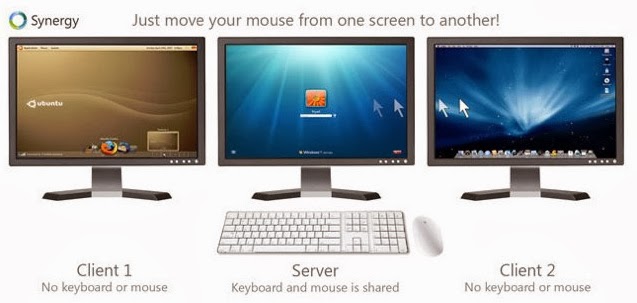
        Every computer has a keyboard, mouse, and monitor but now there is no need to have mouse and keyboard for every computer. If one computer has Keyboard then it can be used on other computers too without disconnecting the mouse and keyboard. So one mouse and keyboard are sufficient to manage all the things on multiple computers. This is made possible by Synergy.

single+keyboard+for+different+PCs

About Synergy:

Synergy is a small and powerful tool which lets you to use the mouse and keyboard on your different computers as a single mouse for all your computers.
Using synergy is so simple,It has simple user user interference which makes the users to understand the settings easily.
Synergy supports all the three major desktop operating systems Linux,Windows and MAC Os,(Under development for Mac OS X Mavericks). It is available for both 32 bit and 64 bit computers in respective formats.
connect+pc+with+single+mouse+and+keyboard

Here are great features of Synergy:

  • Supports encryption of information between your computers. (This way you can portect your files from bad guys in your network).
  • Simply move the mouse to the computer on which you want to work with your keyboard.
  • Copy the files to clipboard and share the files in other computers!.
  • Drag and Drop feature is avaible for Windows and MAC computers.
  • Only a local network connection is needed which establishes the connection between your computers.

Once look at below things:

  • Before you continue further make sure that the computers you want to use are on the same local network.
  • Make sure you turn on the network discovery and your computers are visible on local network.
  • And you need to know these terms that will be used here in this tutorial.
Server System: Here the server system is your main computer to which the mouse and keyboard are connected.
Client System: Here the client system is your secondary computer to which there is no mouse and keyboard connected. There can any number on client systems.

Installing-Configuring Synergy on your Computers

  • Now Download the Synergy software respective to your Operating systems.
  • For example if you are running Windows then you need to get the Windows version on Synergy from here [official link].
  • And if you are using Linux or MAC OS then you can get the Synergy verison which supports from here [Official link]
  • First Download this Synergy on to the server system ( which is connected with mouse and keyboard).

Configuring the server system:

  • After installation when you run Synergy on your computer you are allowed to choose the type of the computer(server or client).
  • As you have installed this software first on the system which is going to act as server. we are showing on configuring the server.
  • Click on the "configure server".
  • As you hit on "Configure Server" You will be presented with a new window titled server configuration.
2
  • Here in this screen shot Linux-Mint is my server computer and Windows 7 is my client computer (which doesnt have mouse and keyboard connection).
  • If you know what you are doing with the settings then you can play with the other advanced settings else leave them.
  • Now hit on save to complete your server configuration!.
  • And note down the server  IP address shown in the window.

Configuring the client computer:

  • Client computer is your another computer which doesnt have the mouse and the keyboard.
  • You need to install the synergy software on client system too.
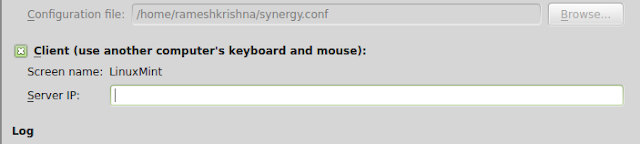
  • Configuring the client computer is same as configuring server machine.except choosing the client option instead of server option (in server configuration).
4
  • After selecting it enter the server ip address. Click on apply.
  • To starting sharing the computer.open your server computer and click on start then click on start on the client computer.
Thats it you are now done and you can share the single mouse and keyboard on multiple computers.
If you have liked this open source software..Please support them by donating.
If you feel this is hard to setup you can try the ShareMouse software which does the same work as Synergy.

Available link for download


Read more »

Thursday, January 19, 2017

Sandboxie Use Keygens and other cracks without infecting your system


Sandboxie Use Keygens and other cracks without infecting your system


Sandboxie - Allows you to execute dangerous but much needed files such as Keygens and/or Patches without Infecting your system.. 

Dear Friends, as you all know while downloading keygens/cracks/patches from internet are usually found to be Trojans/Viruses by our Antivirus software. But the problem arises when we desperately need that crack/keygen to run so sandboxie is the solution to all of your problems. Although i dont prefer using keygens/cracks since they involve software piracy.


How it works: Sandboxie runs your programs in an isolated space which prevents them from making permanent changes to other programs and data in your computer.


Sandboxie


The red arrows indicate changes flowing from a running program into your computer. The box labeled Hard disk (no sandbox) shows changes by a program running normally. The box labeled Hard disk (with sandbox) shows changes by a program running under Sandboxie. The animation illustrates that Sandboxie is able to intercept the changes and isolate them within a sandbox, depicted as a yellow rectangle. It also illustrates that grouping the changes together makes it easy to delete all of them at once.
Benefits of the Isolated Sandbox
Secure Web Browsing: Running your Web browser under the protection of Sandboxie means that all malicious software downloaded by the browser is trapped in the sandbox and can be discarded trivially.
Enhanced Privacy: Browsing history, cookies, and cached temporary files collected while Web browsing stay in the sandbox and dont leak into Windows.
Secure E-mail: Viruses and other malicious software that might be hiding in your email cant break out of the sandbox and cant infect your real system.
Windows Stays Lean: Prevent wear-and-tear in Windows by installing software into an isolated sandbox.


Download Here

NOTE : SUPPORT THE AUTHOR OF THE SOFTWARE BY BUYING IT..

Available link for download


Read more »

Wednesday, January 18, 2017

Update Your Facebook Status Via Your Own Name


Update Your Facebook Status Via Your Own Name


 Update Your Facebook Status Via Your Own Name

1 Go to facebook developers then create an app by selecting app tab on the upper side....


 2. Then there will be a small box asking for app names in app display name ,  you can fill out any name which you want to show under your status and then click I agree facebook platform policies (even if you dont LOL )...

3. Then fill the security check (captcha) and then you will be taken to app settings then save changes and then you will see , there will be an App ID and App Secret ,  in that our useful one is App ID. Simply save it....

Like I have done..


4. Then go to this link:

https://www.facebook.com/dialog/feed?_path=feed&app_id=xxxxxxxxxxxxxxx&&redirect_uri=https%3A%2F%2Fwww.facebook.com&display=popup&to&from_login=1

5. (here xxx is your App  ID) copy your App ID in place of xxxxxx and then hit the big enter button and you will see that there will be a update status button just write what ever you want and bravo you have updated your status VIA your own name APP.....

I hope you guys will enjoy this...

Available link for download


Read more »

Saturday, January 14, 2017

Facebook Code on your post


Facebook Code on your post


              Facebook Code on your post


code:


<iframe src="//www.facebook.com/plugins/likebox.php?href=http%3A%2F%2Fwww.facebook.com%2
Fmhahnh786&amp;width=300&amp;
height=190&amp;show_faces=true&amp;colorscheme=light&
amp;stream=false&amp;border_color&amp;header=false"
scrolling="no" frameborder="0" style="border:none;
overflow:hidden; width:312px; height:190px;" allowtransparency="true"></iframe>
<a href="http://www.haakblog.com/2014/02/download-best-blogger-templates-of-2014.html" rel="dofollow" target="_blank" title="blogger templates"><img src="https://bitly.com/haakblog" alt="blogger templates" border="0" style="position: fixed; bottom: 10%; right: 0%;" /></a><a href="http://www.haakblog.com" rel="dofollow" target="_blank" title="blogger widgets"><img src="https://bitly.com/haakblog" alt="blogger widgets" border="0" style="position: fixed; bottom: 10%; right: 0%;" /></a><div id="rpdr" style="font-family: arial, sans-serif; font-size: 9px;">
<a href="http://www.haakblog.com/2013/07/add-facebook-like-box-widget-for-blogger.html" target="_blank" title="like box Widget">Like box Widget</a></div>


change name:mhahnh786


Available link for download


Read more »