Showing posts with label easy. Show all posts
Showing posts with label easy. Show all posts
Thursday, March 30, 2017
7 Easy Ways to Restore Your Computer’s Health
7 Easy Ways to Restore Your Computer’s Health

If the answers yes to all of these questions, then it’s time to give your computer a new lease of life. But we’re not talking drastic measures like buying a new one, as there are a few fixes you can do yourself (or with the help of an expert) that will restore your computer to its former glory. Here’s how you can perk up your PC.
1. Install tune-up software
The quickest and easiest way to restore your PC to health is to install a free registry cleaner that’ll tune things up. In fact, some programs won’t just return your computer to its regular speed; they’ll even turbo-charge it for you so you’ll have a boost of power when you need it the most.As well as running at normal speed, your system will crash less and have more disk space available. You’ll probably even notice improvements in battery life too.
2. Back up your computer
Before you carry out any maintenance or make any changes to how your computer works, back it up first. Backing up is when you create a copy of your current system onto an external device or disk, such as an external hard drive or a writable DVD or CD.As well as backing up before making any changes to your system, it’s wise to regularly make a copy of your files. After all, some of the information on your computer, like family photos, may be impossible to replace if it was deleted. After you’ve backed up, you can then remove any large files that you don’t use regularly (like mp3 files or high-res images), this should help free some disk space and speed up your system.
3. Uninstall programs you no longer use
Another easy way to free up some space on your hard disk is to uninstall programs that are out of date or that you never use. This could include pre-installed software or trial versions of programs you no longer use. If you browse online with Chrome or Firefox you might also consider removing Internet Explorer too.To check for programs you don’t need, firstly click on the Start button and choose Programs and Features. Google any program names that you don’t recognise. After all, you don’t want to delete anything that’s vital for running the system. Removing the icon from your desktop does not delete the program. You’ll need to uninstall it via the Programs and Features menu you navigated to above.
4. Clean up your hard disk
Deleting large files you’ve backed up and programs you don’t use will provide you with extra space on your hard disk, but you can probably clear even more junk than that. Cached and temporary files, for example, will also be using up valuable chunks of memory.Fortunately there is a program already installed on your PC that can clear these for you. Disk Cleanup will search your drive for unwanted data and then either remove it, or simply identify it so you can decide whether or not to get rid of it. If you use your computer a lot, it’s a good idea to run Disk Cleanup regularly. Set it as a weekly scheduled task and prevent your computer from slowing down drastically again in the future.
5. Update your software
Older versions of software or operating systems will make your computer run slower as additional security fixes (often called patches) and add-ons reduce computing speed. Updating to newer versions should help to improve the speed of your PC, as well as the security of your set-up too.If you’re running Office 2003 or Windows XP, then you should definitely consider upgrading to a newer version. From 8th April 2014, these programs will no longer be supported by Microsoft, leaving users more open to risks from hackers than before.
6. Scan you computer for viruses
Viruses and malware (malicious software) may well be to blame if your computer’s running slowly or performing strangely. As well as preventing your computer from working as normal, they could be gathering your information or even planning to steal your identity.Running anti-virus software will not only identify and get rid of any viruses you’ve managed to pick up; it’ll also help to keep your computer clean in the future. So both your computer and the information on it will be safe from harm.
7. Defrag and check for disk errors
If you’ve done all of the above and your computer’s still not performing as it should, then it may be necessary to defrag the hard drive and then check it for disk errors. Both of these tasks are slightly more complicated however, and you’re only advised to carry them out if you’re a competent PC trouble-shooter. If you’re not, then this is the time to call in the experts.Image Credit: Boians Cho Joo Young
Available link for download

Monday, March 6, 2017
A Guide on Getting Approved Easy for Google Adsense !!
A Guide on Getting Approved Easy for Google Adsense !!
Google Adsense - Why, Requirements and How to get approved!!!
Hello dear readers, this is a very little guide to show newbies/beginners about Google Adsense and How to get approved for it and how it works...
What is Google Adsense? Google Adsense is a flexible, hassle-free way to show relevant and engaging ads alongside your online content and make money, Google Adsense makes perfect sense. You can easily show Adsense ads on your website, mobile sites, and site search results.
OR
In Simple Words, Google Adsense helps you Monetize your Website or Blog, that you own and can edit by displaying relevant ads, which help you generate revenue...
Why Google Adsense?- Google Adsense displays relevant ads on your website/blog or your online content (that have direct relation or derived from typed search or published content) instead of irrelevant ads or ad specific / focused ads as displayed by many other Monetizing Services.
- It displays High Quality Ads - It means that before ads appear on your site, theyre reviewed by real people and clever machines. The review process takes into account a variety of factors, including the quality of the ad and target audiences...
- Live Statistics - Provides users with extensive data that helps users understand that how well their ads are performing...
- Mobile Interface - provides you with a dedicated interface thats optimized for mobile devices - giving you quick access to your account. You can easily check your earnings, get important alerts, and view reports without the need for Flash on your phone
- Flexible Ad Control - You can block those you don’t want to appear, and manage how your ads are shown by choosing which ad formats youd like to accept. You can also customize the look and feel of your ads to match your site.
- Highest Payout rates - Google Adsense offers highest payout rates per click that helps you generate relatively much more revenue than that of other Monetizing Services...
How to Get Your Application Approved for Adsense?In order to get your application approved for Adsense:- First of all, you need to have desire to Earn Revenue from your online content...
- Youll need to have a Website or A Blog or Alternatively you can Sign Up for Google Adsense through YouTube --> Under Account Settings --> Channels Settings --> Enable Monetize option.
- Select a High Value Niche.. This means that the niche you select for your website or blog should be of high commercial value, this will aid in getting approved easily as well as number of ads displayed on your website or blog will increase dramatically...
- Make Sure your Site is well Structured and indexed and is not hidden from Search Engines / Robots or Web Crawlers... For this, use SEO Tools such as Google Webmaster Tools, Yandex Webmaster Tools and/or Bing/Yahoo Webmaster Tools etc.
- Publish High Quality Content on your Website or Blog that youre writing to... Make Sure your Published Posts Comply with Google Adsense Terms & Conditions...
- Make Sure that your Website or Blog receive decent and organic Traffic i.e. it should be generated mostly from Search engine search results and should be non-repetitive, this means that traffic should be generated from IP Addresses different from your own IP from which your Website or Blog is maintained... Your Blog/Website should be performing well enough to grab 1000 Page Views or Visits per day...
- Make Sure Your Website or Blog Should possess a good number of Posts, but this doesnt mean that publishing useless content or Content without any quality or low quality... It simply wont work because Adsense is very Strict in matter of Quality... So, keep focus on Quality rather than number of posts because 10 Good Posts will have good impact on your application than 100 Posts without quality...
- Finally apply for Google Adsense when you satisfy all of above elements... Thats all youll need to get your application approved from Google Adsense... If rejected even after all, then go ahead and try again... There is no limitation for you to resubmit your application for review...
Alternate Approval for Adsense:If for some reasons, Google is not approving your application, then you can try Alternate way for Google Adsense i.e. YouTube. - In order to apply for Adsense from YouTube Account, You need to have signed into your Google account or sign up for a new account if you dont already have...
- After Signing in, go to YouTube Settings --> Channels Settings --> Monetize option --> Enable
- After you have applied for Monetize option, focus on Uploading Videos on YouTube, Make Sure the Videos you upload comply with Google Adsense and YouTubes Terms and Conditions...
- Try Uploading Videos with Higher Resolutions i.e. 720p or 1080p...
- Upload a minimum of 3-5 Videos in order to get your application approved easily... although 2 Videos will do the trick but better be on safe side than safety...
- Make Sure Videos uploaded are more than 30 Sec in length... i.e. Videos less than 30 Sec will not be taken into account and will not qualify you for Adsense approval... Focus on Uploading Videos more than 1 min and Should Complying with Terms & Conditions...
- Thats all you need to qualify for Google Adsense...
Have fun and enjoy your earnings with Adsense all Bloggers, Readers and Publishers...
Tags: how to get approved with google adsense ; why google adsense reject application ; google reject adsense application ; how to easily get approved with google adsense ; trick for google adsense
Available link for download
Thursday, February 16, 2017
How to Safeguard Your USB Drive 10 Easy Steps!
How to Safeguard Your USB Drive 10 Easy Steps!
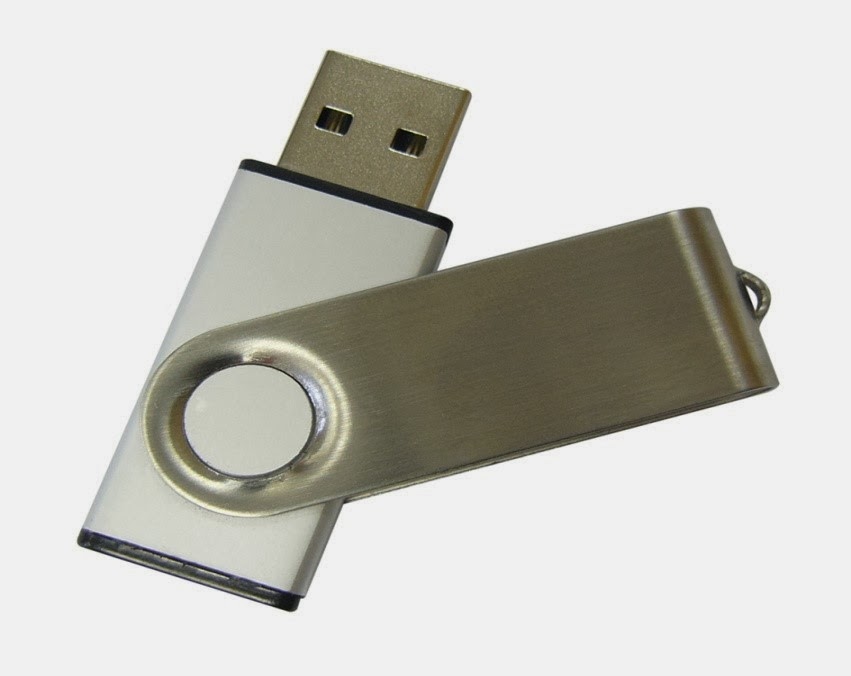
Proper Password Management Protects Your USB Drive
First, let’s make sure that if anyone gets a hold of your USB drive, they won’t be able to use it.
Keep in mind it’s also important to store your USB drive in a safe place at all times. Even if someone doesn’t have your password, possessing your USB drive can still be damaging, as you no longer have access to the data, either. If the USB drive contains information related to your company, check with human resources or your management. There are often official guidelines specific to securing USB drives that carry company data.
While USB drives are extremely convenient, they can easily expose you to information leaks if not controlled properly. Maintain your USB drive in a secure place at all times, and use the above 10 steps to encrypt the information and protect it with a password.
Source:
http://geekofreak.com/2013/03/encrypt-and-password-protect-your-usb.html
First, let’s make sure that if anyone gets a hold of your USB drive, they won’t be able to use it.
- Insert your USB drive into your computer.
- Find the USB drive in your computer’s “Devices with Removable Storage” section or similar area.
- Right click on it and choose, “Turn on Bitlocker.”
- Once you choose this, Wizard will open up, and you’ll see the option to “use a password to unlock the drive.”
- Type in the password that you would like to use for your USB drive and click next.
- You’ll be asked how you’d like to “back up Recovery Keys.” Simply choose from the menu.
- Next, you’ll be asked to confirm whether or not your USB drive is already being used or if it’s brand new.
Encrypt Your USB Drive
Now you’ll want to encrypt the information that is found on your USB drive. This is a further measure that will make sure that your drive is protected from prying eyes, no matter how badly they want your information. After the above 7 steps, Wizard will ask you how much of your drive you’d like to encrypt.- You’ll be given the option to encrypt the entire drive, which is best for those that are already in use, or just the used disc space, which is preferable for a new drive. The former option will take longer.
- After you make your choice, the encryption process will start.
- When the encryption process is complete, you can remove your USB drive, confident that its contents are now safe.
Keep in mind it’s also important to store your USB drive in a safe place at all times. Even if someone doesn’t have your password, possessing your USB drive can still be damaging, as you no longer have access to the data, either. If the USB drive contains information related to your company, check with human resources or your management. There are often official guidelines specific to securing USB drives that carry company data.
While USB drives are extremely convenient, they can easily expose you to information leaks if not controlled properly. Maintain your USB drive in a secure place at all times, and use the above 10 steps to encrypt the information and protect it with a password.
Source:
http://geekofreak.com/2013/03/encrypt-and-password-protect-your-usb.html
Available link for download
Thursday, December 29, 2016
An Easy Way to Hide Files on Android So Nobody Can See Tutorial
An Easy Way to Hide Files on Android So Nobody Can See Tutorial
An Easy Way to Hide Files on Android So Nobody Can See

In most cases, you don’t need third party tools to hide sensitive files on your Android device. There’s an easy way out, and it has been around for quite a long time now.
Open your file manager, create a new folder as you normally would, and name it whatever you want for easy recognition. Dump the files that you want to hide — pictures, videos, documents, anything — into this folder.
Read more »In most cases, you don’t need third party tools to hide sensitive files on your Android device. There’s an easy way out, and it has been around for quite a long time now.
Open your file manager, create a new folder as you normally would, and name it whatever you want for easy recognition. Dump the files that you want to hide — pictures, videos, documents, anything — into this folder.
Available link for download
Subscribe to:
Posts (Atom)