Showing posts with label restore. Show all posts
Showing posts with label restore. Show all posts
Thursday, March 30, 2017
7 Easy Ways to Restore Your Computer’s Health
7 Easy Ways to Restore Your Computer’s Health

If the answers yes to all of these questions, then it’s time to give your computer a new lease of life. But we’re not talking drastic measures like buying a new one, as there are a few fixes you can do yourself (or with the help of an expert) that will restore your computer to its former glory. Here’s how you can perk up your PC.
1. Install tune-up software
The quickest and easiest way to restore your PC to health is to install a free registry cleaner that’ll tune things up. In fact, some programs won’t just return your computer to its regular speed; they’ll even turbo-charge it for you so you’ll have a boost of power when you need it the most.As well as running at normal speed, your system will crash less and have more disk space available. You’ll probably even notice improvements in battery life too.
2. Back up your computer
Before you carry out any maintenance or make any changes to how your computer works, back it up first. Backing up is when you create a copy of your current system onto an external device or disk, such as an external hard drive or a writable DVD or CD.As well as backing up before making any changes to your system, it’s wise to regularly make a copy of your files. After all, some of the information on your computer, like family photos, may be impossible to replace if it was deleted. After you’ve backed up, you can then remove any large files that you don’t use regularly (like mp3 files or high-res images), this should help free some disk space and speed up your system.
3. Uninstall programs you no longer use
Another easy way to free up some space on your hard disk is to uninstall programs that are out of date or that you never use. This could include pre-installed software or trial versions of programs you no longer use. If you browse online with Chrome or Firefox you might also consider removing Internet Explorer too.To check for programs you don’t need, firstly click on the Start button and choose Programs and Features. Google any program names that you don’t recognise. After all, you don’t want to delete anything that’s vital for running the system. Removing the icon from your desktop does not delete the program. You’ll need to uninstall it via the Programs and Features menu you navigated to above.
4. Clean up your hard disk
Deleting large files you’ve backed up and programs you don’t use will provide you with extra space on your hard disk, but you can probably clear even more junk than that. Cached and temporary files, for example, will also be using up valuable chunks of memory.Fortunately there is a program already installed on your PC that can clear these for you. Disk Cleanup will search your drive for unwanted data and then either remove it, or simply identify it so you can decide whether or not to get rid of it. If you use your computer a lot, it’s a good idea to run Disk Cleanup regularly. Set it as a weekly scheduled task and prevent your computer from slowing down drastically again in the future.
5. Update your software
Older versions of software or operating systems will make your computer run slower as additional security fixes (often called patches) and add-ons reduce computing speed. Updating to newer versions should help to improve the speed of your PC, as well as the security of your set-up too.If you’re running Office 2003 or Windows XP, then you should definitely consider upgrading to a newer version. From 8th April 2014, these programs will no longer be supported by Microsoft, leaving users more open to risks from hackers than before.
6. Scan you computer for viruses
Viruses and malware (malicious software) may well be to blame if your computer’s running slowly or performing strangely. As well as preventing your computer from working as normal, they could be gathering your information or even planning to steal your identity.Running anti-virus software will not only identify and get rid of any viruses you’ve managed to pick up; it’ll also help to keep your computer clean in the future. So both your computer and the information on it will be safe from harm.
7. Defrag and check for disk errors
If you’ve done all of the above and your computer’s still not performing as it should, then it may be necessary to defrag the hard drive and then check it for disk errors. Both of these tasks are slightly more complicated however, and you’re only advised to carry them out if you’re a competent PC trouble-shooter. If you’re not, then this is the time to call in the experts.Image Credit: Boians Cho Joo Young
Available link for download

Monday, February 27, 2017
How to remove restore Recycle bin My Computer icon from the desktop
How to remove restore Recycle bin My Computer icon from the desktop
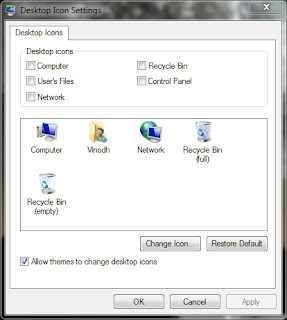
For Windows Vista / 7 Users:
For Windows XP Users:
Note: There are different methods in XP / Vista / 7 using registry editor but it is risky if you handle it wrong and I suggest the above method for safe.
- Click Start > Control Panel > Appearance and Personalization > Personalization > Change desktop icons.
- Click to unselect the Recycle bin (or) My Computer check box to remove from the desktop. (OR) Click to select the Recycle bin (or) My Computer check box to restore.
- Click Apply and OK.
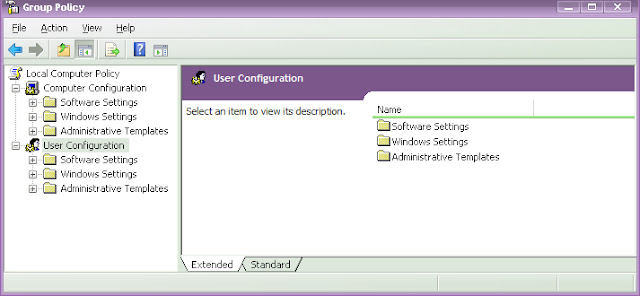
For Windows XP Users:
- Click Start > Run > type gpedit.msc and hit Enter.
- Now the Group Policy Editor window will be opened.
- In the left pane, click User Configuration > Administrative Templates > double click Desktop.
- Now in the right pane, double click Remove Recycle bin icon from desktop (or) Remove My Computer icon on the desktop.
- Click Setting tab > click Enable to hide (or) click Not Configured to restore > click OK.
Note: There are different methods in XP / Vista / 7 using registry editor but it is risky if you handle it wrong and I suggest the above method for safe.
Available link for download
Saturday, November 5, 2016
how to Lenovo Laptops Restore factory settings
how to Lenovo Laptops Restore factory settings
Lenovo Laptops - Restore factory settings
Before restoring factory settings on a Lenovo laptop,take a backup of all data and restart the system. There is no separate recovery disk shipped with Lenovo laptops; it is possible to restore the default configuration for Lenovo laptops through the BIOS settings menu. There is an option to restore the Lenovo Factory Image in the menu that will restore factory settings for the laptop. Once the system restoration starts, the drive will get formatted and the system software will be restored to factory condition. Once it is done, the laptop has to be restarted and other hardware device drivers or anti-virus software have to be installed manually.
Intro
Here are the main steps to restore your Lenovo laptop to its factory settings. Depending on the model you own, the the procedure may vary slightly.
Steps
Restore the computer to the default factory configuration
Note:
When you restore the computer to the default factory configuration, all data on the C drive is deleted. Before performing this procedure, back up any personal files. If you do not back up these files, the data will be lost.
· 1. Restart the computer
· To do this, click Start, click the arrow next to the Lock button, and then click Restart.
· 2. As the computer restarts, press the F8 key until the Advanced Boot Options menu appears on the screen.
· Note: You must press F8 before the Windows logo appears on the screen. If you press F8 after the Windows logo appears, the Advanced Boot Options menu does not appear on the screen. If you do not see the Advanced Boot Options menu, restart the computer, and then repeat this step until you see the menu on the screen.
· 3. Press the Down arrow to select Repair Your Computer on the Advanced Boot Options menu, and then press Enter.
4. Specify the language settings that you want, and then click Next.
5. Log in as a user who has administrative privileges and click OK.
6. Click Lenovo Factory Image Restore.
7. In the Lenovo Factory Image Restore window, click Next.
8. Check the box saying Yes, reformat the hard drive and restore system software to factory conditions.
9. Click Next. The computer is restored to the default factory configuration.
Read More...
Any Kind of Lenovo Problems Call Us
+1-855-517-2433 (Toll Free)
Available link for download
Subscribe to:
Posts (Atom)