Showing posts with label icon. Show all posts
Showing posts with label icon. Show all posts
Monday, February 27, 2017
How to remove restore Recycle bin My Computer icon from the desktop
How to remove restore Recycle bin My Computer icon from the desktop
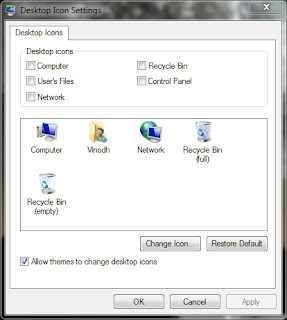
For Windows Vista / 7 Users:
For Windows XP Users:
Note: There are different methods in XP / Vista / 7 using registry editor but it is risky if you handle it wrong and I suggest the above method for safe.
- Click Start > Control Panel > Appearance and Personalization > Personalization > Change desktop icons.
- Click to unselect the Recycle bin (or) My Computer check box to remove from the desktop. (OR) Click to select the Recycle bin (or) My Computer check box to restore.
- Click Apply and OK.
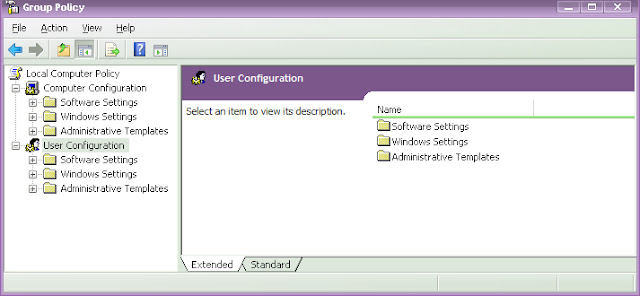
For Windows XP Users:
- Click Start > Run > type gpedit.msc and hit Enter.
- Now the Group Policy Editor window will be opened.
- In the left pane, click User Configuration > Administrative Templates > double click Desktop.
- Now in the right pane, double click Remove Recycle bin icon from desktop (or) Remove My Computer icon on the desktop.
- Click Setting tab > click Enable to hide (or) click Not Configured to restore > click OK.
Note: There are different methods in XP / Vista / 7 using registry editor but it is risky if you handle it wrong and I suggest the above method for safe.
Available link for download

Sunday, December 4, 2016
Changing Windows Drive Icon
Changing Windows Drive Icon
Customizing windows drive icons gives a new stylish look from the default look. Follow these simple steps to change the icons for your drives like C:/D:/E: etc.
1] Have your favorite icon file with the format .ico or download icons from any website which offers icon images.
Vista Icons
Dock Icons - Devine
MAC Icons - Slick Drive
MAC Icons - SHINE
2] Now copy your .ico file and paste in your destination drive.
3] Now open notepad and type the following text with your icon name.
[autorun]
ICON=filename.ico
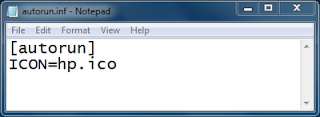
4] Now save the file as autorun.inf and file type as All Files in your destination drive.
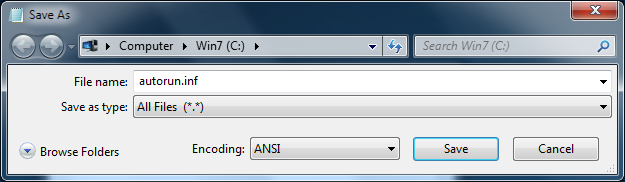
5] Make sure that you have both the .ico and .inf files in the open space of your drive.
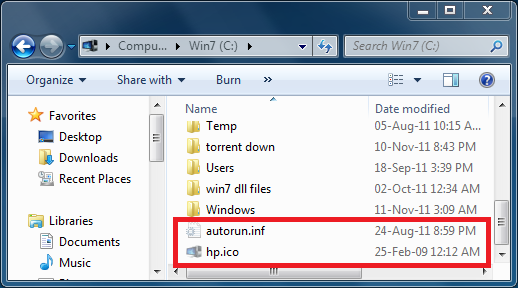
6] For safety purpose, hide these two files with read only mode properties. So that it avoids from normal deletion.
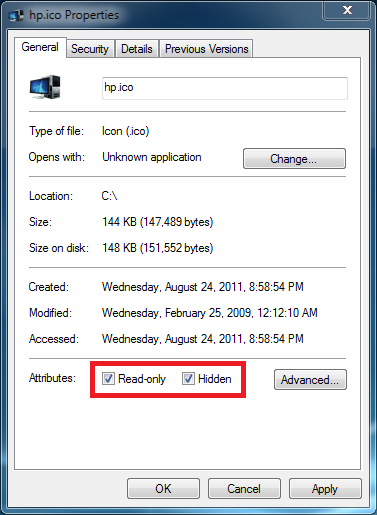
7] Restart your PC.
8] Finally a new stylish look has come at-last.
9] Similarly you can change icons for the other drives in the same manner.
EXAMPLE:
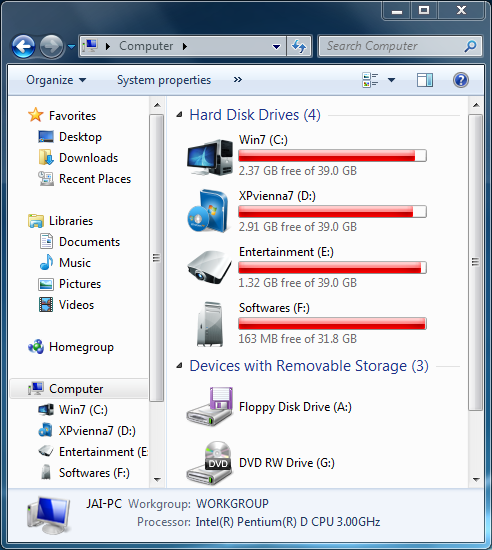
Note1: This method does not work if you have .ico/.inf file(s) in a separate folder.
Note2: This method does not work for other file types like .png, .icn except .ico.
Note3: Delete these files in order to have windows default drive icon images.
1] Have your favorite icon file with the format .ico or download icons from any website which offers icon images.
Vista Icons
Dock Icons - Devine
MAC Icons - Slick Drive
MAC Icons - SHINE
2] Now copy your .ico file and paste in your destination drive.
3] Now open notepad and type the following text with your icon name.
[autorun]
ICON=filename.ico
4] Now save the file as autorun.inf and file type as All Files in your destination drive.
5] Make sure that you have both the .ico and .inf files in the open space of your drive.
6] For safety purpose, hide these two files with read only mode properties. So that it avoids from normal deletion.
7] Restart your PC.
8] Finally a new stylish look has come at-last.
9] Similarly you can change icons for the other drives in the same manner.
EXAMPLE:
Note1: This method does not work if you have .ico/.inf file(s) in a separate folder.
Note2: This method does not work for other file types like .png, .icn except .ico.
Note3: Delete these files in order to have windows default drive icon images.
Available link for download
Subscribe to:
Posts (Atom)