Showing posts with label program. Show all posts
Showing posts with label program. Show all posts
Thursday, February 16, 2017
STOP c0000135 the program cant start because hs is missing Try reinstalling the program Blue Screen error
STOP c0000135 the program cant start because hs is missing Try reinstalling the program Blue Screen error
This BSOD error occurs due to corrupted registry files and it is caused by some hijackers, viruses, malwares etc. More recently my PC crashes frequently and restarts every time. Then I decide to boot my PC with the function "Disable Automatic Restart on system failure" during start up and it stops at this blue screen of death.

After spending several time in fixing this issue with offline registry editors, again PC crashes with another BSOD error soon after fixing the previous one. It was a fatal system error report and now it was really a bad time for me.

STOP: c000021a {Fatal System Error} - This was the error faced by me. Very soon, (by luck) Ive have found another solution which saves my whole work and no longer the bad time continues. I think this was the entire solution for both the BSOD errors mentioned above.
Solution: (for Vista/7 Users)
[Last Updated on July 8, 2012]
[Last Updated on July 8, 2012]
By luck, if you found to have RegBack folder in C:WindowsSystem32Config then this was perfect fix. Simply copy all those files which is inside this folder and paste it outside the folder and replace all with same name. Hurray, you have won!
- Also check if there was any *.LOG1, *.LOG2 files in config folder and dont forgot to delete these since they are the virus programs which infects the registry files and make us unable to logon by crashing.
- These virus LOG files can be easily identified since it does not have any file type. In actual, all log files have file type as text document. To verify you can see their file properties.
If you are clueless on how to access this folder without encountering this BSOD error, I suggest some methods here.
Method1
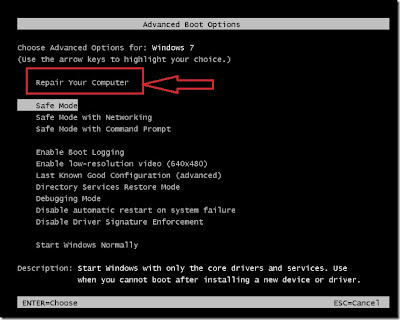
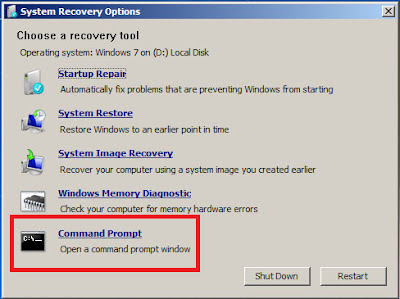
Launching Recovery Console by pressing F8 key before Start-up screen appears to bring up eight functions menu > select Repair your computer option > Select your language for keyboard layout > Type the password for user account > Select command prompt from System Recovery options.
Method2
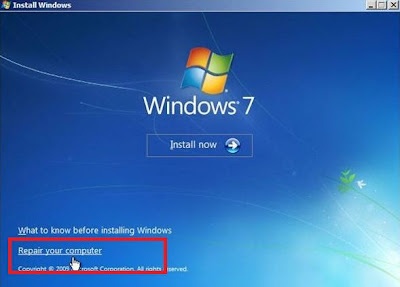
Using windows setup dvd (or) recovery disc. Boot the PC from dvd drive > press any key to boot from cd (if it asks) > select your language > click Repair your computer below the Install button.
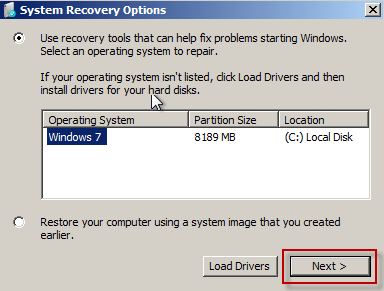
click "Use Recovery tools that can help fix problems starting windows" radio button and select the operating system and click Next > and then select command prompt from System Recovery options.
Method3
If you have installed two OS on same PC, then it is easy to access this folder by logging into the other operating system whether it is XP/Vista/7/RedHat linux/Ubuntu/Fedora.
Method3
Using other third-party bootable dvds like Ophcrack LiveCD, Ubuntu LiveCD, Hirens BootCD.
Method4
Connecting your internal hard disk to another PC or laptop via IDE/SATA to USB adapter. For more to know read my post on How to use internal Hard disk as an external USB device.
Using Command prompt
1. Type cd<space>C:WindowsSystem32Config and hit Enter key.
2. Now type dir and hit Enter key.
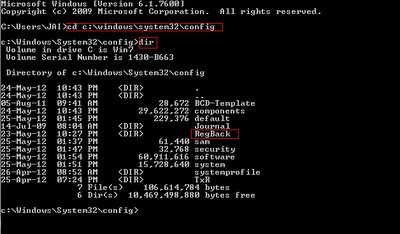
3. Type the following commands as follows and press Enter key after each.
- cd RegBack
- copy *.* c:WindowsSystem32config

4. If it ask for overwrite any existing files (y/n) > type Y and press Enter.
5. If all files were successfully copied message is displayed, type exit to leave the command prompt and restart Windows.
Finally, if you couldnt find RegBack folder; thinking that I was wasting your time.
GO AHEAD! - FORMAT YOUR PC! - INSTALL NEW OS!
But this is not the end for XP users. Read this Microsoft article on How to recover from a corrupted registry that prevents Windows XP from starting.
Overall, the above choice is my best advice rather than editing registry files directly.
Note: If you are still interested in editing those registry files, read my post on STOP: c0000135 error - Solved using Registry Editor.
But this is not the end for XP users. Read this Microsoft article on How to recover from a corrupted registry that prevents Windows XP from starting.
Overall, the above choice is my best advice rather than editing registry files directly.
Note: If you are still interested in editing those registry files, read my post on STOP: c0000135 error - Solved using Registry Editor.
Available link for download

Wednesday, January 25, 2017
Program
Program

Program | Run Command |
Accessibility Controls | access.cpl |
Accessibility Wizard | accwiz |
Add Hardware Wizard | hdwwiz.cpl |
Add/Remove Programs | appwiz.cpl |
Administrative Tools | control admintools |
Adobe Acrobat ( if installed ) | acrobat |
Adobe Distiller ( if installed ) | acrodist |
Adobe ImageReady ( if installed ) | imageready |
Adobe Photoshop ( if installed ) | photoshop |
Automatic Updates | wuaucpl.cpl |
Basic Media Player | mplay32 |
Bluetooth Transfer Wizard | fsquirt |
Calculator | calc |
Ccleaner ( if installed ) | ccleaner |
C: Drive | c: |
Certificate Manager | cdrtmgr.msc |
Character Map | charmap |
Check Disk Utility | chkdsk |
Chrome ( if installed ) | chrome |
Clipboard Viewer | clipbrd |
Command Prompt | cmd |
Command Prompt | command |
Component Services | dcomcnfg |
Computer Management | compmgmt.msc |
Compare Files | comp |
Control Panel | control |
Create a shared folder Wizard | shrpubw |
Date and Time Properties | timedate.cpl |
DDE Shares | ddeshare |
Device Manager | devmgmt.msc |
Direct X Control Panel ( if installed ) | directx.cpl |
Direct X Troubleshooter | dxdiag |
Disk Cleanup Utility | cleanmgr |
Disk Defragment | dfrg.msc |
Disk Partition Manager | diskmgmt.msc |
Display Properties | control desktop |
Display Properties | desk.cpl |
Display Properties (w/Appearance Tab Preselected ) | control color |
Dr. Watson System Troubleshooting Utility | drwtsn32 |
Driver Verifier Utility | verifier |
Ethereal ( if installed ) | ethereal |
Event Viewer | eventvwr.msc |
Files and Settings
Read more »
Available link for download
Wednesday, December 7, 2016RunAsDate v1 20 Run a Program with Date Time you SpecifyRunAsDate v1 20 Run a Program with Date Time you SpecifyRunAsDate V 1.20 - Run a Program with Date/Time you SpecifyRunAsDate is a small utility that allows you to run a program in the date and time that you specify. This utility doesnt change the current system date and time of your computer, but it only injects the date/time that you specify into the desired application. You can run multiple applications simultaneously, each application works with different date and time, while the real date/time of your system continues to run normally.. RunAsDate intercepts the kernel API calls that returns the current date and time (GetSystemTime, GetLocalTime, GetSystemTimeAsFileTime), and replaces the current date/time with the date/time that you specify. DOWNLOAD (x86 - 32 bit ) (x64 - 64 bit) Tags: run app with any date mentioned ; specified ; change date and time of program for running back of time or ahead of time Available link for download
Friday, October 21, 2016How to program Nodemcu with Arduino IDEHow to program Nodemcu with Arduino IDEHello friends , today we are going to see how to use Arduino IDE to program NodeMCU it is very intresting , let us see... In order to use this Nodemcu with Arduino IDE you should install Arduino IDE from the Website Arduino.cc Firstly open the Arduino IDE Go to files and click on the preference in the Arduino IDE  copy the below code in the Additional boards Manager http://arduino.esp8266.com/stable/package_esp8266c... click OK to close the preference Tab.  After completing the above steps , go to Tools and board, and then select board Manager  Navigate to esp8266 by esp8266 community and install the software for Arduino. Once all the above process been completed we are read to program our esp8266 with Arduino IDE.  For this example I have used NodeMCU esp8266 and if you are using any other vendor wifi chips or generic wifi module please check with the esp8266 Pin mapping which is very essential to make things works. The reason why I used D7 pin for this example is , I uploaded the basic blink program that comes with the examples program in the arduino IDE which is connected with 13 pin of arduino. The 13th pin is mapped into D7 pin of NodeMCU. go to board and select the type of esp8266 you are using. and select the correct COM port to run the program on your esp8266 device.
upload the program and see the results.... Welldone... its the time to play with it... carry on... Available link for download
Subscribe to:
Posts (Atom)
|