Showing posts with label virtual. Show all posts
Showing posts with label virtual. Show all posts
Monday, February 27, 2017
Tips Network setting in virtual machine
Tips Network setting in virtual machine
For Laptop user
When you are trying your hand on a new OS, it is always a good idea to test that OS in a virtual machine (vmware player, oracle vm virtualbox etc) rather than installing it on a hard drive. By doing so, you can not only save your time and effort but if somehow your OS crashes, due to some or the other reason, then you can re-install it easily. Virtual machine gives you a virtual environment, where you can install multiple OSes and test them easily. It also allows you to connect multiple virtual OSes in a network (every OS shown here represent different machine, that can communicate with each other via virtual ip address). If you have installed Kali Linux on virtual machine, then change the network setting to NAT mode and your virtual OS will now act as wired virtual machine in LAN. But, if you want your virtual OS to connect wireless, then change your network setting to Bridge mode on your virtual machine and it will ask ssid and password to connect to your virtual network.
Available link for download

Thursday, October 20, 2016
How To Create a Virtual Hard Disk VHD in Windows 8
How To Create a Virtual Hard Disk VHD in Windows 8
Today Ill show you how to Create a Virtual Hard Disk in Windows 8...
Follow Steps given below to Create a Virtual Hard Disk (VHD):
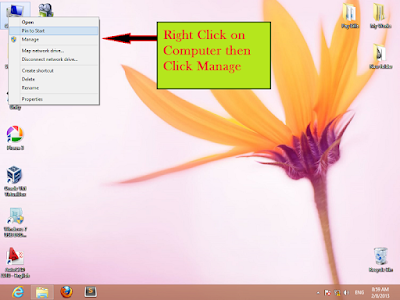
Step 1--> Right Click on the Computer Icon and Click on Manage from the Drop Down List.
NOTE:- You Must Have Administrative Privilages to Select Manage Option.
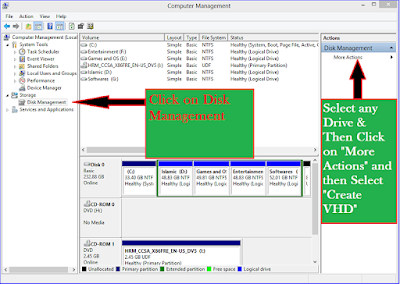
 Step 2--> Click on "Disk Management" and then select a drive and then Click on "More Actions" and then Select "Create VHD" from the dropdown list.
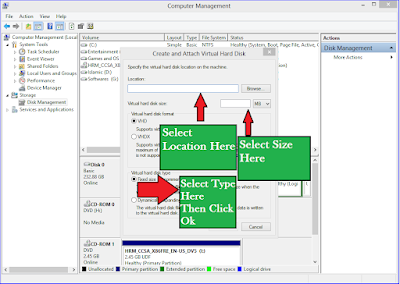
 Step 3--> Now Select "Location" for your VHD and its "Size" and "Type".
After Selecting these things Click "OK".
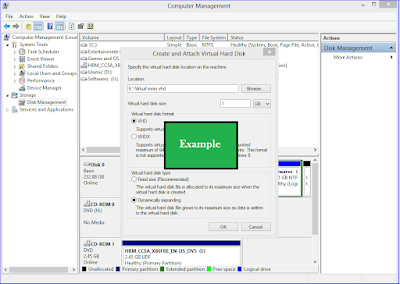
 Example-->
 Step 4--> Right Click on "Disk 1" and then Click on "Initialize Disk" from the Dropdown list.
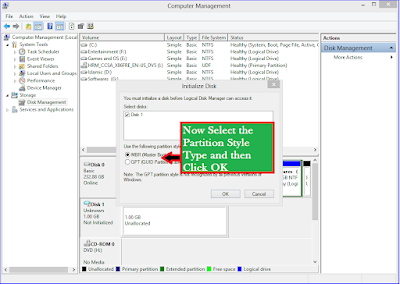
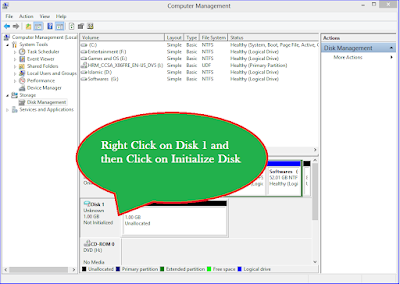 Step 5--> Select the Partition Style Type and then Click "OK".
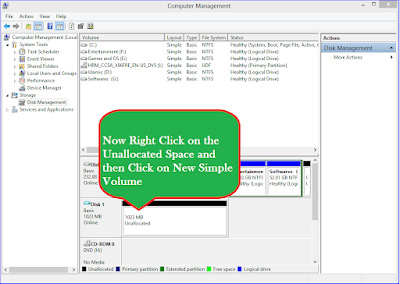
 Step 6--> Now Right Click on Unallocated Space and then click on "New Simple Volume" as shown in the Image.
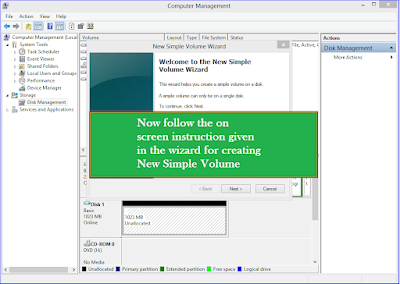
 Step 7--> Follow the On Screen Instructions given in the wizard for creating "New Simple Volume"
 After Successfully following the On Screen Instructions given in the Wizard you will be able to see your New Simple Volume in your Computer Folder as Shown in the Picture.
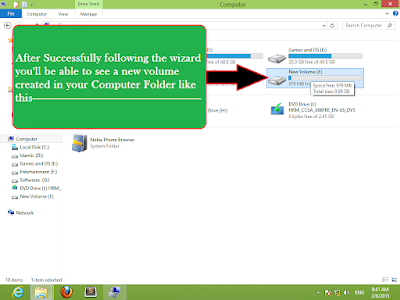
Enjoy...
Follow Steps given below to Create a Virtual Hard Disk (VHD):
Step 1--> Right Click on the Computer Icon and Click on Manage from the Drop Down List.
NOTE:- You Must Have Administrative Privilages to Select Manage Option.
After Selecting these things Click "OK".
Enjoy...
Available link for download
Subscribe to:
Posts (Atom)