Showing posts with label installing. Show all posts
Showing posts with label installing. Show all posts
Saturday, March 25, 2017
Installing Skype in Kali Linux
Installing Skype in Kali Linux
Before you proceed make sure that you run apt-get update from terminal. Check the necessary repository in sources.list file. For more please read this post.
STEPS:
1. Goto www.skype.com and click on Downloads.
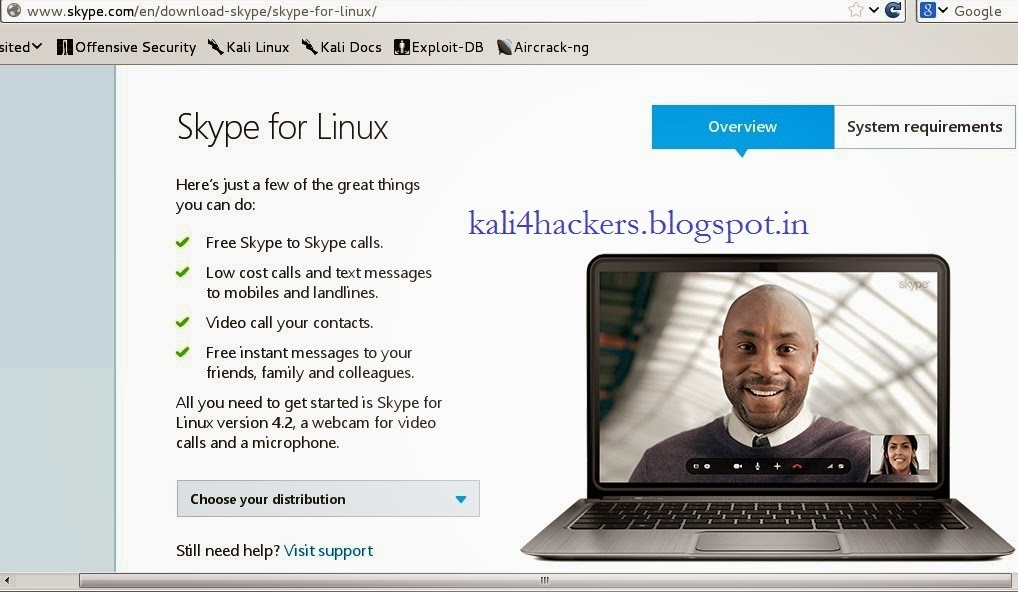
2. Being a Kali Linux user, select Choose your distribution as debian and click Save File to download.
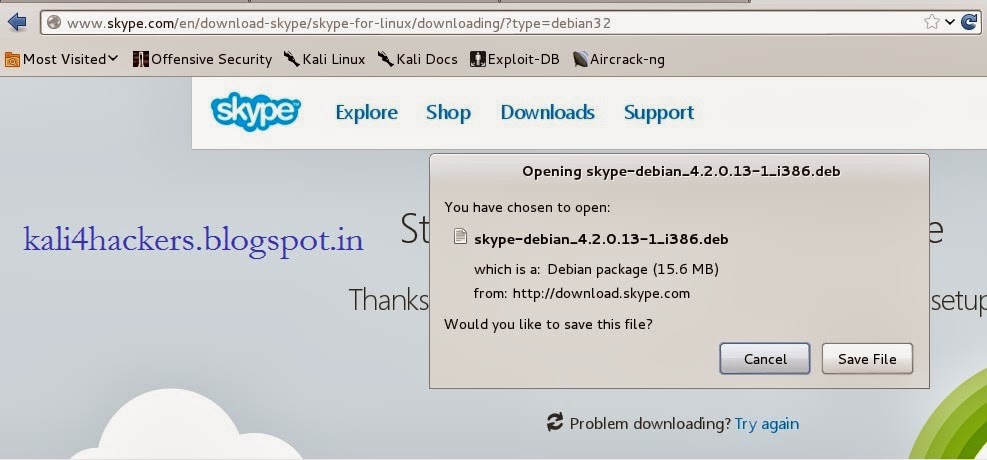
3. Open terminal and locate the downloaded file.
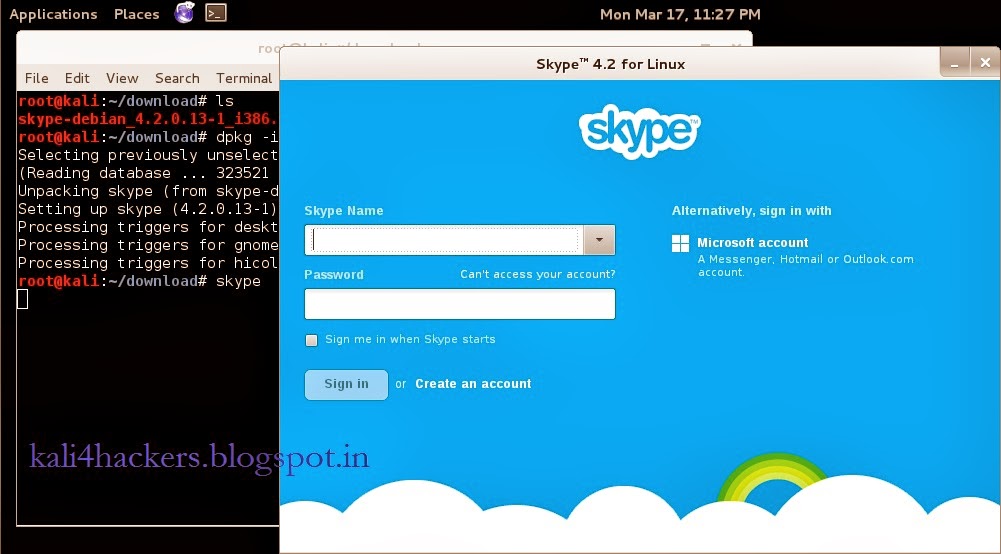
4. Run dkpg -i skype-debian_x.x.x.x_i386.deb (where x is the version of skype) to install the package.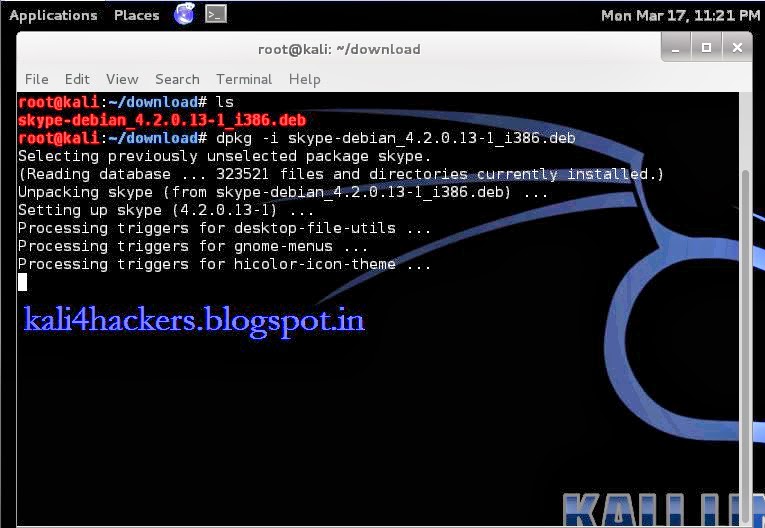
STEPS:
2. Being a Kali Linux user, select Choose your distribution as debian and click Save File to download.
3. Open terminal and locate the downloaded file.
4. Run dkpg -i skype-debian_x.x.x.x_i386.deb (where x is the version of skype) to install the package.
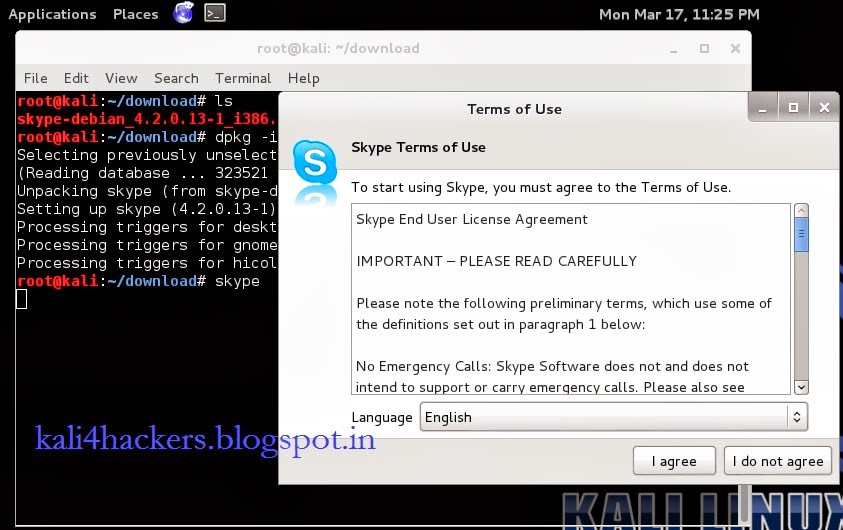
5. Type skype to run the program.
6. Accept License agreement.
Available link for download

Monday, February 27, 2017
unarc dll error while installing large application file
unarc dll error while installing large application file
[last Updated on 26th June, 2013]
Error 1:
"unarc.dll error" appears while installing/extracting large or highly compressed file especially for Game.
This error appears because you have only limited free space for installation/extraction even-though the installing application shows enough free space.
To avoid this error, you must have at least free space of 17.5GB in your drive where you want to install and run.
Info:
unarc.dll is used for decompression of files like installers, installer scripts, archives etc. This dynamic link library file is created along with the software/game application in order to decompress the software/game during installation in Windows based PC.
This procedure is similar to decompression of .rar files using winrar but quiet different.
For example: if you try to extract a .rar file of 2GB but the actual size is 4GB and you have only 3GB of space in your drive, then winrar displays a error message stating that "there is no space in drive" (or) Windows will displays a error message stating that "winrar encountered a problem/winrar.exe error".
The above example is very similar to unarc.dll error.
So [winrar.exe for eg] unarc.dll error will not appear if you have enough free space for installation/extraction and if still appears then you have to increase your free space.
This procedure is similar to decompression of .rar files using winrar but quiet different.
For example: if you try to extract a .rar file of 2GB but the actual size is 4GB and you have only 3GB of space in your drive, then winrar displays a error message stating that "there is no space in drive" (or) Windows will displays a error message stating that "winrar encountered a problem/winrar.exe error".
The above example is very similar to unarc.dll error.
So [winrar.exe for eg] unarc.dll error will not appear if you have enough free space for installation/extraction and if still appears then you have to increase your free space.
Error 2:
Unarc.dll also reflected as "an error occurred while unpacking: archive corrupted/unable to read data (decompression fails)! unarc.dll". Which is quite different from the above error.
This error occurs due to that the software/game setup has some corrupted installers, archives etc so that it cannot be extracted by unarc.dll.
The following codes indicate different issues based on your specs, OS type or even the setup file itself.
Code 1: "INVALID_FUNCTION" and your archive is corrupted
Code 2: "FILE_NOT_FOUND" (i.e) unarc cannot find the file specified
Code 3: "PATH_NOT_FOUND"
Code 5: "ACCESS_DENIED"
Code 6: "INVALID_HANDLE"
Code 7: "STORAGE_BLOCKS_WERE_DESTROYED"
Code 7: "STORAGE_BLOCKS_WERE_DESTROYED"
Code 11: "BAD_FORMAT"
Code 12: "INVALID_ACCESS"
Code 14: "OUT_OF_MEMORY"
To avoid this error, try to install the software/game with a new complete setup file which is genuine.
Note1: Dont install any ultra high compressed game.
Note2: Dont install any pirated game.
Note3: The downloaded iso image files of game from any torrent site may work 100% but not for all types of OS with different versions.
Available link for download
Friday, January 20, 2017
Tips Care while installing a software manually
Tips Care while installing a software manually
Installing a software manually on Linux platform is quite a difficult task, especially to those who comes from Windows platform. Its not like Windows where executable file is double clicked by the user and perform few next-next steps to complete a task. In Linux system, most of the downloaded softwares are manually configured through terminal (though Synaptic Package Manager, Ubuntu Software Center and others are GUI based package management tool for apt (Advance Packaging Tool) that not only checks the dependency of the software but also guides you how to install the software successfully). But, installing a software manually not only guides you but also allows you how to configure it on your own way. It makes you technically sound and allows you to know more about your Linux system. If you keep few things in mind the you could install a software easily and successfully.
Tips:
1. Once you download a software please check the online documentation of the software and read it carefully.
2. If somehow you miss the online documentation of the file, then please check README.txt or INSTALL.txt file/s in the software folder extracted to a specified location. README and INSTALL files itself guides you how to install, configure, set path variable, dependency and bug-fixes of the software.
3. If somehow installation fails, please check and read the error message carefully. Reading the error message or log file itself guides you to resolve the step on your own (to an extent).
4. (a) If you install the software successfully, do not forget to update and upgrade the system.
4. (a) If you install the software successfully, do not forget to update and upgrade the system.
(b) But, if you fail to install the software, then take a note of the error message or take a screen-shot (if possible) and then post it to a technically forum. Please give them a necessary idea of your problem so that technical team will assists you to resolve your problem quickly. And, if there is a serious problem in the software itself, then they will release its bug-fix.
Available link for download
Tuesday, January 10, 2017
Fixing Error Code 0x80073cf9 while Installing New Apps
Fixing Error Code 0x80073cf9 while Installing New Apps
Fixing Error Code 0x80073cf9 while Installing New Apps

Updates are always meant to fix issues that were left at the first place. However, the case titled above has quite a weird background. Amusingly, it never happened to appear before the release of updates. We cannot comment if it was occurred as a backlash or was implanted calculatedly. Anyhow, with a close observation we found this message to prompt the users with an error. “Something happened and this app couldn’t be installed. Please try again. Error code: 0x80073cf9”, with the options to Try again and Cancel install. The error message keeps displaying on trying again, until the install is canceled. As a rational fact, each system encountering this issue was recently mounted Windows 8 updates.
Fix 1:
1. go to c:/Windows
2.create new folder with name: AppReadiness
3. Delete the folder with name: AInstallAgent if this folder exist.
Then the apps are downloaded ok
this worked for me.
More Tricks
- The Fastest Way to Close All Running Programs in Windows
- 100+ Run Commands Lists
- Change Window 7 Password Without Knowing Current Password
- How to Lock a Folder in Windows 7/8/8.1
- The Fastest Way to Close All Running Programs in Windows
- 100+ Run Commands Lists
- Change Window 7 Password Without Knowing Current Password
- How to Lock a Folder in Windows 7/8/8.1
Available link for download
Wednesday, December 14, 2016
Installing Kali Linux A step by step instruction
Installing Kali Linux A step by step instruction
Kali Linux, ver.: 1.0.3
Prerequisites:
Prerequisites:
- Minimum 8 GB of HDD space to install Kali Linux
- For i386 or amd64 architecture, a minimum of 512 MB RAM (1024 MB RAM recommended)
- An ISO or VMWare image can be downloaded from Kali Linux site
Here, I am going to guide you step by step to install Kali Linux (ver. 1.0.2) in a virtual machine. Procedure of installation is very much similar to Backtrack.
Click on the above link to download Kali Linux. When you goto this link it will ask you to register, however registration is not mandatory to download Kali Linux. Either, you can register by giving your name or email address to receive information updates or simply you can skip this step and click on "No thanks, just want to download!". Depending on the type, you can customize your download in ISO or VMWare format. Click on "Download Kali". Once Kali Linux is downloaded you are ready to install it in a virtual machine. I am using VMWare Player version: 5.0.2 build-1031769 here.
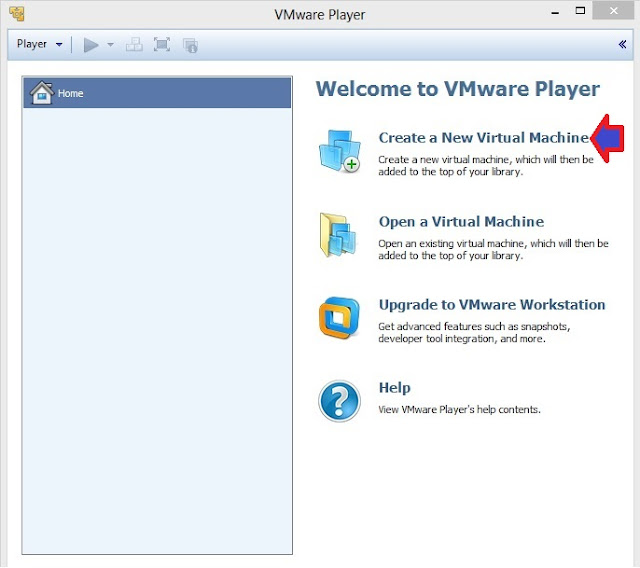
1. Open VMWare Player and click on Click a New Virtual Machine. It will open New Virtual Machine Wizard.
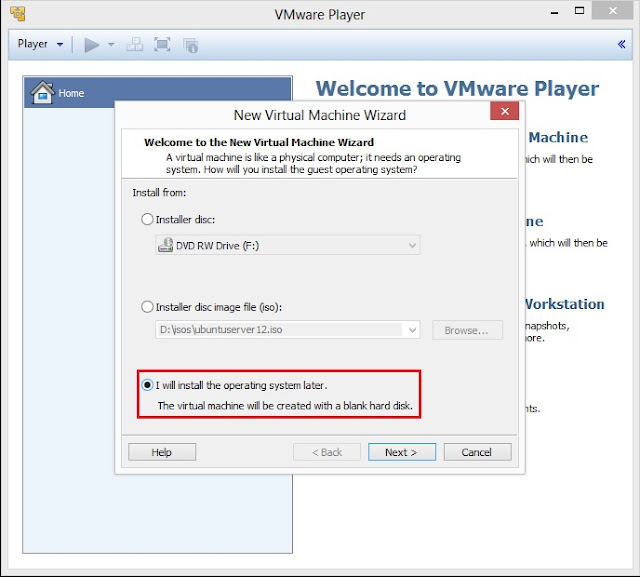
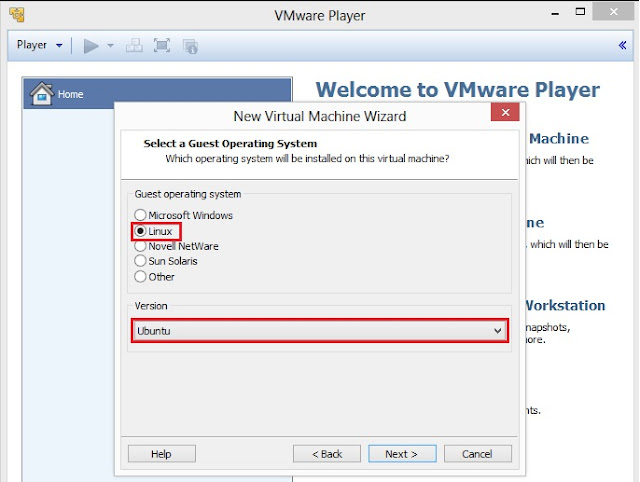
3. Select Guest operating system as Linux (kernel of Kali Linux is based on Linux) and then select Version as Ubuntu. Click on Next to goto next screen
4. Type Virtual machine name and specify the Location where you want install Kali Linux, however you can leave the default Virtual machine name and Location. Click on Next to proceed to the next screen
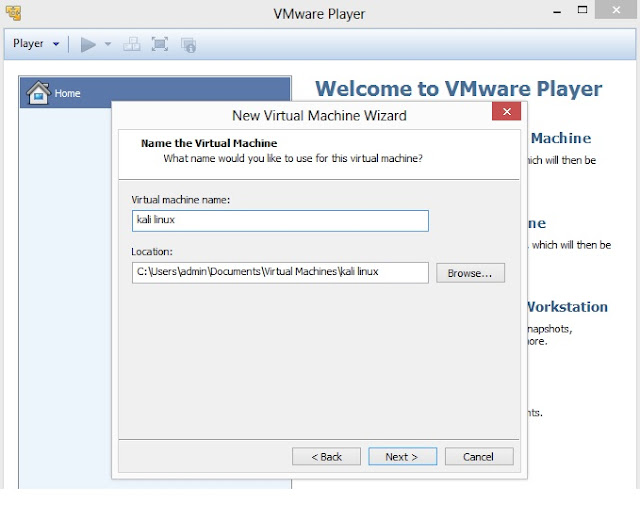
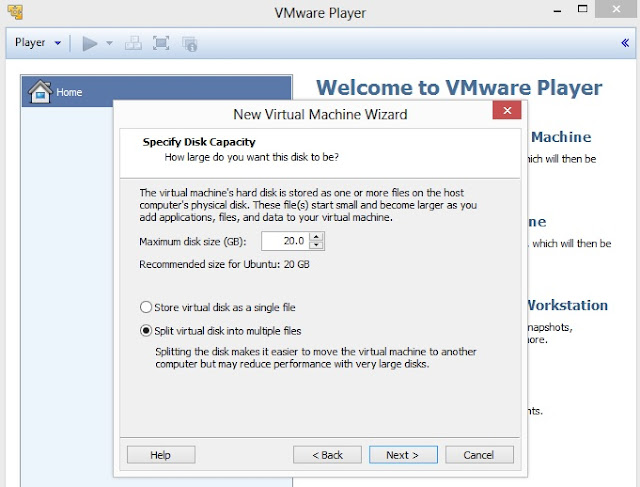
5. Specify Disk Capacity. Default is 20 GB. Select Split virtual disk into multiple files where file transfer is a major issue. Click on Next
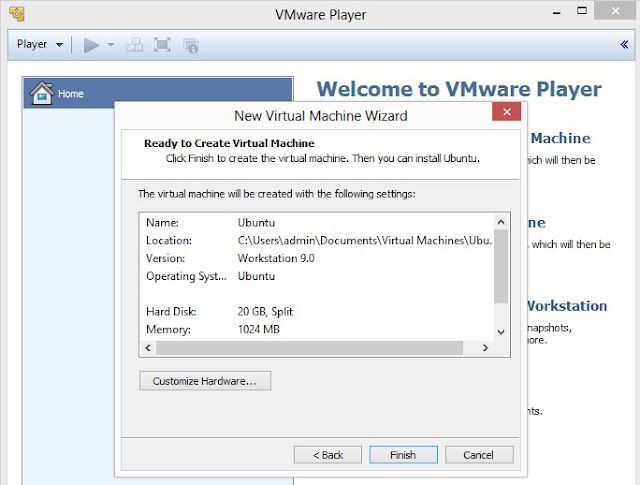
6. On this screen, either you can click on Customize Hardware to customize settings and then to goto step no. 8 or click on Finish to complete the process of creating virtual machine
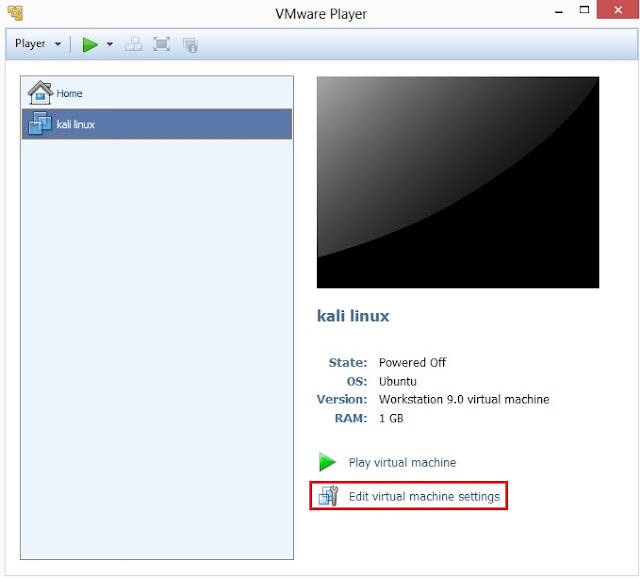
7. Click on Edit virtual machine settings
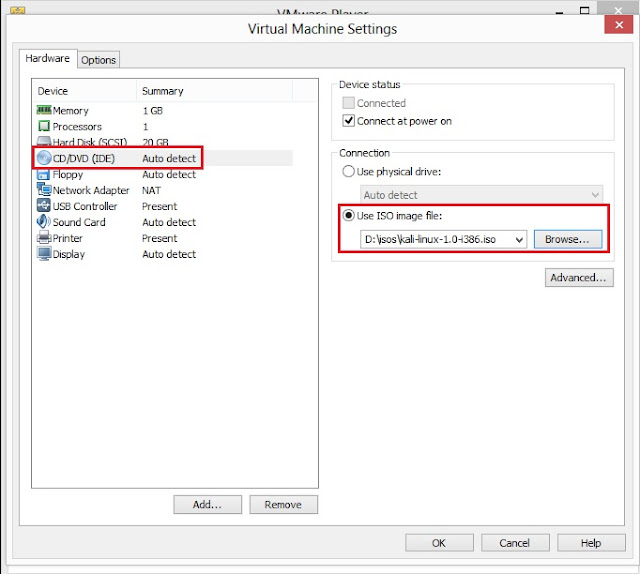
8. This is the screen where you can customize or edit your Hardware Settings. As mentioned above, the minimum system requirement is uni-processor of i386 or amd64 architecture processor, so click on
(a) Memory, to select minimum 1024 MB of RAM;
(b) Processors, as 1 or 2 (depending upon the processing speed) and Preferred mode as Automatic;
(c) Click on CD/DVD IDE. Now, on right hand panel you will Connection. It has two options:
Use physical drive- select this option if you have Kali Linux is in your CD or DVD drive; or
Use ISO image file- select this option if you have downloaded Kali Linux on your hard drive. Click on Browse to locate the ISO file
(d) Floppy drive is optional, as now a days most of the computers do not floppy drive
(e) Select NAT if you have network adapter for Internet
Other Hardware settings can be modified once installation process is completed. Now click on OK.
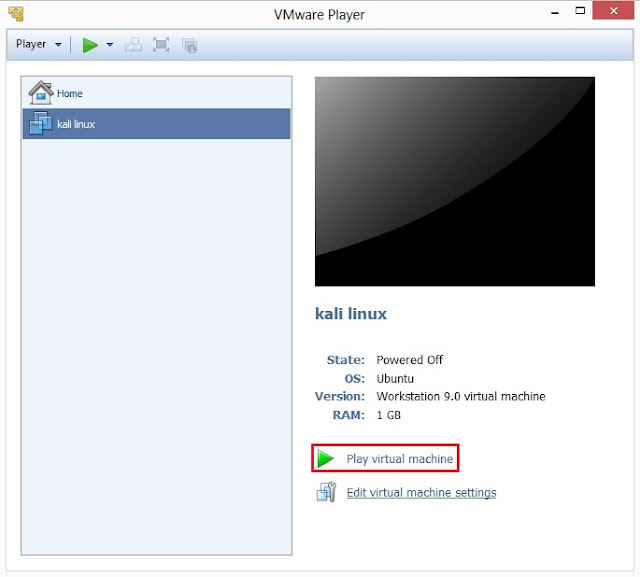
9. Select kali linux on left side panel screen and then click on Play virtual machine
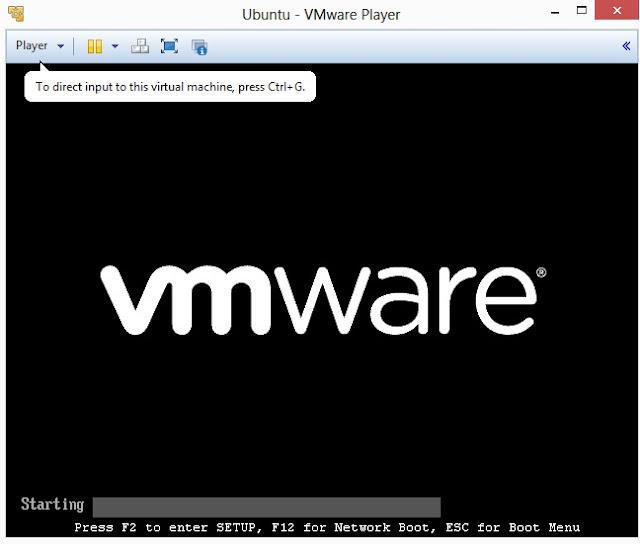
10 VMWare setup will startup
11. You will be greeted with Kali Linux boot screen. Choose either Graphical or Text-Mode install and press Enter to boot
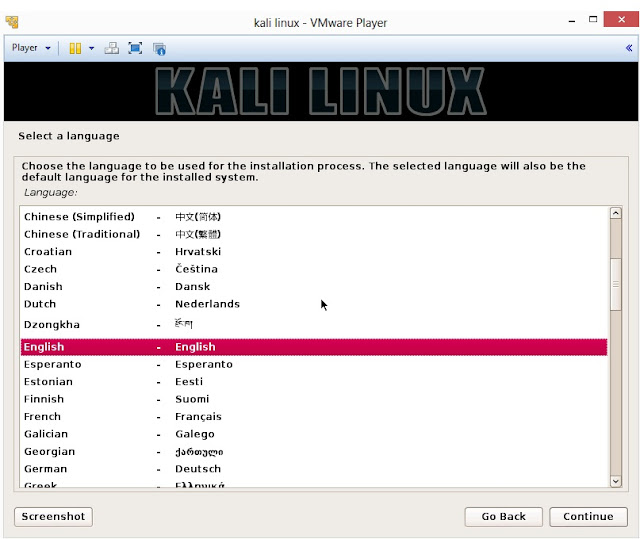
12. Select your preferred language and click on Continue
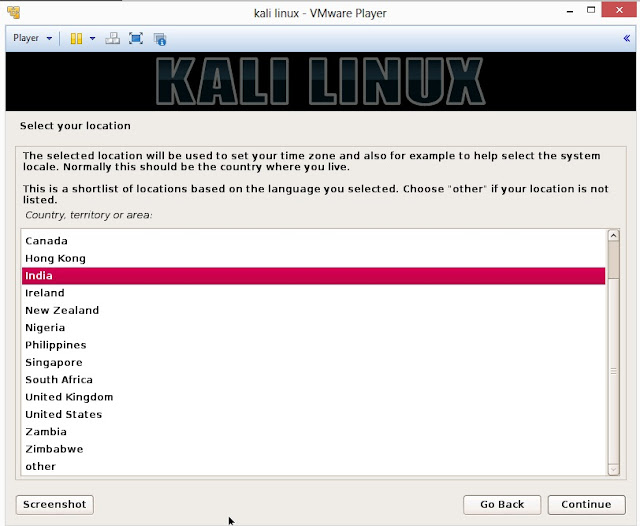
13. Select your location and click on Continue
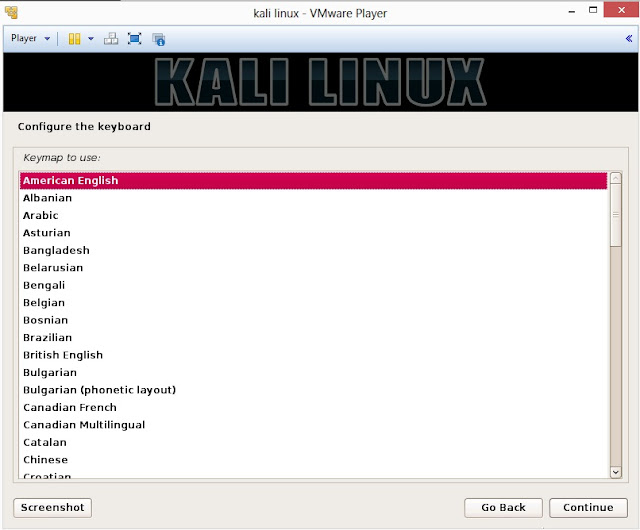
14. Select option to configure your keyboard and click on Continue
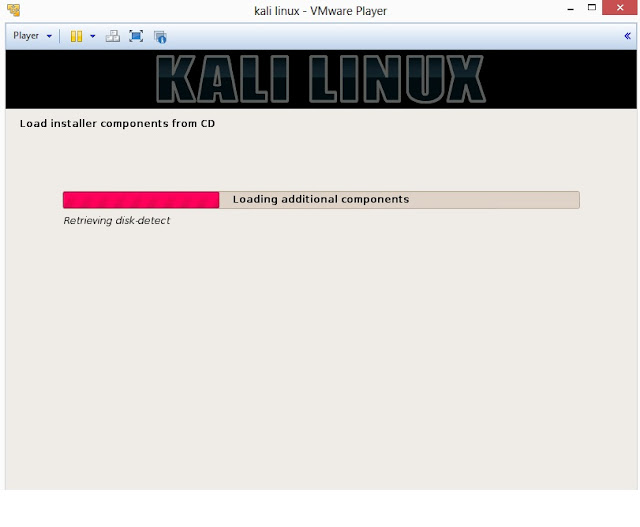
15. Once disc is detected by operating system, it will copy the image to your hard disk and probe your network interfaces
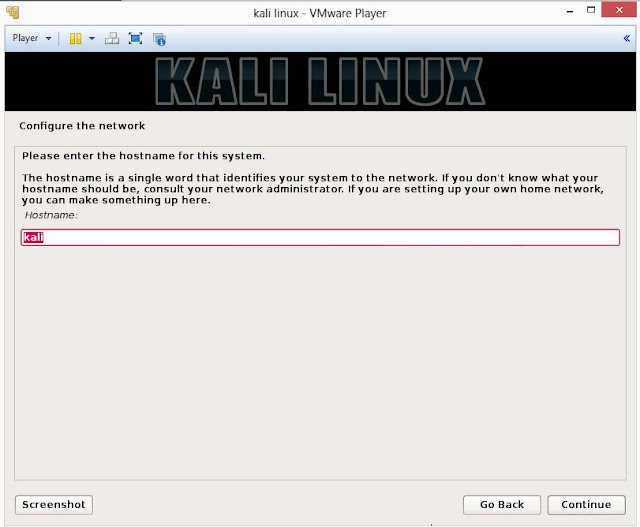
16. Enter hostname to configure your network and click on Continue
17. If you have a domain name, then enter here in the box. Make sure that you have a correct domain name. You can enter the domain name later and leave this box blank. Click on Continue

18. Enter robust password for your root account

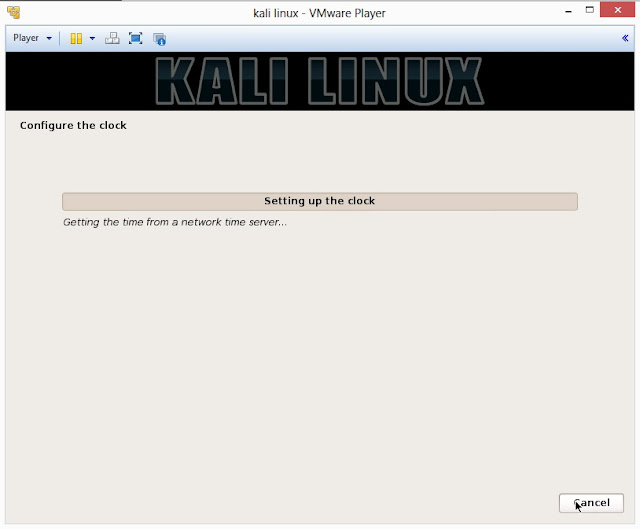
19. It will auto-detect time from network time server
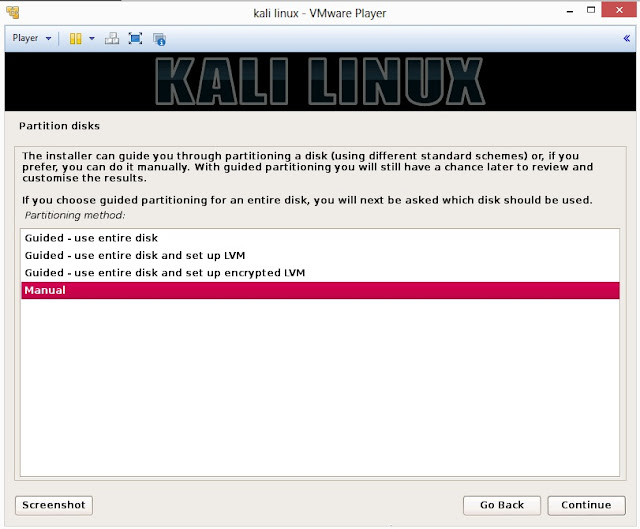
20. Installer will probe hard disk and offer you four choices of partitioning of disk. Beginner can select Guided- use entire disk however experienced user can setup partition as Manual
21. Below are the screenshots of manual partition. I have created three partitions
a. /boot (a partition from where your operating system will boot)
b. / (root partition for super user or admin)
c. swap (a portion where buffering is done)
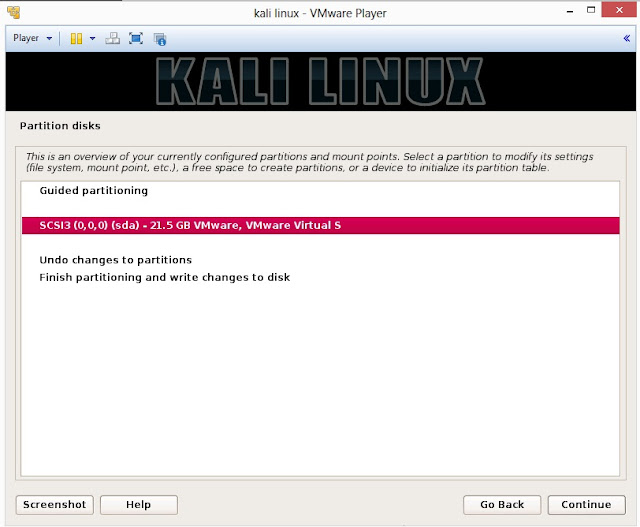
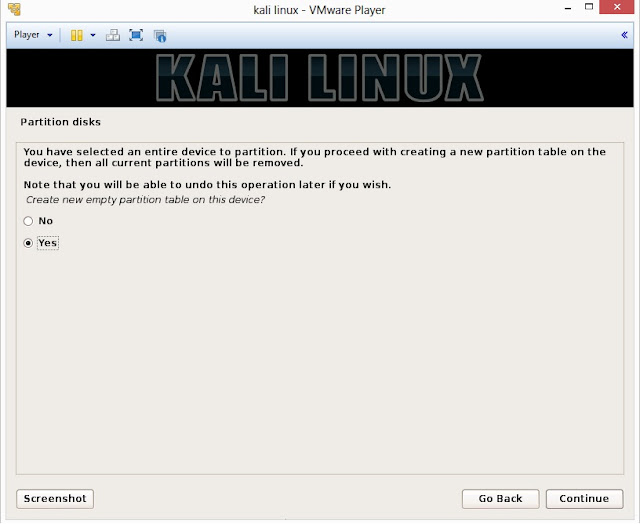
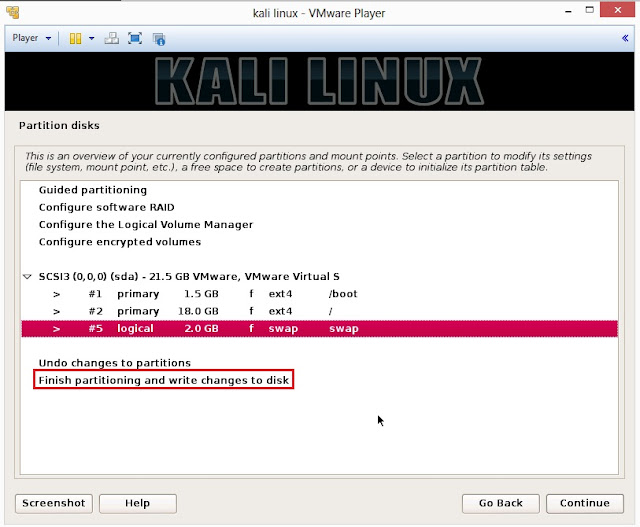
22. This is the screen where you’ll have last chance to review your disk configuration before the installer makes irreversible changes. After you click Continue, the installer will go to work and you’ll have an almost finished installation.
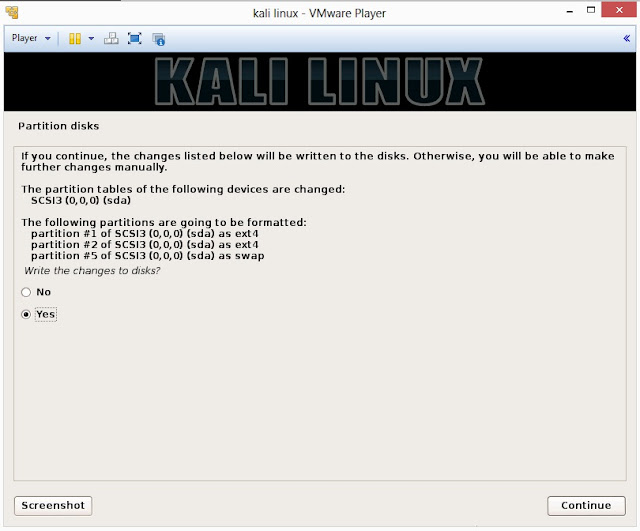
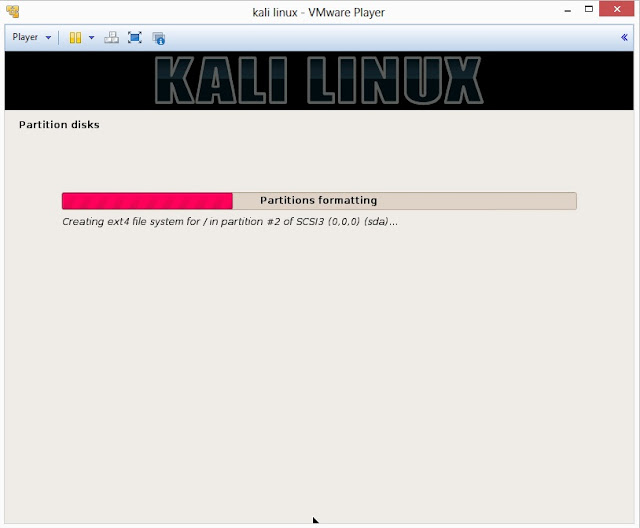
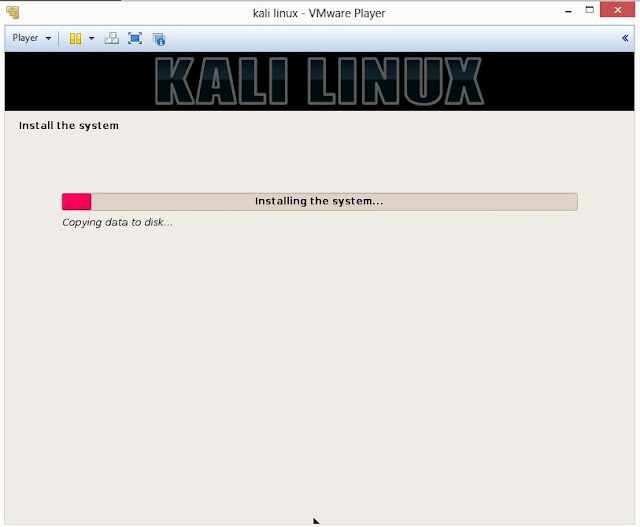
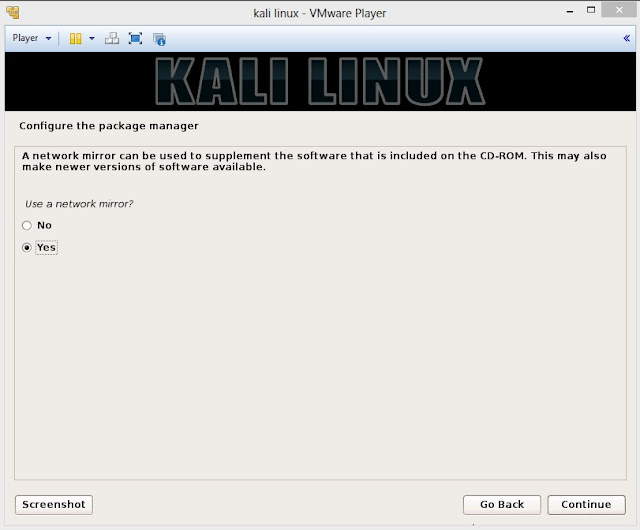
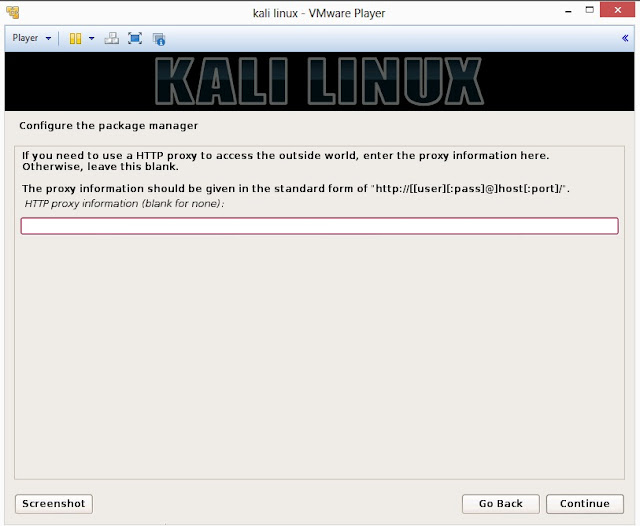
23. Configure network mirror to give additional software that is included on the CD-ROM
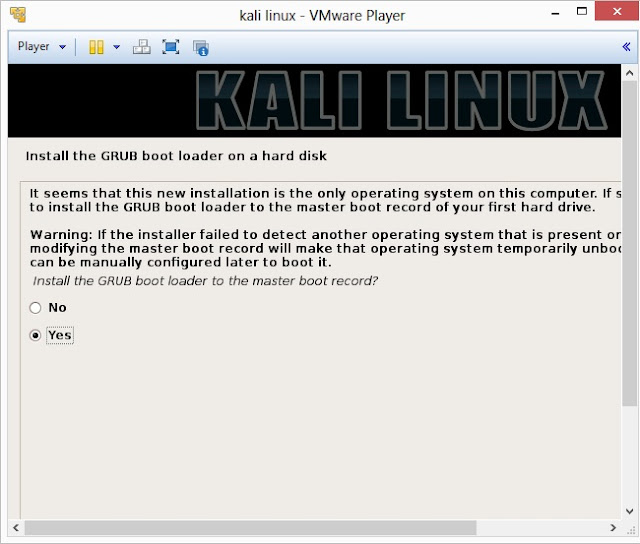
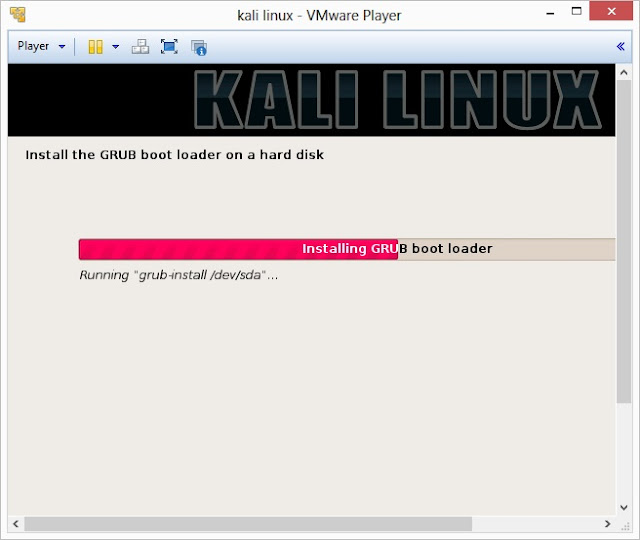
24. Install GRUB boot loader
25. Finally, click on Finish to reboot Kali Linux installation
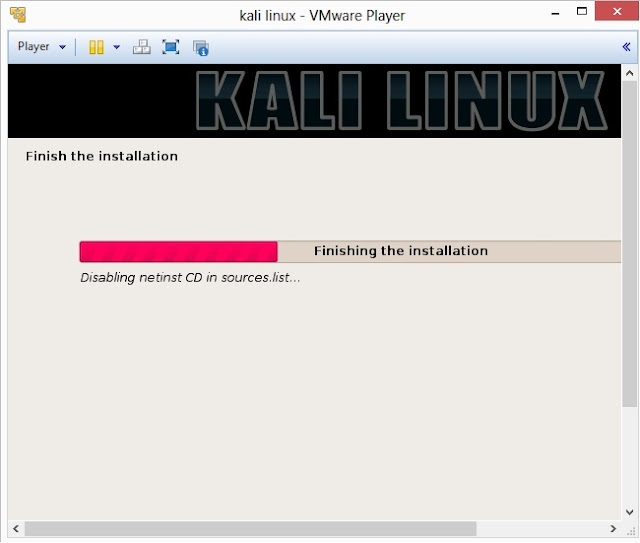
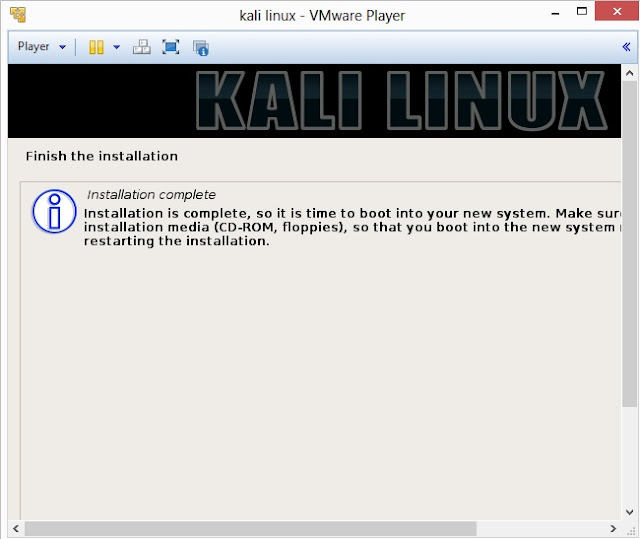
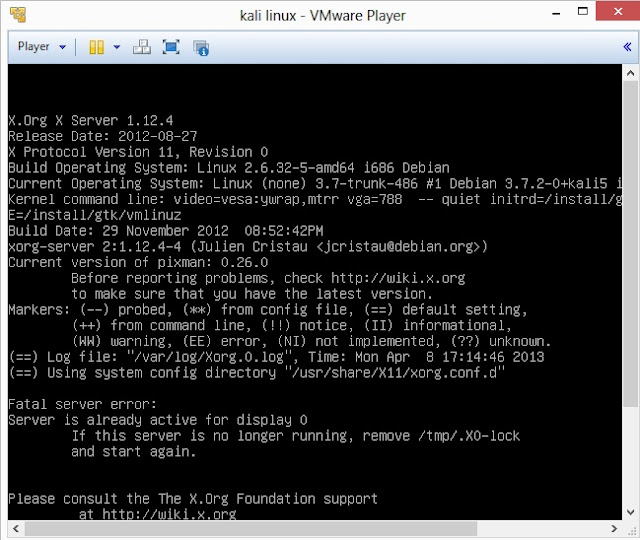
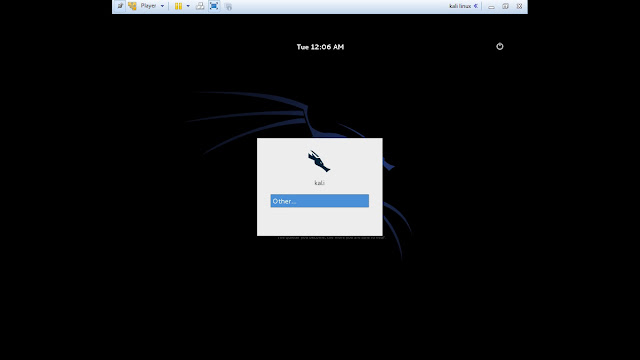
26. Login screen of Kali Linux
Available link for download
Saturday, October 29, 2016
Fix Windows cannot find IntegratedOffice exe error while installing Office 2013
Fix Windows cannot find IntegratedOffice exe error while installing Office 2013
Fix: Windows cannot find IntegratedOffice.exe error while installing Office 2013
 Most Windows computers have a copy of Microsoft Office installed on it. Today I was trying to install Office 2013 on one of my old computer running Windows 7. Everything was going smoothly until I came around the IntegratedOffice.exe error while installing this productivity suite on my Windows 7 machine. Following is the screenshot of the error which I was receiving continuously during the installation:
Read more »Available link for download
Subscribe to:
Posts (Atom)