Showing posts with label dual. Show all posts
Showing posts with label dual. Show all posts
Tuesday, March 7, 2017
Dual P Channel 30 V D S MOSFET FOR LAPTOP MOTHERBOARD
Dual P Channel 30 V D S MOSFET FOR LAPTOP MOTHERBOARD
P-Channel Dual MOSFET FOR LAPTOP MOTHERBOARD

SI7943DP Dual P-Channel 30-V D-S MOSFET 1 2 3 Vishay Siliconix
SI4953ADY Dual P-Channel 30-V D-S MOSFET 1 2 3 4 Vishay Siliconix
AF4901P Dual P-Channel 30-V D-S Common Drain MOSFET 1 2 3 Anachip Corp
SI4925BDY Dual P-Channel 30-V D-S MOSFET 1 2 3 4 5 More Vishay Siliconix
SI4923DY Dual P-Channel 30-V D-S MOSFET 1 2 3 4 5 Vishay Siliconix
SI7941DP Dual P-Channel 30-V D-S MOSFET 1 2 3 Vishay Siliconix
SI6991DQ Dual P-Channel 30-V D-S MOSFET 1 2 3 4 5 Vishay Siliconix
SI6543DQ Dual N- and P-Channel 30-V D-S MOSFET 1 2 3 4 5 More Vishay Siliconix
SI4947ADY Dual P-Channel 30-V D-S MOSFET 1 2 3 4 Vishay Siliconix
SI6993DQ Dual P-Channel 30-V D-S MOSFET 1 2 3 4 5 Vishay Siliconix
Available link for download

Thursday, January 5, 2017
Remove dual boot options or boot choice menu in Windows
Remove dual boot options or boot choice menu in Windows
If you have recently installed new operating system in a separate partition other than the default/previous partition then the boot choice menu appears even if you have format the previous operating system.

To remove this boot choice menu, enter into the newly installed operating system and click Start > Run > type msconfig and hit Enter.
For XP users:
Select Boot.INI tab > locate the last two lengthy lines if you have two boot choices and delete the unnecessary os.
If you do not know which line to delete, compare with the third line, if they are not same for some extent [eg disk(0)partition(1) in third line and disk(0)partition(2) in last line] then delete that last line.

For Vista/7 users:
Select Boot tab > select the previously installed os in the list box (for eg:Windows 7 Ultimate (D:windows)) and click Delete button.
Click Apply > OK and Restart the PC.

Warning! Do not delete the default/current os line, then you will never boot into the PC thereafter.
To remove this boot choice menu, enter into the newly installed operating system and click Start > Run > type msconfig and hit Enter.
For XP users:
Select Boot.INI tab > locate the last two lengthy lines if you have two boot choices and delete the unnecessary os.
If you do not know which line to delete, compare with the third line, if they are not same for some extent [eg disk(0)partition(1) in third line and disk(0)partition(2) in last line] then delete that last line.
For Vista/7 users:
Select Boot tab > select the previously installed os in the list box (for eg:Windows 7 Ultimate (D:windows)) and click Delete button.
Click Apply > OK and Restart the PC.
Warning! Do not delete the default/current os line, then you will never boot into the PC thereafter.
Available link for download
Sunday, November 20, 2016
DUAL n Channel mosfet list
DUAL n Channel mosfet list
 SQ1902EL Dual SC-70 N
SQ1912EEH Dual SC-70 N
SQ4282EY Dual SO-8 N
SQ4284EY Dual SO-8 N
SQ4330EY Dual SO-8 N
SQ4920EY Dual SO-8 N
SQ4936EY Dual SO-8 N
SQ4942EY Dual SO-8 N
SQ4946AEY Dual SO-8 N
SQ9945BEY Dual SO-8 N
SQJ844AEP Dual PowerPAK SO-8L N
SQJ844EP Dual PowerPAK SO-8L N
SQJ910AEP Dual PowerPAK SO-8L N
SQJ910EP Dual PowerPAK SO-8L N
SQJ912AEP Dual PowerPAK SO-8L N
SQJ912EP Dual PowerPAK SO-8L N
SQJ940EP Dual N PowerPAK SO-8L Dual Asymmetri N
SQJ942EP Dual N PowerPAK SO-8L Dual Asymmetri N
SQJ960EP Dual PowerPAK SO-8L N
SQJ962EP Dual PowerPAK SO-8L N
SQJ964EP Dual PowerPAK SO-8L N
SQJ968EP Dual PowerPAK SO-8L N
SQJ980AEP Dual PowerPAK SO-8L N
SQJ980EP Dual PowerPAK SO-8L N
SQJ992EP Dual PowerPAK SO-8L N
Available link for download
Sunday, October 16, 2016
Titanic 1997 BRRip 720p x264 Dual Audio Eng Hin
Titanic 1997 BRRip 720p x264 Dual Audio Eng Hin
Presenting Titanic (1997) - BRRip 720p x264 Dual Audio [English-Hindi]
 |
| Titanic 1997 BRRip 720p x264 Dual Audio Eng-Hin Direct Download |

Kate Winslet ... Rose DeWitt Bukater
Leonardo DiCaprio ... Jack Dawson
Frances Fisher ... Ruth Dewitt Bukater
Billy Zane ... Caledon Cal Hockley
Kathy Bates ... Molly Brown
Gloria Stuart ... Old Rose
Bill Paxton ... Brock Lovett
Bernard Hill ... Captain Smith
David Warner ... Spicer Lovejoy
Victor Garber ... Thomas Andrews
Jonathan Hyde ... Bruce Ismay
Suzy Amis ... Lizzy Calvert
Lewis Abernathy ... Lewis Bodine
Nicholas Cascone ... Bobby Buell
Danny Nucci ... Fabrizio
Jason Barry ... Tommy Ryan
Michael Ensign ... Benjamin Guggenheim
Lew Palter ... Isidore Strauss
Eric Braeden ... John Jacob Astor IV
Bernard Fox ... Col. Archibald Gracie
Ewan Stewart ... 1. Offizier William Murdoch
Ioan Gruffudd ... 5. Offizier Harold Lowe
Jonathan Phillips ... 2. Offizier Charles Lightoller
Edward Fletcher ... 6. Offizier James P. Moody
Scott G. Anderson ... Frederick Fleet
Martin East ... Reginald Lee
Gregory Cooke ... Jack Phillips
Alexandrea Owens ... Cora Cartmell
Seth Adkins ... Slowakischer Junge
Screen Shots:
Leonardo DiCaprio ... Jack Dawson
Frances Fisher ... Ruth Dewitt Bukater
Billy Zane ... Caledon Cal Hockley
Kathy Bates ... Molly Brown
Gloria Stuart ... Old Rose
Bill Paxton ... Brock Lovett
Bernard Hill ... Captain Smith
David Warner ... Spicer Lovejoy
Victor Garber ... Thomas Andrews
Jonathan Hyde ... Bruce Ismay
Suzy Amis ... Lizzy Calvert
Lewis Abernathy ... Lewis Bodine
Nicholas Cascone ... Bobby Buell
Danny Nucci ... Fabrizio
Jason Barry ... Tommy Ryan
Michael Ensign ... Benjamin Guggenheim
Lew Palter ... Isidore Strauss
Eric Braeden ... John Jacob Astor IV
Bernard Fox ... Col. Archibald Gracie
Ewan Stewart ... 1. Offizier William Murdoch
Ioan Gruffudd ... 5. Offizier Harold Lowe
Jonathan Phillips ... 2. Offizier Charles Lightoller
Edward Fletcher ... 6. Offizier James P. Moody
Scott G. Anderson ... Frederick Fleet
Martin East ... Reginald Lee
Gregory Cooke ... Jack Phillips
Alexandrea Owens ... Cora Cartmell
Seth Adkins ... Slowakischer Junge
Screen Shots:


Click here to download Full Movie <<---- TusFiles.net
or
Click here to download Only Sample Video
If you need support on how to download, then visit here
If you cant support us, dont worry heres direct link for you . . . Tusfiles.net
Tags: titanic, full movie, free download, direct download titanic, dual audio, hindi, english, Blu-Ray Rip, blurayrip, HD, high definition, high quality titanic movie download, fast free full movie titanic dual audio hindi english
Available link for download
Thursday, October 13, 2016
Dual Boot Windows 7 and OS X Snow Leopard Using Chameleon
Dual Boot Windows 7 and OS X Snow Leopard Using Chameleon
Posted by tonymacx86 on Thursday, November 26, 2009
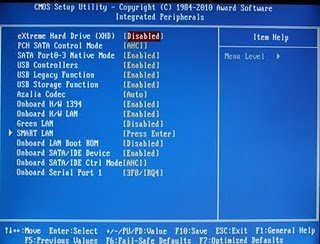
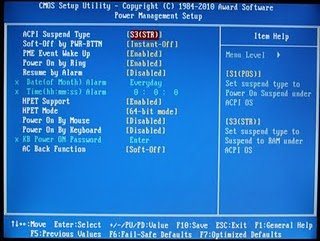
You will need to set your BIOS to ACHI mode and your Boot Priority to boot from CD-ROM first. This is the most important step, and one many people overlook. Make sure your bios settings match these. Its not difficult- the only thing I did on my Gigabyte board besides setting Boot Priority to CD/DVD first was set Optimized Defaults, change SATA to AHCI mode, and set HPET to 64-bit mode.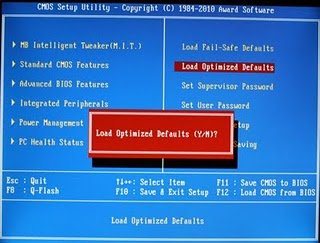
STEP 2: PARTITIONING HARD DRIVE
STEP 3: INSTALL SNOW LEOPARD
The next step is to install Snow Leopard to Partition 2.

(Modified by MACWIN to make it more simpler and comfortable on Nov 01,2011)
Using Chameleon as your bootloader, you can boot an infinite amount of operating systems on your PC. Its simple to use a separate hard drive for each operating system.
The following guide will show you how to put OS X Snow Leopard and Windows 7 on the same hard drive. You can then use Chameleon to select either Snow Leopard or Windows 7 at boot time. Its a bit trickier, as the Windows installer will set itself as the active partition automatically The latest MultiBeast will take care of choosing boot0hfs instead of boot0 to automatically boot from hfs partition, even if its inactive.
YOU WILL NEED
- A computer running an Intel Processor.
- A blank CD
- A Mac OS X Snow Leopard Retail DVD
- A Windows 7 Installation DVD (Retail/OEM)
- Its easy to get frustrated, but dont give up! There are a community of users with similar hardware in the tonymacx86 Forum to provide support if you get stuck.
BEFORE YOU BEGIN
- If you have greater than 4gb of RAM, remove the extra RAM for a maximum of 4gb. You can put back any extra RAM in after the installation process.
- Use only 1 graphics card in the 1st PCIe slot with 1 monitor plugged in.
- Remove any hard drives besides the blank drive being used for OS X.
- Remove any USB peripherals besides keyboard and mouse.
- Remove any PCI cards besides graphics- they may not be Mac compatible.
- If using a Gigabyte 1156 board, use the blue Intel SATA ports- not the white Gigabyte SATA ports.
- Its best to use an empty hard drive- you will have to partition and format the drive.
- Always back up any of your important data.
STEP 1: BIOS SETTINGS
You will need to set your BIOS to ACHI mode and your Boot Priority to boot from CD-ROM first. This is the most important step, and one many people overlook. Make sure your bios settings match these. Its not difficult- the only thing I did on my Gigabyte board besides setting Boot Priority to CD/DVD first was set Optimized Defaults, change SATA to AHCI mode, and set HPET to 64-bit mode.
STEP 2: PARTITIONING HARD DRIVE
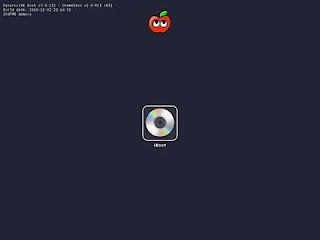
In order to boot the Mac OS X Retail DVD, youll need to download and burn iBoot. For desktops and laptops using unsupported Intel CPUs and graphics, a legacy version of iBoot can be downloaded here. (HP Users Use Legacy iBoot or Boot with CPUS=1) Download iBoot
- Burn the image to CD
- Place iBoot in CD/DVD drive
- Restart computer
- Boot to iBoot CD and then eject iBoot
- Insert your Mac OS X Snow Leopard Retail DVD and press F5
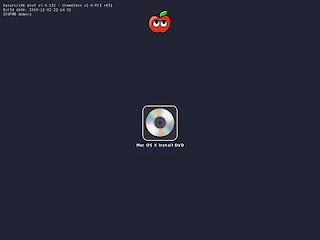
- When you see the screen below, press enter to begin the boot process
- When you get to the installation screen, open Utilities/Disk Utility. NOTE: If you cannot get to the installation screen, retry from Step 4, type PCIRootUID=1 before hitting enter. If that doesnt work then try PCIRootUID=1 -x or just -x which will enter Mac OS X Safe Mode and will allow you to proceed.
8. If you have unsupported Graphics Card boot with –X . { E.g. At Bootloader screen select OSX install Disk and hit Spacebar and type cpus=1 –x –v and hit enter. )
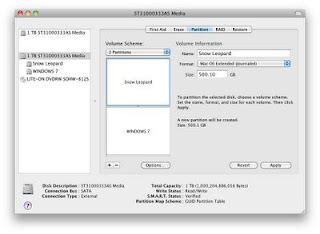
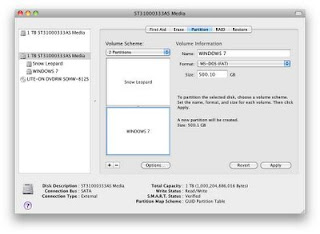
9. First thing to do is format and partition the hard drive. When you choose 2 partitions with a GUID Partition Table, OS X will format the drive with 3 partitions. Partition 1 is EFI, Partition 2 will be Snow Leopard and Partition 3 will be Windows 7. The EFI partition is a very small (200mb) hidden partition that holds the OS X bootloader and BIOS information on a real Mac.
10. Open Applications/Utilities/Disk Utility
1. Select your hard drive in the left column. Click the Partition tab
2. Under Volume Scheme: separate your hard drive into 2 Partitions. You can make them any size you want.
3. Click Options... choose GUID Partition Table, then click OK.
4. Click Untitled 1. Under Name:type Snow Leopard. Under Format: choose Mac OS Extended (Journaled).
5.
6. Click Untitled 2. Under Name: type Windows 7. Under Format: choose MSDOS (FAT).
7.
8. Click Apply and close Disk Utility.
9. Insert Windows 7 DVD in tray.
10. Unplug all hard drives except this one and reboot.
STEP 2: INSTALL WINDOWS 7
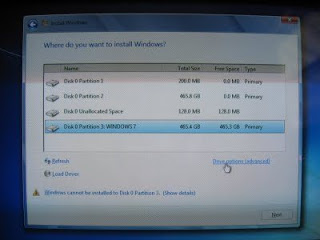
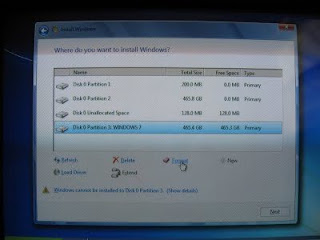
Now you will install Windows 7 to Partition 3. Youll have to reformat it to NTFS in the Windows 7 installer before Windows will let you install. We labeled it Windows 7 in the previous step.
Now you will install Windows 7 to Partition 3. Youll have to reformat it to NTFS in the Windows 7 installer before Windows will let you install. We labeled it Windows 7 in the previous step.
- Wait for Windows to begin installation process.
- Accept license agreement.
- At Which type of installation do you want, choose Custom (Advanced)
- At Where do you want to install Windows, choose Partition 3: Windows 7.
- Click Drive options (advanced).
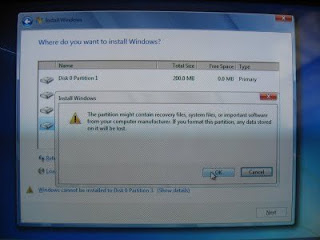
- Click format.
- Click OK.
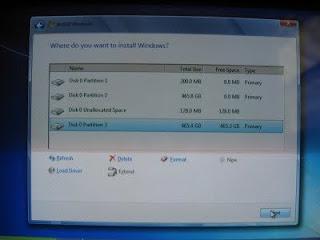
- Click Next.
At this point, Windows 7 will install to Partition 3. The installer will reboot the computer a few times- just leave it until you complete the installation process and see the Windows desktop.
STEP 3: INSTALL SNOW LEOPARD
The next step is to install Snow Leopard to Partition 2.
iBoot + MultiBeast- Install OS X on any Intel-based PC
1.Available link for download
Read more »
Subscribe to:
Posts (Atom)