Showing posts with label common. Show all posts
Showing posts with label common. Show all posts
Tuesday, December 20, 2016
How to Recover Windows 7 Password with 3 Common Methods
How to Recover Windows 7 Password with 3 Common Methods
Is it troublesome when you forgot Windows 7 password? What if you have created a password hint or password reset disk in advance? Or What if you have another administrator account? In this post, I would like to show you 3 options to deal with forgotten Windows 7 password. With these options, forgotten windows 7 password will never be a problem.
Option 1: Try Windows Password Reset disk
Windows 7 provides the easiest method to recover forgotten 7 password by using “Password Reset Disk” which we have created it in past. We can create it through Windows User Accounts menu when we can open “Windows Control Panel”, Select “User Accounts” and then click the left pane “Create a password reset disk”.
That is also easy and only takes a few seconds. First you need to insert it into PC. At the login screen, you can see “Reset password” Option, follow the “Password Reset Wizard” tutorial to reset it. It will allow you to access your Windows 7 finally.
Tips: Definitely it is a good habit to create a password reset disk when set Windows 7 password. Who knows? We will need it someday. Many Windows users agree that it is one of the best way s to recover windows 7 password. Once it is completed, please put it in a safe place and make sure you can find it when you need it.
Option 2: Apply another Available Admin Account
But unlike Windows XP, the built-in Administrator account in Windows 7 is disabled or hidden by default. If you are able to log in your computer with other available administrative account, it’s quite easy for you to reset forgotten Windows 7 password as follows:
1. Type lusrmgr.msc in the Start search box and hit Enter to pop up the Local Users and Groups window.
2. Expand Users folder to display all the user accounts in the Windows 7 machine.
3. Right-click the account whose password you forgot and select Set Password.
4. Click Proceed to go on your operation.
5. Type and confirm your new password and click Ok.
Option 3: Get Windows Password Recovery Software
If you are unable to find your forgotten windows 7 password from the above methods then you can opt for Windows password recovery software. But which is the best solution when you need to break forgotten Windows 7 password? I have searched on the internet and found that Ophcrack, Offline NT Password & Registry Editor, PC Login Now, Kon-Boot, Cain & Abel and John the Ripper has been top 6 free windows password recovery program. Among them, Ophcrack is the most popular and also the fastest one to unlock Windows 7 password. By using LM hashes through rainbow tables, it can help you bypass forgotten win 7 password easily and quickly.
Unfortunately, on one hand, you can’t get Ophcrack to work unless you have basic password cracking skills. On the other hand, 100% password recovery rate is not guaranteed. In addition, it is no safe to use free password recovery program. So if you are computer newbie, you had better try easy-to-use windows password reset tool such as Windows Password Recovery Tool 3.0, Windows Password Key Professional, etc.

Here take “Windows Password Key Professional” for example. Normally, the program can easily reset the password to “Blank” with no -reformatting or installation. Do all of the job for you automatically. With it, you can reset lost passwords on all popular Windows platforms. No need of any computer skills of the forgotten Windows password; No need to ask help form others. You can solve it by yourself with this powerful tool. No matter how complicated the password is. Here I would like to give you a detailed guide on how to operate it.
How-to Guide:
(1): Get Windows Password Key Professional from www.lostwindowspassword.com and then run it on any pc except the locked one.
(2): Insert a blank CD/DVD to burn a password reset disc. Next start the burning process by click “Burn CD/DVD” button.
(3): Set this PC boot from CD/DVD in BIOS after you insert the burned password reset disc to the target PC.
(4): Start this tool with password reset disc and reset the password after a few clicks.
Note: You can try to bypass forgotten Windows 7 password with Windows Password Key Professional as well. However you should not use it to hack someone else’s pc as it is illegal. You can only hack your own pc. Other it will bring you some trouble.
Summary:
You may hear this old saying for many times: Every coin has two sides. As a result all of these ways have its pros and cons. So make certain that you apply the appropriate way according to your own situation.
At last, you probably won’t forget your Windows 7 password, but you may well need to help a friend or you family. So just share these ideas with them.
Other Hot Topics on Windows 7 Password
Maybe you just need to recover, reset or break Windows 7 password, not to bypass win 7 password. Here I would like to share some helpful posts with you.
1. How to Break Windows 7 Password?
2. How to Reset Windows 7 Password with USB?
3. How to Reset Windows 7 Password from Command Prompt?
Source: http://www.zippasswordcracker.net/recover-windows-7-password.html
Option 1: Try Windows Password Reset disk
Windows 7 provides the easiest method to recover forgotten 7 password by using “Password Reset Disk” which we have created it in past. We can create it through Windows User Accounts menu when we can open “Windows Control Panel”, Select “User Accounts” and then click the left pane “Create a password reset disk”.
That is also easy and only takes a few seconds. First you need to insert it into PC. At the login screen, you can see “Reset password” Option, follow the “Password Reset Wizard” tutorial to reset it. It will allow you to access your Windows 7 finally.
Tips: Definitely it is a good habit to create a password reset disk when set Windows 7 password. Who knows? We will need it someday. Many Windows users agree that it is one of the best way s to recover windows 7 password. Once it is completed, please put it in a safe place and make sure you can find it when you need it.
Option 2: Apply another Available Admin Account
But unlike Windows XP, the built-in Administrator account in Windows 7 is disabled or hidden by default. If you are able to log in your computer with other available administrative account, it’s quite easy for you to reset forgotten Windows 7 password as follows:
1. Type lusrmgr.msc in the Start search box and hit Enter to pop up the Local Users and Groups window.
2. Expand Users folder to display all the user accounts in the Windows 7 machine.
3. Right-click the account whose password you forgot and select Set Password.
4. Click Proceed to go on your operation.
5. Type and confirm your new password and click Ok.
Option 3: Get Windows Password Recovery Software
If you are unable to find your forgotten windows 7 password from the above methods then you can opt for Windows password recovery software. But which is the best solution when you need to break forgotten Windows 7 password? I have searched on the internet and found that Ophcrack, Offline NT Password & Registry Editor, PC Login Now, Kon-Boot, Cain & Abel and John the Ripper has been top 6 free windows password recovery program. Among them, Ophcrack is the most popular and also the fastest one to unlock Windows 7 password. By using LM hashes through rainbow tables, it can help you bypass forgotten win 7 password easily and quickly.
Unfortunately, on one hand, you can’t get Ophcrack to work unless you have basic password cracking skills. On the other hand, 100% password recovery rate is not guaranteed. In addition, it is no safe to use free password recovery program. So if you are computer newbie, you had better try easy-to-use windows password reset tool such as Windows Password Recovery Tool 3.0, Windows Password Key Professional, etc.
Here take “Windows Password Key Professional” for example. Normally, the program can easily reset the password to “Blank” with no -reformatting or installation. Do all of the job for you automatically. With it, you can reset lost passwords on all popular Windows platforms. No need of any computer skills of the forgotten Windows password; No need to ask help form others. You can solve it by yourself with this powerful tool. No matter how complicated the password is. Here I would like to give you a detailed guide on how to operate it.
How-to Guide:
(1): Get Windows Password Key Professional from www.lostwindowspassword.com and then run it on any pc except the locked one.
(2): Insert a blank CD/DVD to burn a password reset disc. Next start the burning process by click “Burn CD/DVD” button.
(3): Set this PC boot from CD/DVD in BIOS after you insert the burned password reset disc to the target PC.
(4): Start this tool with password reset disc and reset the password after a few clicks.
Note: You can try to bypass forgotten Windows 7 password with Windows Password Key Professional as well. However you should not use it to hack someone else’s pc as it is illegal. You can only hack your own pc. Other it will bring you some trouble.
Summary:
You may hear this old saying for many times: Every coin has two sides. As a result all of these ways have its pros and cons. So make certain that you apply the appropriate way according to your own situation.
At last, you probably won’t forget your Windows 7 password, but you may well need to help a friend or you family. So just share these ideas with them.
Other Hot Topics on Windows 7 Password
Maybe you just need to recover, reset or break Windows 7 password, not to bypass win 7 password. Here I would like to share some helpful posts with you.
1. How to Break Windows 7 Password?
2. How to Reset Windows 7 Password with USB?
3. How to Reset Windows 7 Password from Command Prompt?
Source: http://www.zippasswordcracker.net/recover-windows-7-password.html
Available link for download

Saturday, December 17, 2016
Mac OS X Common problems Solved
Mac OS X Common problems Solved
Common Mac OS X problems solved
1. Persistent Beachball -Mac Pointer Hang

Quite often, Mac pointer turns into a spinning beach ball while your Mac keep on doing the thinking. Occasionally it stays that way. Mostly with Browsers like Chrome
First, try pressing Cmd + . to cancel whatever process is running. If that has no effect, switch to Finder or another app (using Option+Tab) or from Dock, and carry on working. In case you choose to wait, the app will finish what its doing and give you its full attention.
First, try pressing Cmd + . to cancel whatever process is running. If that has no effect, switch to Finder or another app (using Option+Tab) or from Dock, and carry on working. In case you choose to wait, the app will finish what its doing and give you its full attention.
If youre convinced the application isnt going to recover, force it to quit by holding Option or by pressing Cmd+Option+Esc. Rarely, it refuses to die, or its windows may disappear while its Dock icon retains its open indicator.
Restarting your Mac will get rid of it, but could give a message saying the app failed to quit. Hold down the power button to force shutdown like you do for Windows :(
Restarting your Mac will get rid of it, but could give a message saying the app failed to quit. Hold down the power button to force shutdown like you do for Windows :(
You can also use a Unix command for this: run Terminal – found in Utilities within the Applications folder – and type sudo shutdown –h. Close other apps first to avoid losing data.
2. Deleting of File by Mistake
When you think youve mislaid an important file is to ask Spotlight. Press Cmd+[Space] to open the search bar, and type as much of the filename as you remember; pause after each letter to see what comes up.
If youve overwritten your work with a new file of the same name, or emptied the Trash, youve have a problem. if you have backed up Time Machine users you may be in luck, as Spotlight will find files that dont currently exist but have been backed up. The software is built into OS X 10.5 and later, and you only need is a USB or FireWire hard disk.
If you havent set it up yet, you may need a disk-recovery utility such as Data Rescue 2. This detects and restores deleted files as well as tackling more general disk problems.
Its wise to stop using the disk as soon as you realise youre missing something; the likelihood of rescuing a deleted file depends on whether new data has been saved over it.
If youve overwritten your work with a new file of the same name, or emptied the Trash, youve have a problem. if you have backed up Time Machine users you may be in luck, as Spotlight will find files that dont currently exist but have been backed up. The software is built into OS X 10.5 and later, and you only need is a USB or FireWire hard disk.
If you havent set it up yet, you may need a disk-recovery utility such as Data Rescue 2. This detects and restores deleted files as well as tackling more general disk problems.
Its wise to stop using the disk as soon as you realise youre missing something; the likelihood of rescuing a deleted file depends on whether new data has been saved over it.
3. Documents open in the wrong app
Although hardly a catastrophe, this can be an ongoing source of frustration. Yet its easy to fix once you know how. For example, when you download a JPEG file, double-clicking it will normally open Preview. But if you habitually use Photoshop to work with photos, Preview may be irrelevant.
To change this, select any JPEG and press Cmd+I (Get Info). Under Open with, select your preferred app, such as Photoshop, and click Change All. Confirm this and all JPEGs will always open in Photoshop.
This works for any combination of file type and compatible application. The files themselves arent changed; youre just altering the Mac OSs list of file associations.
To change this, select any JPEG and press Cmd+I (Get Info). Under Open with, select your preferred app, such as Photoshop, and click Change All. Confirm this and all JPEGs will always open in Photoshop.
This works for any combination of file type and compatible application. The files themselves arent changed; youre just altering the Mac OSs list of file associations.
4. Mac wont start
A total lack of response to the power button could mean a blown fuse in the plug, so check first. If its not completely dead, the Mac will do a power-on self-test (POST) as it boots up, and beep if it finds a fault. The power LED may flash too.One, two or three beeps points the finger at RAM modules (see here for more info). Try easing them into place, in case theyve become unseated. Your manual will tell you how to get at the RAM, or go to www.apple.com/support and search for install memory and your Macs model name.
Four and five beeps indicate problems with the system ROM or processor, while the Air also has an SOS code consisting of three short, three long and then three short beeps. If you hear these, seek professional Mac help.
5. Mac Kernel panic
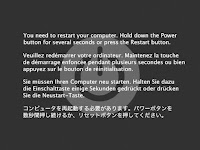
When the OS crashes it can only bow out with the message You need to restart your computer. This is a kernel panic. Its rare and, thankfully, often fixed by restarting.
If not, try unplugging all add-ons from your Mac and restarting. Internal upgrades – including dodgy RAM – can provoke kernel panics, as can devices such as USB hubs. Another possibility is that a system file has become corrupted.
Restart while holding x; if this works, go to System Preferences, click Startup Disk and ensure the correct disk is selected. Or, restart holding down Option, releasing it when icons appear; youll be asked which disk to start up from. Or zap the PRAM (see the tip above).
If none of those work, perhaps youve moved, renamed or deleted a system file. Reversing this may sort it out – or not.
The last resort is to reinstall Mac OS X. Start up from your Macs OS X DVD, run the installer and choose Archive and Install. Youll need to reinstall your apps, though.
If not, try unplugging all add-ons from your Mac and restarting. Internal upgrades – including dodgy RAM – can provoke kernel panics, as can devices such as USB hubs. Another possibility is that a system file has become corrupted.
Restart while holding x; if this works, go to System Preferences, click Startup Disk and ensure the correct disk is selected. Or, restart holding down Option, releasing it when icons appear; youll be asked which disk to start up from. Or zap the PRAM (see the tip above).
If none of those work, perhaps youve moved, renamed or deleted a system file. Reversing this may sort it out – or not.
The last resort is to reinstall Mac OS X. Start up from your Macs OS X DVD, run the installer and choose Archive and Install. Youll need to reinstall your apps, though.
Available link for download
Monday, October 17, 2016
Transistor Configurations Common Base Collector Emitter
Transistor Configurations Common Base Collector Emitter
There are three basic circuit configurations that can be used with transistors.
Known as common emitter, common base and common collector, these three circuit configurations have different attributes.
When designing a transistor circuit it is necessary to adopt the transistor circuit configuration that will provide the required attributes.
Transistor configuration basics
The terminology used for denoting the three basic transistor configurations indicates the transistor terminal that is common to both input and output circuits. This gives rise to the three terms: common base, common collector and common emitter.
The term grounded, i.e. grounded base, grounded collector and grounded emitter may also be used on occasions because the common element signal is normally grounded.
The three different transistor configurations are:
- Common base: This transistor configuration provides a low input impedance while offering a high output impedance. Although the voltage is high, the current gain is low and the overall power gain is also low when compared to the other transistor configurations available. The other salient feature of this configuration is that the input and output are in phase.

Common base transistor configuration
As can be seen from the diagram, in this transistor configuration, the base electrode is common to both input and output circuits. - Common collector: This transistor configuration is also known as the emitter follower because the emitter voltage follows that of the base. Offering a high input impedance and a low output impedance it is widely used as a buffer. The voltage gain is unity, although current gain is high. The input and output signals are in phase.

Common collector transistor configuration
As can be seen from the diagram, in this transistor configuration, the collector electrode is common to both input and output circuits. - Common emitter: This transistor configuration is probably the most widely used. The circuit provides a medium input and output impedance levels. Both current and voltage gain can be described as medium, but the output is the inverse of the input, i.e. 180° phase change. This provides a good overall performance and as such it is often thought of as the most widely used configuration.

Common emitter transistor configuration
As can be seen from the diagram, in this transistor configuration, the emitter electrode is common to both input and output circuits.
Transistor circuit configuration summary table
The table below gives a summary of the major properties of the different transistor configurations.
| TRANSISTOR CONFIGURATION SUMMARY TABLE | |||
|---|---|---|---|
| TRANSISTOR CONFIGURATION | COMMON BASE | COMMON COLLECTOR (EMITTER FOLLOWER) | COMMON EMITTER |
| Voltage gain | High | Low | Medium |
| Current gain | Low | High | Medium |
| Power gain | Low | Medium | High |
| Input / output phase relationship | 0° | 0° | 180° |
| Input resistance | Low | High | Medium |
| Output resistance | High | Low | Medium |
The choice of the transistor configuration which is most applicable will depend upon many characteristics. Input impedance, output impedance, gain and also the phase relationships all have a bearing.

Source : http://www.radio-electronics.com/info/circuits/transistor/circuit-configurations.php
Available link for download
Subscribe to:
Posts (Atom)