Showing posts with label like. Show all posts
Showing posts with label like. Show all posts
Thursday, December 22, 2016
How to Write Attractive Content Like An Attractive Girl
How to Write Attractive Content Like An Attractive Girl
How to Write Attractive Content Like An Attractive Girl
For a successful online business, quality of a content matters a lot. It is considered as the backbone of your online business. If you have a great content on your website, it will boost SEO ranking and traffic. Now we will break down some tips for creating a good content.

Original Content
Content should be written in such a way that it looks unusual. The material of content should be based on originality. If you copy the contents of others, it has a very bad impact on your website and Google also punish you for this. You should have a complete knowledge about the topic you are writing for your website. if you rehash the posts of other people again and again, it will not be original and there will be no link. So use your own words and knowledge and must focus on quality and originality of content. It wills gives you good return for years.
Piece of Real Writing
Your content should be a piece of real writing. Content should be in small paragraphs and carefully written with beginning, middle, and end. You content should be written in such a way that your first paragraph introduce your topic, middle to give complete information and the ending paragraph must summarize each point at the topic.
Headlines Should be Strong
Headlines are a very important part of content. It attracts the attention of your reader. If your headlines are attractive and strong, you can easily attract the reader. 80% of readers just read the headlines and decide whether they should read the material or not.
Actionable Content
A good content is that which can be easily actionable. While writing content, must keep in mind your reader. It should be written in such a way that the reader can understand that how to apply it and how to use the material you are offering them.
Accurate Information
For a good content, information should be accurate and detailed. Correct information builds the trust of your readers. If you are writing a content of your own site or for your company’s blog and you wrote any wrong information, it will be very harmful for you and your company and damage your reputation. Thousands of people read it so it must be based on accurate information. If your blog is based on any statistic information, it must be verified as blog is the reflection of your company.
Add videos and Images
The taste of your readers is different from each other. Some like to read and some like to see. So a good content is that which fulfills the desires of all the readers and they feel convenient and take interest to read your blogs. You can add pictures, videos and diagrams to demonstrate your points.
To the Point Content
A good content is that which is to the point and short. If content includes extra and too much long information, it will bore the reader and will be a waste of time and money. Mostly writers focus on the words count. It is not necessary that a long post is a good post. Reader prefer a post which is brief and to the point. No doubt, writing a short post is more difficult but it will be very fruitful for you.
Frequent Updates
World is changing too fast and people want change in every second. If you have a blog or website, you have to update it on regular basis. You have to post new articles on daily basis as the readers want innovation. If you don’t then the search engines will not favor your site.
Available link for download

Thursday, October 20, 2016
How to create MBR partition table on USB Flash drives like mp3 player
How to create MBR partition table on USB Flash drives like mp3 player
Creating MBR Partition table on USB flash drives like mp3 player, video player makes your audio and video files playable with your player. If your USB flash drives partition table is corrupted or partitioned with GPT/MSDOS/PC98 partition table, sometimes it makes all your files unplayable with your player and the player reports with File system Error or No valid file format. Using Disk Part Utility in MS Windows we can easily create the MBR Partition table.
Solution:
[Last updated on July 8, 2012]
DISKPART
LIST DISK
SELECT DISK 1 (here my flash drive disk no. is Disk 1)
4. Now you are leaving the Disk Part tool but Don’t close the command prompt as we need to execute two more commands at the next step. Just minimize it.
5. Next insert your Windows7/Vista DVD into the optical drive and check the drive letter of the DVD drive. Here my DVD drive letter is “G:” and USB drive letter is “H:”
6. Now type each cmd in command prompt and hit Enter key.
7. Now "All the file(s) were written successfully on the targeted volume" message will be displayed.
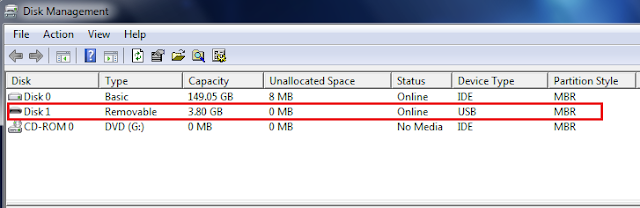
8. Finally your USB Flash drive was successfully partitioned with MBR partition table with NTFS file system. You can format to FAT32 filesystem if NTFS does not works.
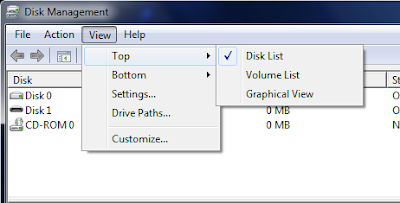
9. Now you can check this by opening Disk Management > Select View menu > Top > Disk List.
Note: Make sure that your USB Flash drive is not set to Read only mode. It may create an error while formatting the disk.
Solution:
[Last updated on July 8, 2012]
Requirements:
* USB Flash Drive (mp3/video player).
* USB Flash Drive (mp3/video player).
* Windows 7/Vista Setup DVD.
Method:
1. Backup all your data from USB Flash drive to your Hard disk.
Method:
1. Backup all your data from USB Flash drive to your Hard disk.
2. Open Command Prompt with administrator rights.
- Type cmd in Start menu search box and hit Ctrl+ Shift+ Enter. (Or)
- Go to Start menu > All programs > Accessories, right click on Command Prompt and select Run as administrator.
DISKPART
LIST DISK
SELECT DISK 1 (here my flash drive disk no. is Disk 1)
CLEAN
CREATE PARTITION PRIMARY
SELECT PARTITION 1
ACTIVE
FORMAT FS=NTFS (Format process may take few minutes)
ASSIGN
EXIT4. Now you are leaving the Disk Part tool but Don’t close the command prompt as we need to execute two more commands at the next step. Just minimize it.
5. Next insert your Windows7/Vista DVD into the optical drive and check the drive letter of the DVD drive. Here my DVD drive letter is “G:” and USB drive letter is “H:”
6. Now type each cmd in command prompt and hit Enter key.
G: CD BOOT
BOOTSECT.EXE /NT60 H:
7. Now "All the file(s) were written successfully on the targeted volume" message will be displayed.
8. Finally your USB Flash drive was successfully partitioned with MBR partition table with NTFS file system. You can format to FAT32 filesystem if NTFS does not works.
9. Now you can check this by opening Disk Management > Select View menu > Top > Disk List.
Note: Make sure that your USB Flash drive is not set to Read only mode. It may create an error while formatting the disk.
Available link for download
Subscribe to:
Posts (Atom)